
Let’s Personalize and Create Your Own Webpages!
Build beautifully branded pages that match your style and goals.
Step-by-step guidance to launch opt-ins, lead magnets & more—with ease.
Ready to take your business to the next level? With Diamond Marketing, you have the power to create and customize pre-loaded webpages, giving you a professional online presence that reflects your unique style and message.
Whether linking the pre-loaded pages in newsletters, sharing them on social media, or using them for in-person events, your webpages will be your new go-to tool for engaging and growing your audience. Let’s get started!
In this lesson, you’ll learn how to:
Easily edit pre-loaded pages to make them your own
Create brand-new pages that captivate and convert
Showcase your classes, products, and promotions
Where To Find Your Webpages:
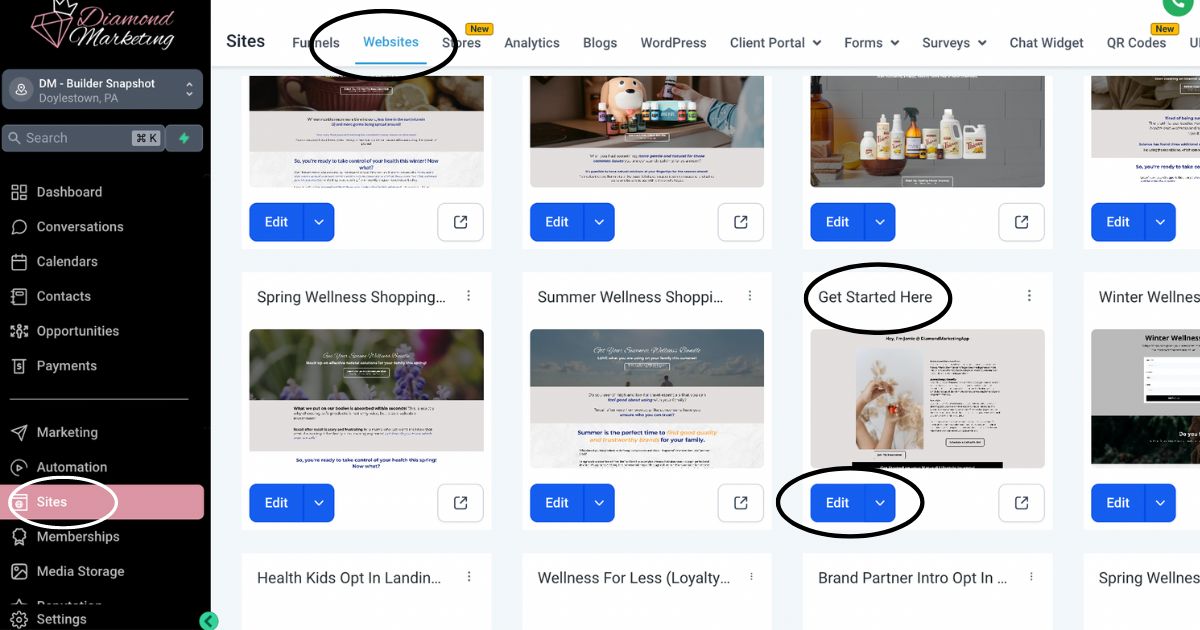
Head to the SITES Tab, then select Websites and go in your Landing Pages to find your pre-loaded webpages.
Select Edit to edit a landing page
We recommend personalizing the:
Get Started Here Page and setting up the Book-a-Call Page to get started with your webpages.
Complete List of Webpage Templates Included:
Your Brand-Specific Pages:
Your Get Started Here Page
Your Care Call Booking Page
Email Subscription Page
Class Opt-In Forms:
Winter Wellness Class
Spring Wellness Class
Summer Wellness Class
Fall Wellness Class
Clean Home Class
Oils 101 Class
Intro To Brand Partner Class
Join your Weekly Oil Tips
Healthy Kids & Oils Class
Safe Home Class
Wellness for Less (Loyalty Rewards) Class
Ditch the Candles Class
GROW YL Perks Class
Holiday Scents Class
Spring Cleaning Class
14-Day Reset Complete Guide Email and Daily Reminders
If you are on the Modern + Co Team: You also have these additional Opt-Ins for Annie's exclusive classes:
The Mentorship
Ningxia
Oils + Emotion
Inner Beauty Collagen
Shopping Pages:
Safe Home Shopping Page
Winter Wellness Shopping Page
Healthy Kids Shopping Page
Clean Home Shopping Page
Fall Wellness Shopping Page
Spring Wellness Shopping Page
Summer Wellness Shopping Page
Oils 101 Shopping Page
Wellness for Less (Loyalty Rewards) Shopping Page
Modern + Co Shopping Pages:If you are on the Modern + Co Team: You also have Shopping pages:
Ningxia
Oils + Emotion
Inner Beauty Collagen
Not on the M+Co Team and want one of these classes? Purchase them here. (these are one time purchases and you will have the classes for the life of your subscription)
The Lead-Magnet Pages:
Your In-Person/Vendor Event Lead Magnet
Your Zyto Link
12 Days of Holiday Deals + Gift Guide
Health Share Complete Guide Lead Magnet Email List
Your Referral Link
How to Edit/Personalize the Templates:
Edit Webpage Photos:
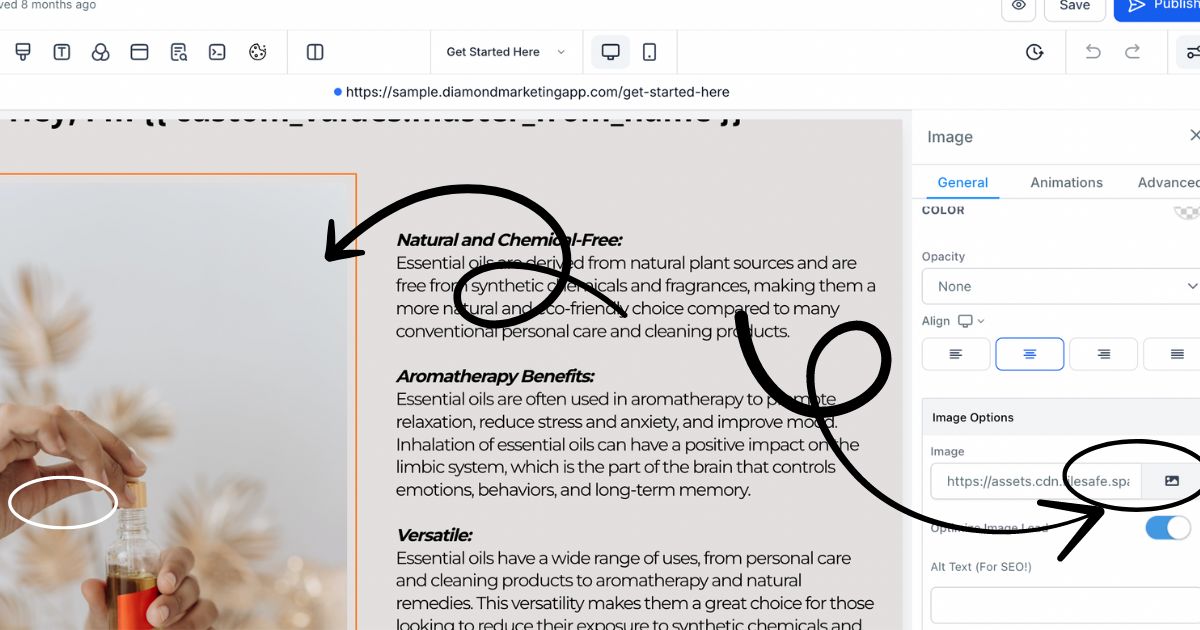
Select the photo
Click the photo icon under image options to replace the photo
Inside the Media Library:
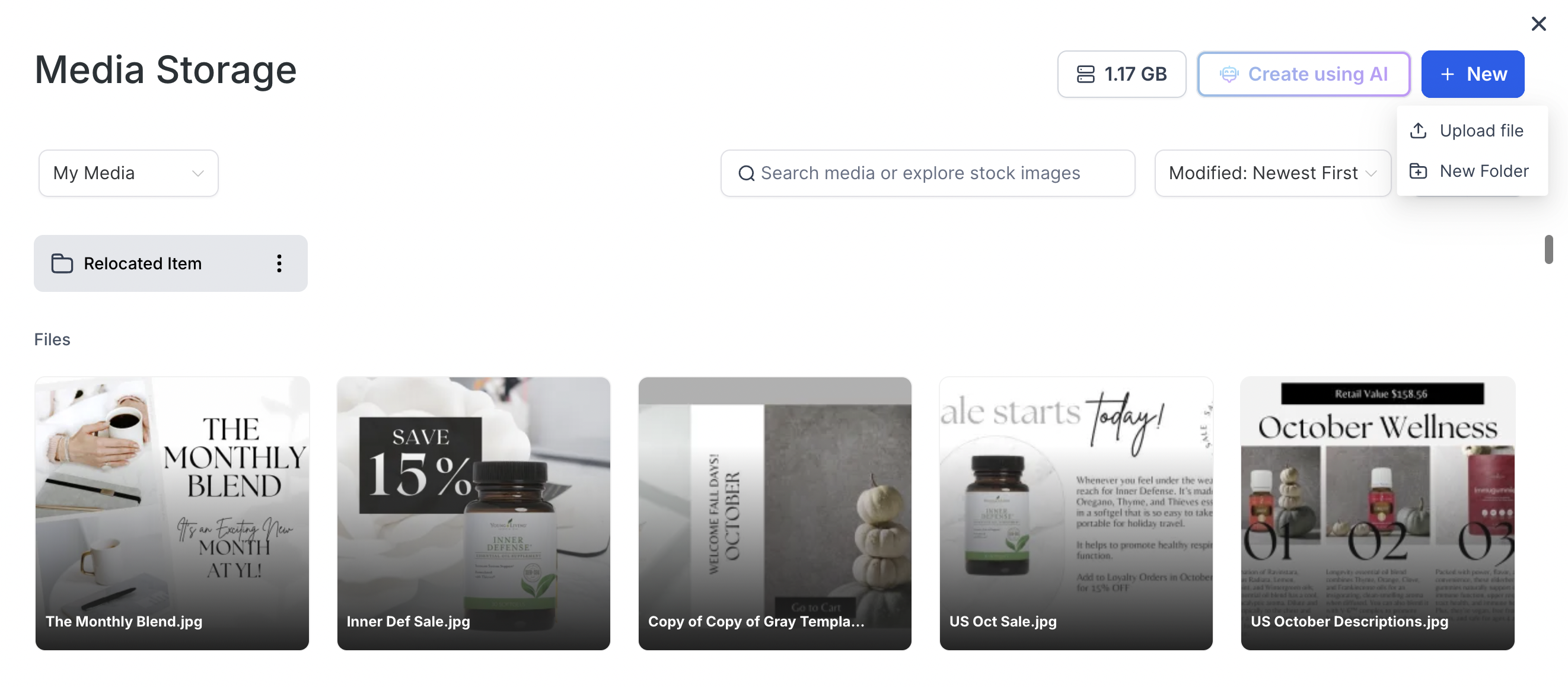
Select the photo you want to use
OR click upload to add a photo to your media library
Edit a Background Color:
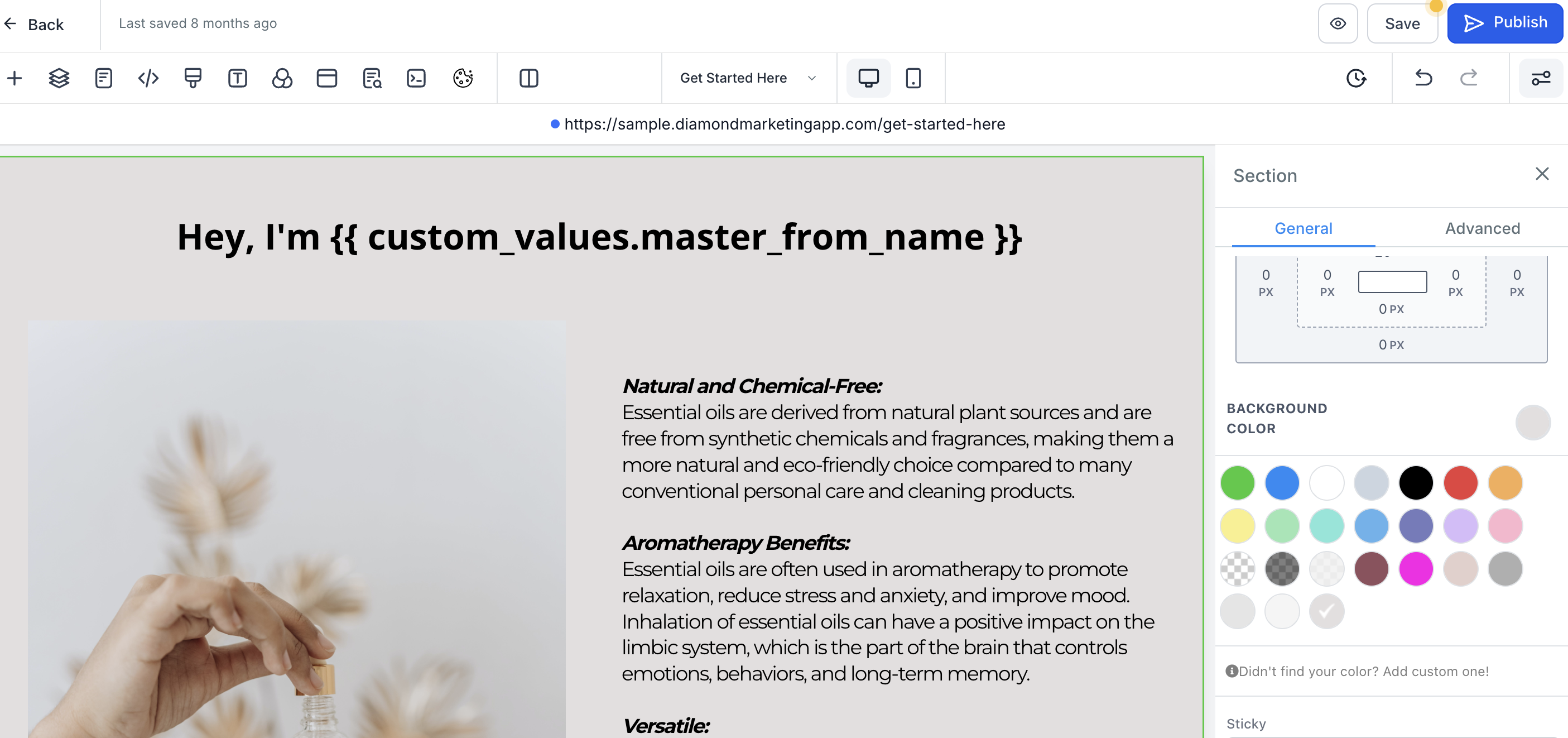
Highlight the element by clicking the box with the background (the green box is the element here)
Select the background color on the editing side
Add a Custom HEX Color:
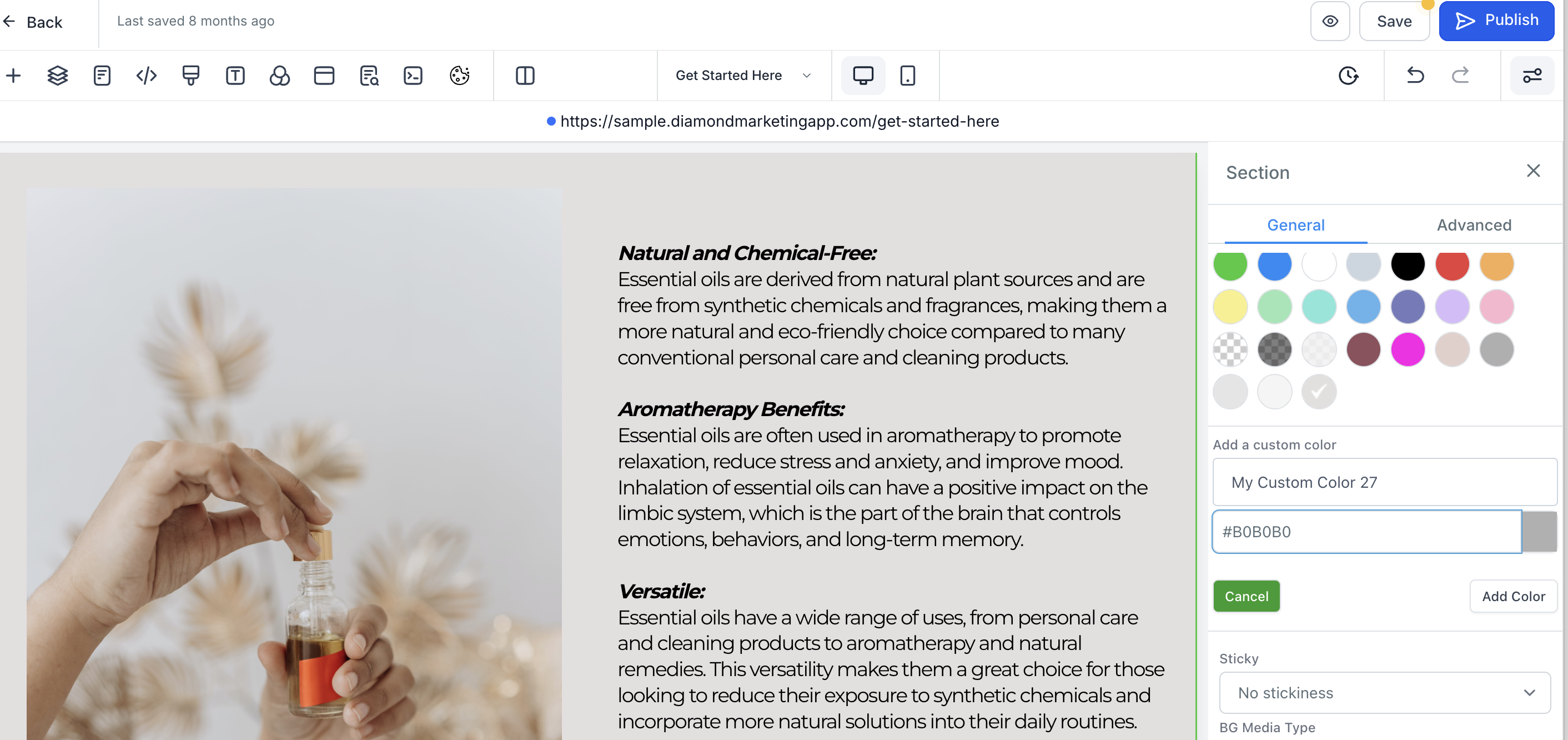
Select 'Didn't find your color? Add a custom one!'
Type in any HEX color code
Select add color
Edit Font:
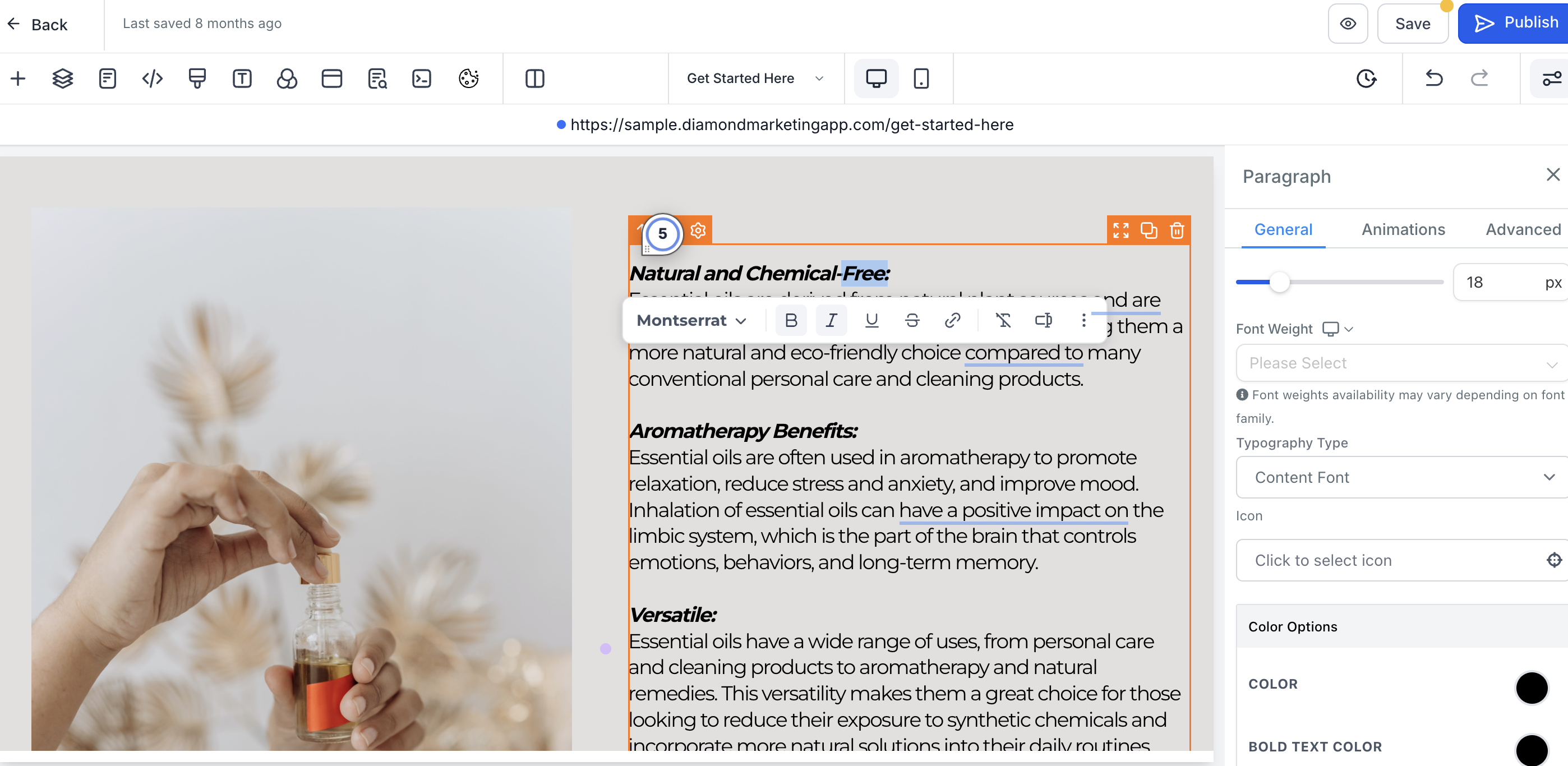
Edit wording right inside the element
Highlight the font for font edit buttons
Highlight words to add a style such as bold, italic, underline
Highlight the words to add a link
Changing Font Color:
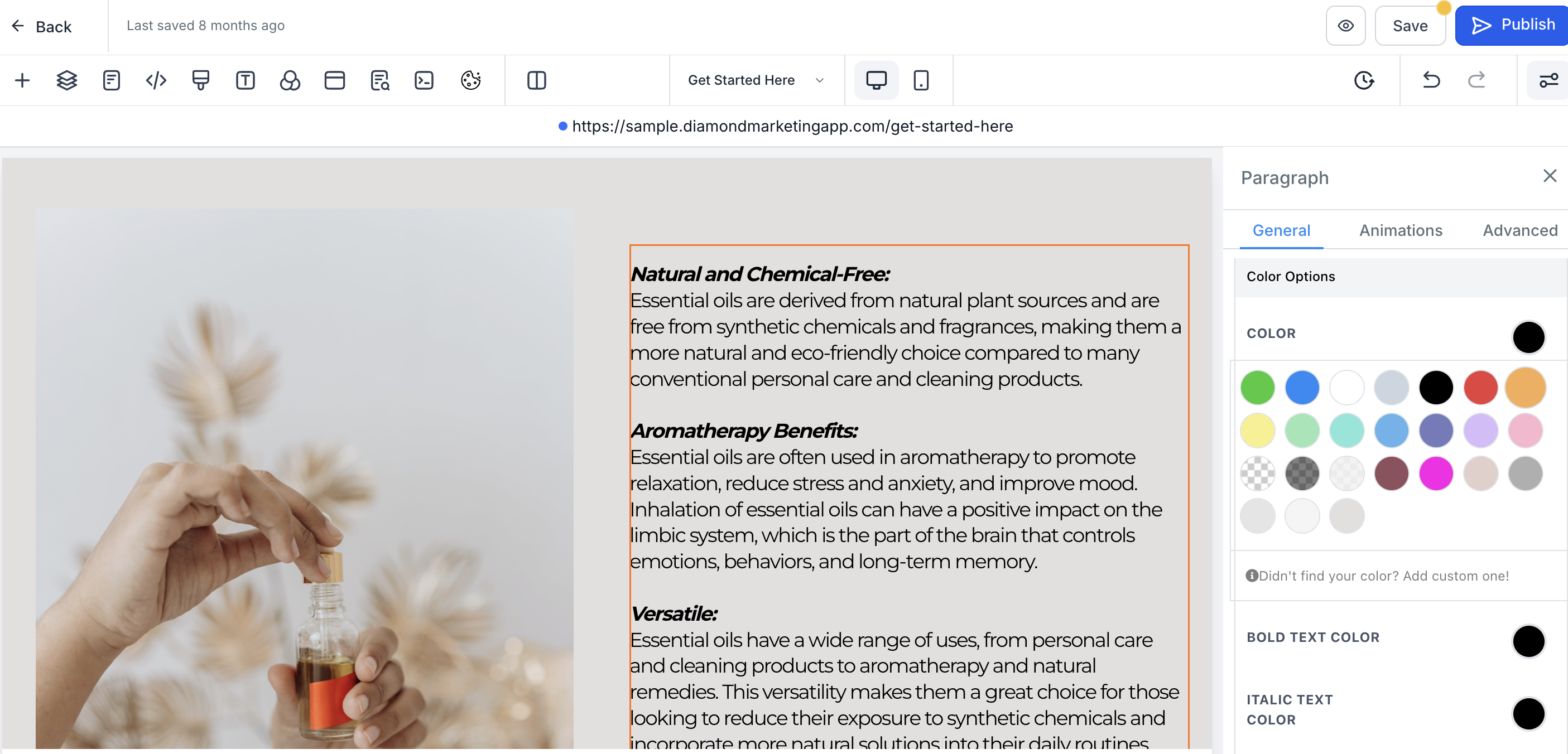
Font colors for each element are on the editing side when you click on the font element
Select a color for your font, bold font, italic font, underline font, link font, and icon color
Add Elements:
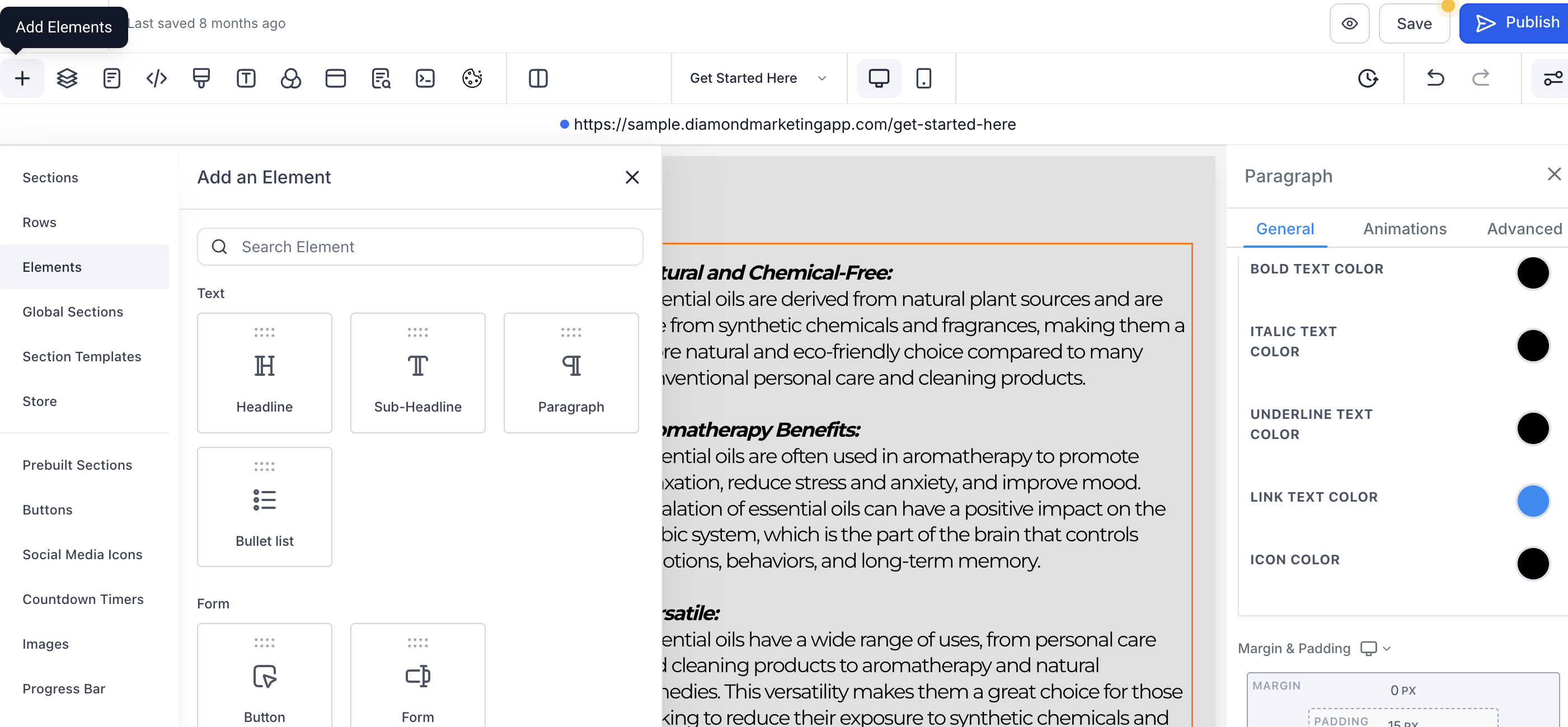
Add elements into the webpage by selcting the + button in the top left of the page
Drag in the element
Add a 2 or 3 Column Row:
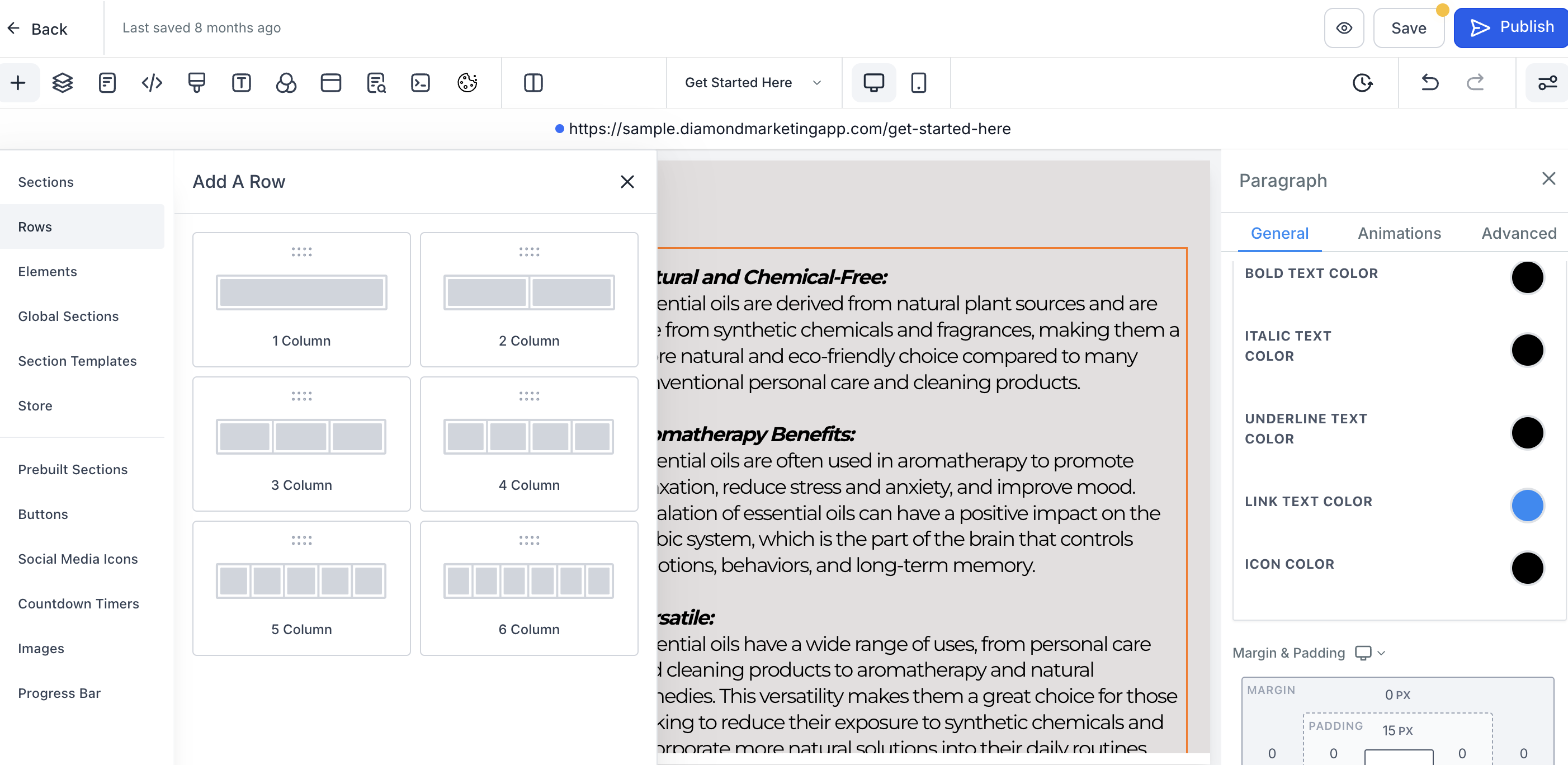
Select Row to add in a two or three-column row
Click the row on your webpage and add elements to it
Save and Publish Changes:
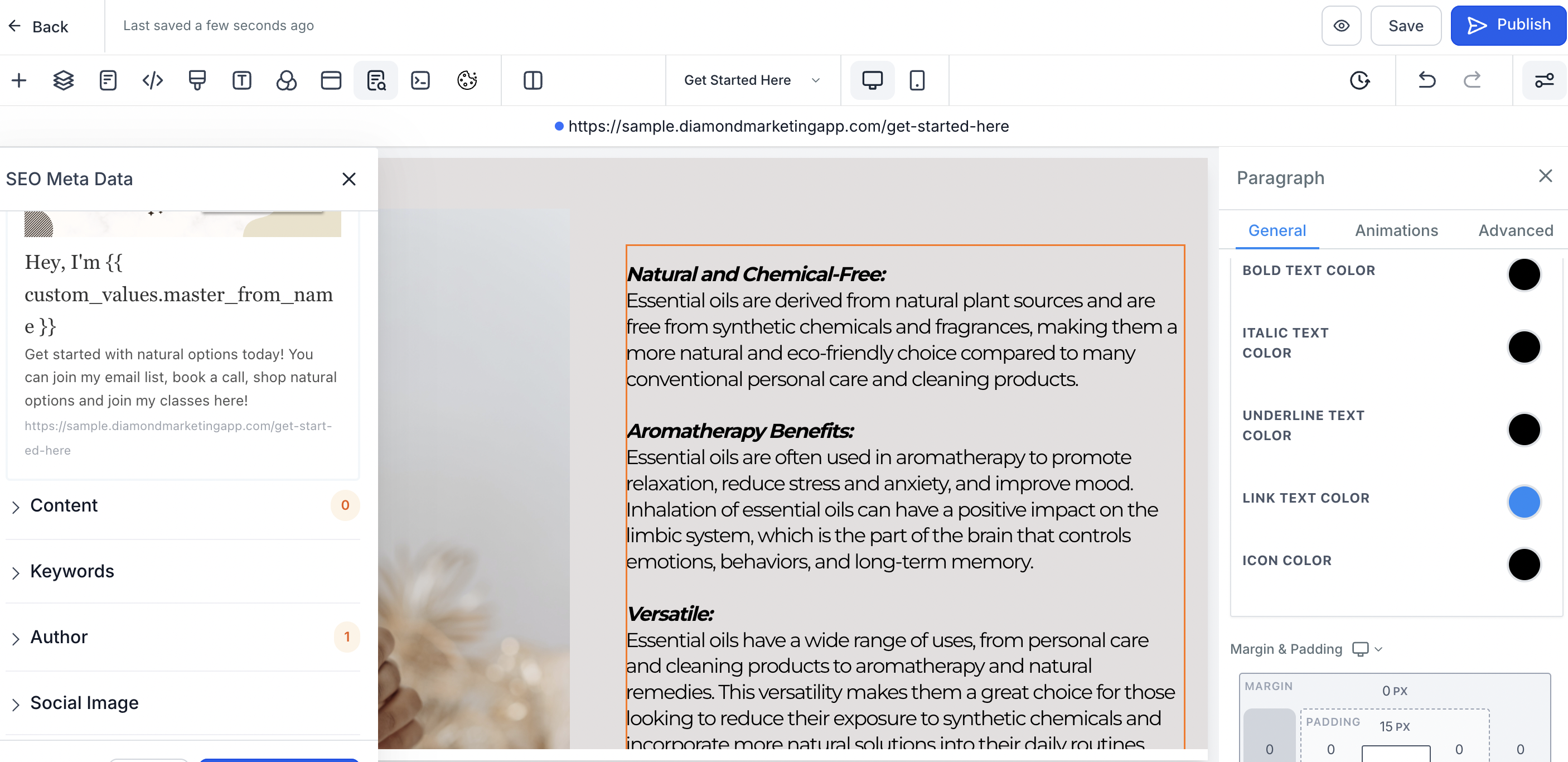
Click Save to save your changes
Click Publish to publish changes to live webpages
The SEO metadata will pop up when you sav1 Columne
Update the Content and Social image to change the preview when linking the page
Link Your Page:
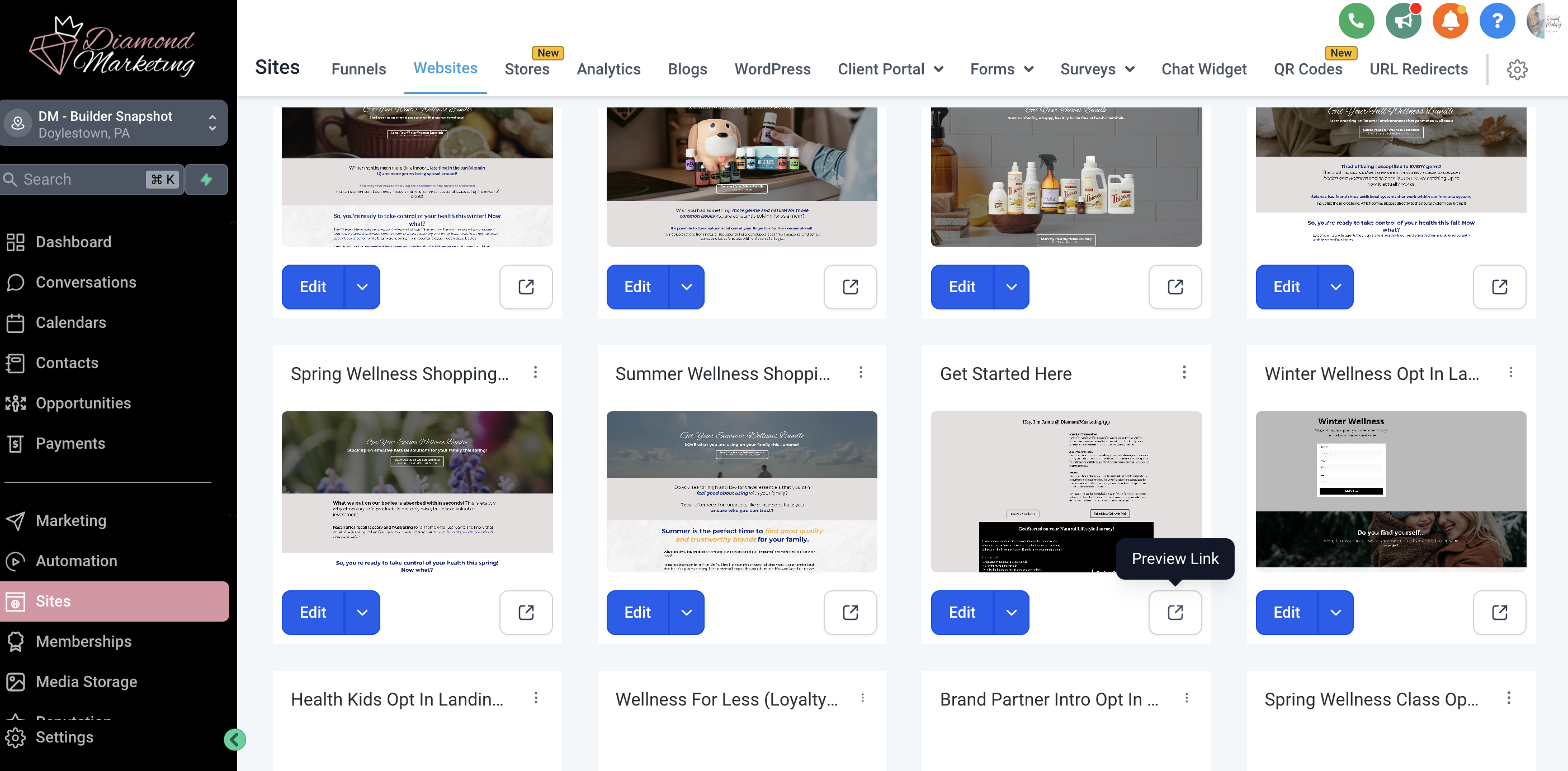
Select the Preview Link Icon on the webpage
Copy the url to link on social media, in email and in texts
How to Create Your Own Webpages:
Step One: Clone a Landing Page
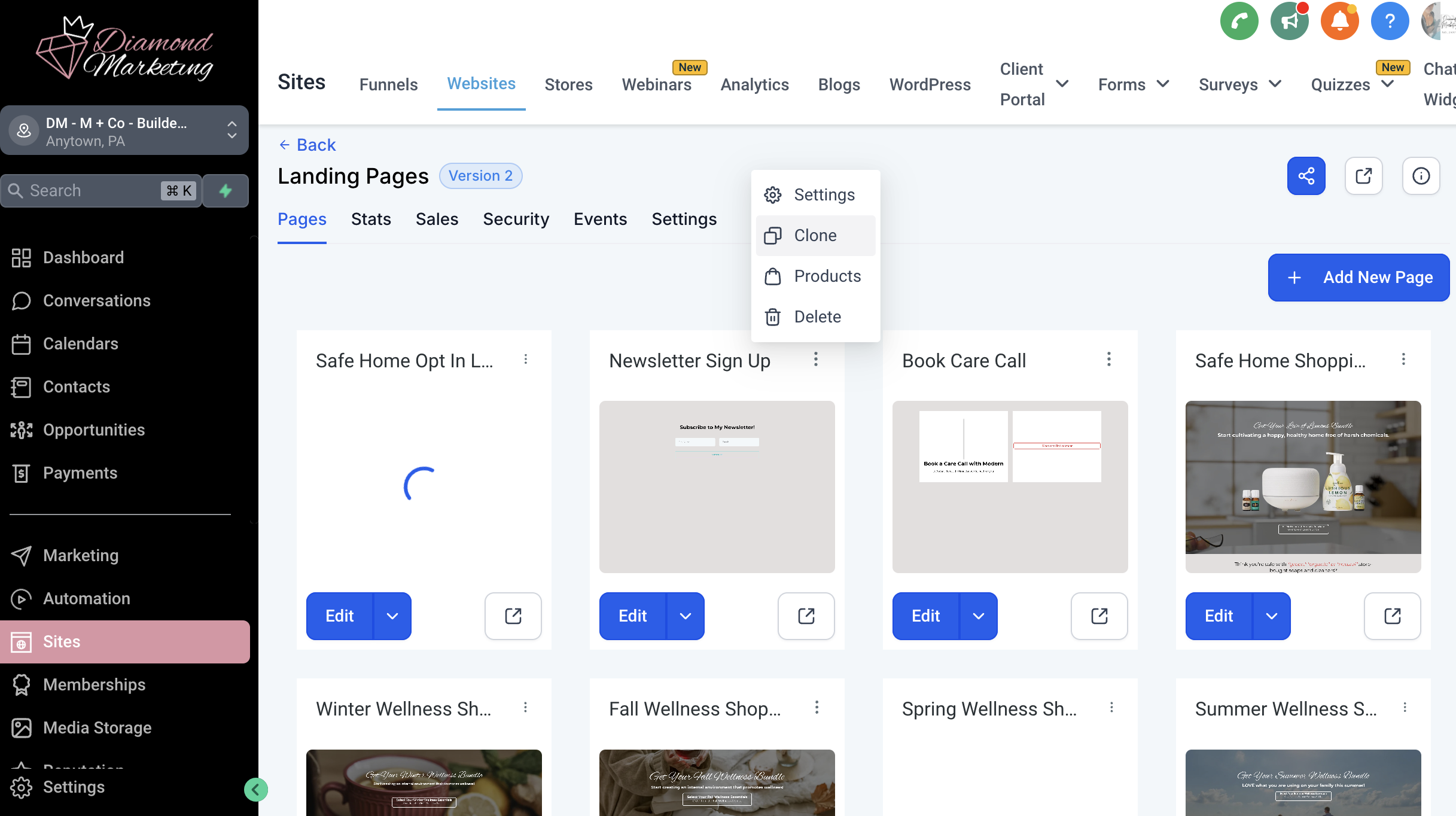
Click the three dots next to one of our page templates
Click 'Clone' to duplicate this page
Select 'Clone Page in this Website'
Step Two: Change the Page Settings
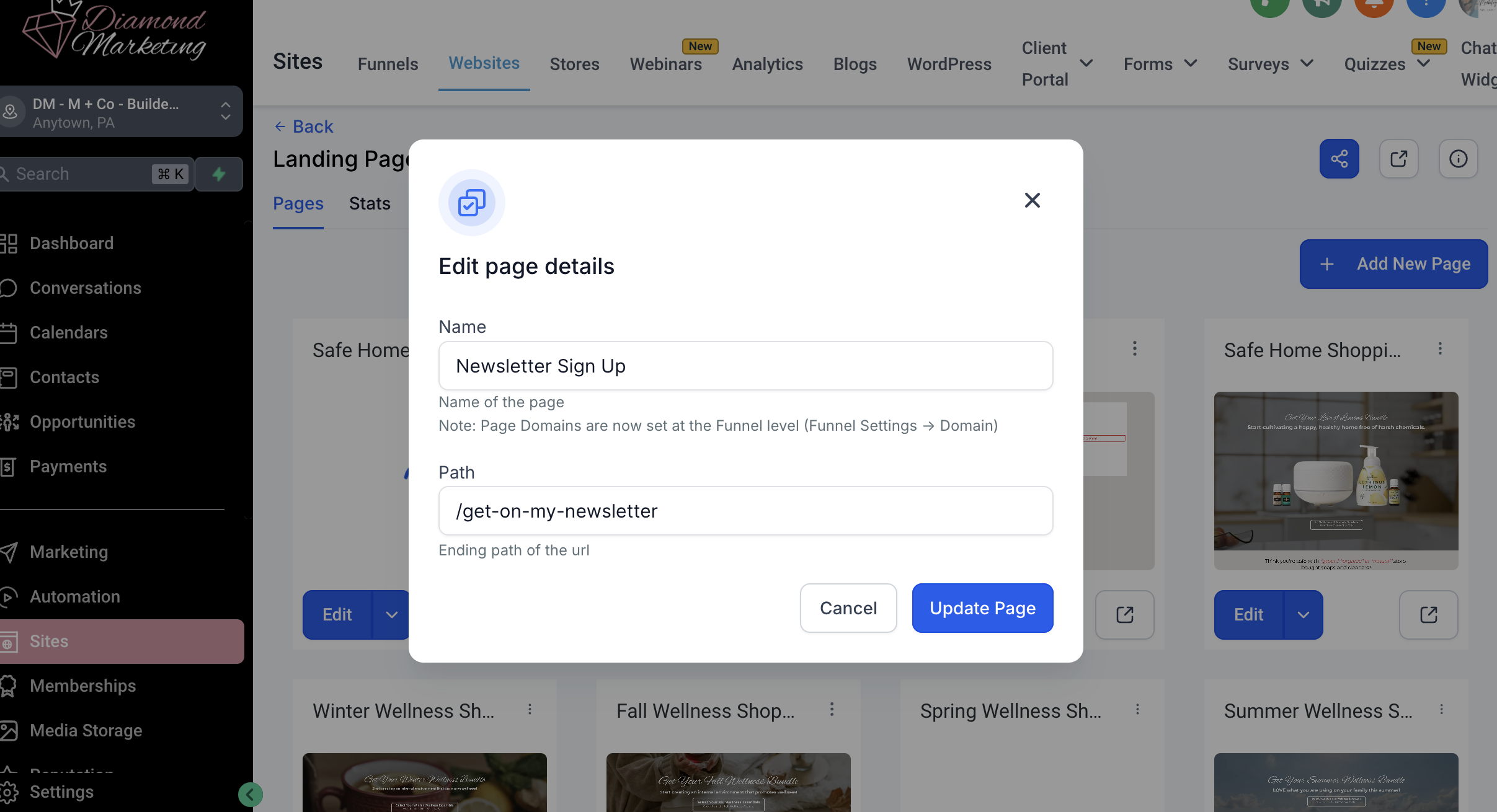
In the Name field update the page name
In the Path field update the path without using any spaces
Step Three: Edit the Colors, Content and Elements
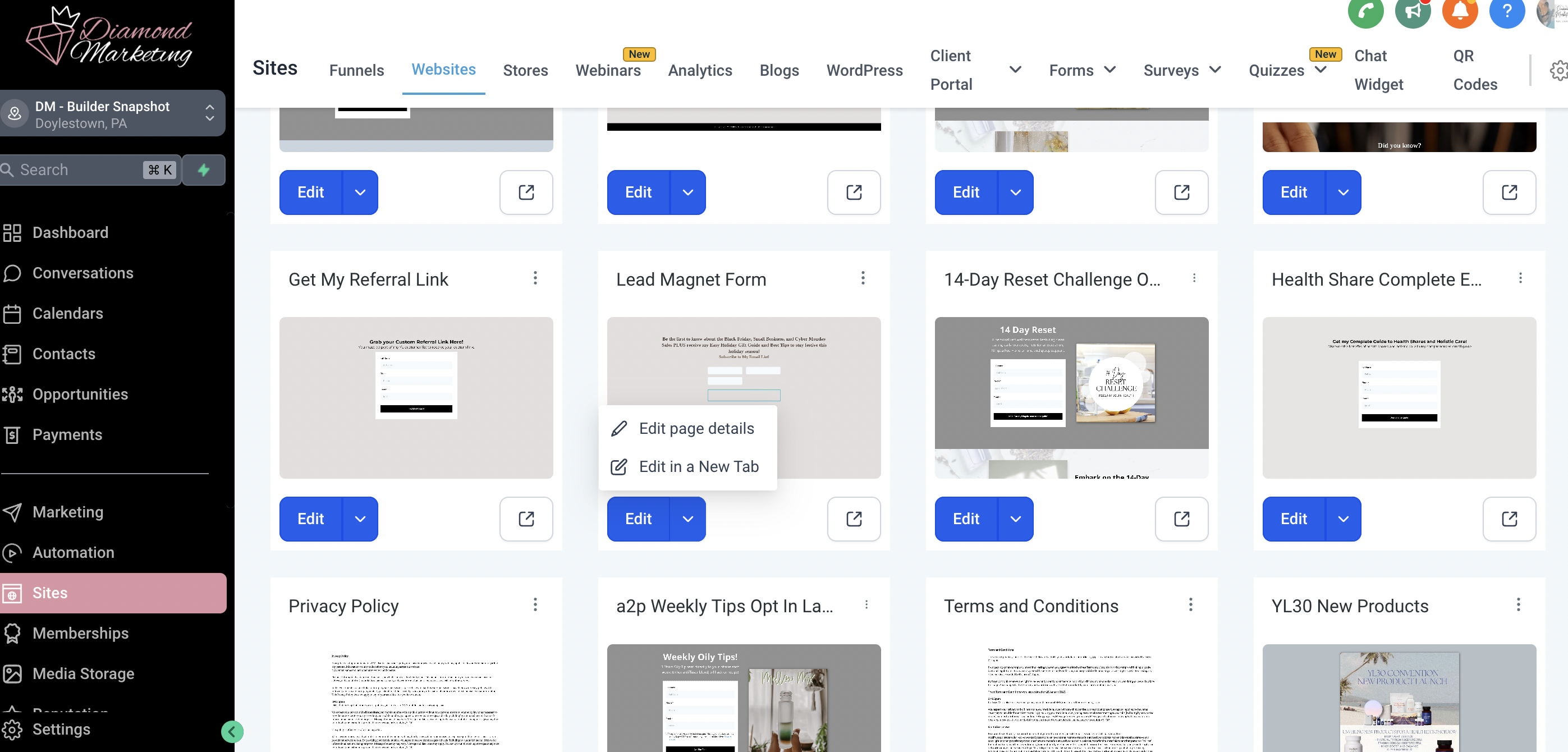
Click the Edit to edit the content, colors and elements on the page using the actions at the top of this page.
Video Lesson- How to Edit Your Webpages:

Diamond Marketing is a customer care platform design for Young Living Brand Partners. All content provided by Diamond Marketing is the property of Diamond Marketing App LLC and cannot be copied or redistributed outside of Diamond Marketing. without prior consent.