
Email Marketing 101: Part One
Let's Set Up Your Email!
Start strong with a professional email foundation—learn how to connect your domain, warm up your address, and get ready to send with confidence.
Complete Email Marketing Series:
We recommend following these lessons in order:
Email Marketing Best Practices Here
Email Marketing 101 Part Two: Create and Send Email Campaigns Here
Email Marketing 101 Part Three: Send Your First Email Campaign Here
Email Marketing 101 Part Four: Create an Email Smart List + Send Your First Monthly Email Here
Inside this lesson you will learn:
Confirm Your From Name
Create Your Saved Elements
Warm Up Your New Email
Unlock the Power of Email Marketing with Diamond Marketing
Diamond Marketing is built with your growth in mind, whether you’re just starting your Young Living journey or managing a large downline.
Our advanced email marketing system ensures you can connect with your audience quickly, efficiently, and at scale—no matter where you are in your business!
Why Choose Professional Email Marketing?
As of Spring 2026, major email providers like Google and Yahoo updated their requirements for bulk or business email senders. One of the biggest changes is that you can’t send mass emails from “masked” or free accounts like Gmail, Yahoo, or AOL.
These platforms weren’t built for business sending, and using them now hurts deliverability and often gets flagged as spam.
To stay compliant, all marketing emails must come from a verified domain email (like [email protected]). That’s why we have connected and verify your domain email inside Diamond Marketing.
With Diamond Marketing, you’ll have access to a professional-grade system that offers:
Bulk email capability for any audience size.
High deliverability with a 98% success rate.
Detailed analytics to track open rates, clicks, and performance.
Proven results with an average 40% open rate for engaged subscribers.
Whether you’re emailing a handful of contacts or thousands, Diamond Marketing is designed to scale with your business and help you achieve lasting success!
Why Diamond Marketing Email Templates Stand Out:
Our email templates (pre-made emails) are designed to help your business shine! Here’s how we ensure every email works for you:
Open-ability:
We’ve preloaded subject lines and preview text for each email to grab attention and boost open rates. Plus, every template is optimized for all devices—whether your contacts are using Gmail, Hotmail, or viewing from a phone, tablet, or desktop.
Value, Value, Value:
Each email delivers helpful, value-packed content, including recipes, DIY projects, and inspiring oil blends. Our copywriting is designed to educate and excite your audience, encouraging them to learn and explore more.
Shop-ability:
Drive engagement and sales with clickable seasonal wish lists linked to your YL member number (US version only). Thanks to our custom-values feature, the emails feel completely personalized, showcasing your YL wishlist seamlessly.
Customization:
All templates are pre-loaded with YL content but can be tailored with your personal touch, team details, or unique branding. Make them truly yours!
With Diamond Marketing, your emails aren’t just messages—they’re tools for connection, inspiration, and growth!
Your Email "From Name"
Maximize Email Open Rates with a Strong "From Name"
Your "From Name" is one of the first things your audience sees in their inbox, often standing out more than the email address itself.
A well-crafted "From Name" introduces you with every email and increases the likelihood of it being opened!
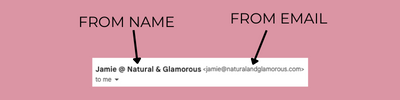
Best Practice for "From Names": Current marketing trends recommend formatting your "From Name" like this:
Name @ Business Name
Example: Jamie @ Natural & Glamorous
This format is professional, personal, and eye-catching, helping you stand out in crowded inboxes.
Confirm Your "From Name": We've set a default "From Name" for you, aligned with the email marketing best practices above.
To make it uniquely yours:
Head to the Settings Tab on the left menu in your Diamond Marketing Portal
Select 'Custom Values'
Select 'Edit' and personalize the value in your "From Name" custom value to reflect your brand!
Take a few minutes to make this update and start building stronger connections through every email you send.
Save Your Email From Name For Your Records!
Your "From Email" and "From Name" will auto-populate in all our pre-loaded email templates from the custom values settings.
They both will populate in your Monthly Email/Newsletters, Email Complete Guides and each of the Nurture Series emails we have provided for you.
When composing your own emails, or sending emails from the Contacts screen to individual contacts, you will be prompted to type your email From Name and From Email address in manually. Save your "From Name" and "From Email" into a note in your phone!
Create Your Saved Elements:
Saved Elements are the key to crafting beautiful, on-brand email campaigns—whether you’re using our templates or designing from scratch.
These pre-designed elements ensure your emails shine with your unique style and message, while maintaining consistent branding throughout.
Why You'll Love Saved Elements:
Save Time: Quickly add common elements like buttons, Facebook group links, email signatures, and recurring graphics.
Consistent Branding: Every email will reflect your style and message, no matter what template you use.
Perfect for Repeated Use: Easily add your email signature to the bottom of all our templates—ideal for newsletters, sales emails, and more!
How to Create and Save Your Elements:
Creating your Saved Element is simple—just follow these steps to save your email signature or any other element you frequently use. You’ll be saving time and streamlining your process for every new campaign!
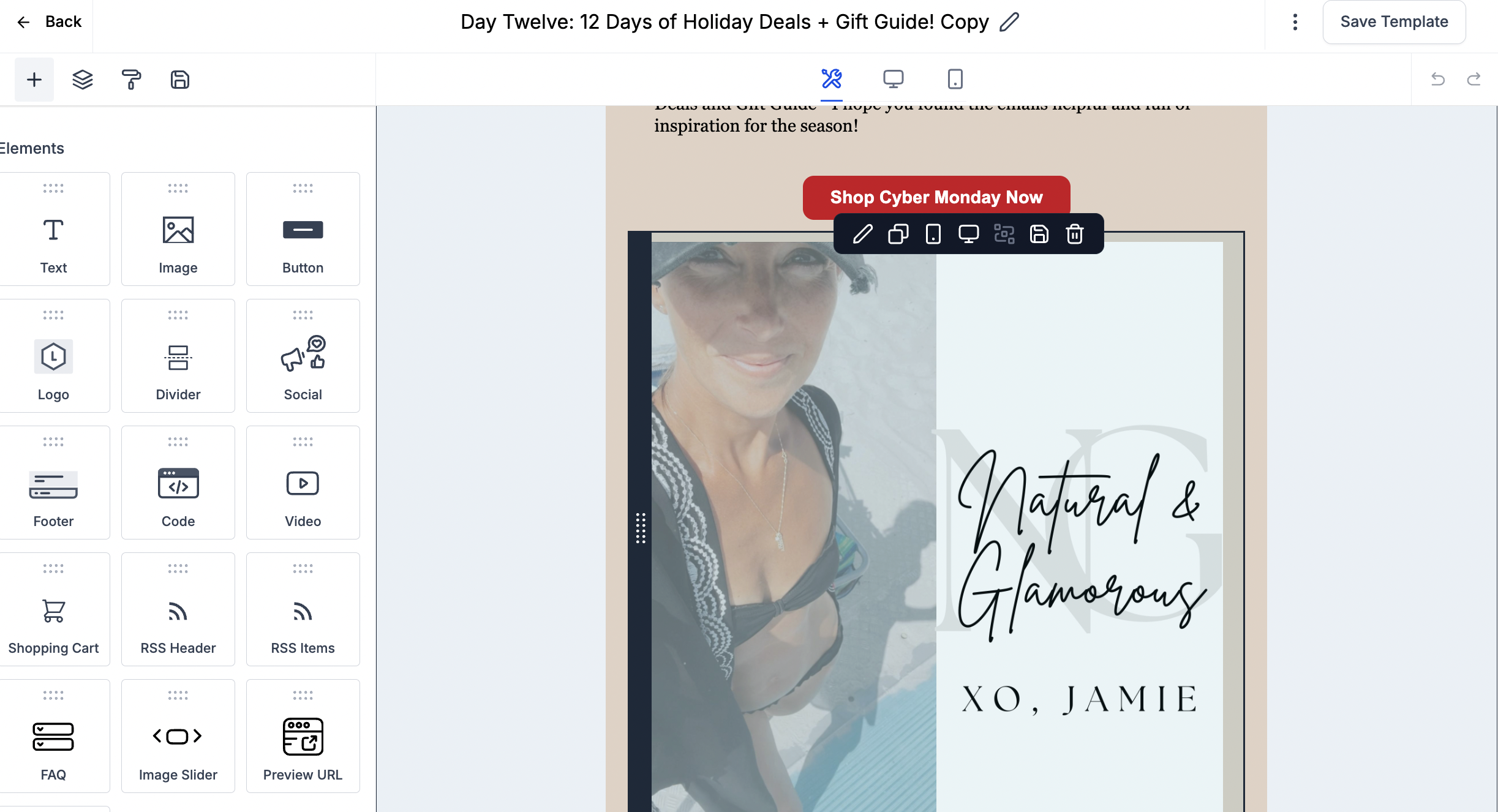
Hover over any email element and click the disk icon to save it to your Saved Elements for easy reuse in future emails
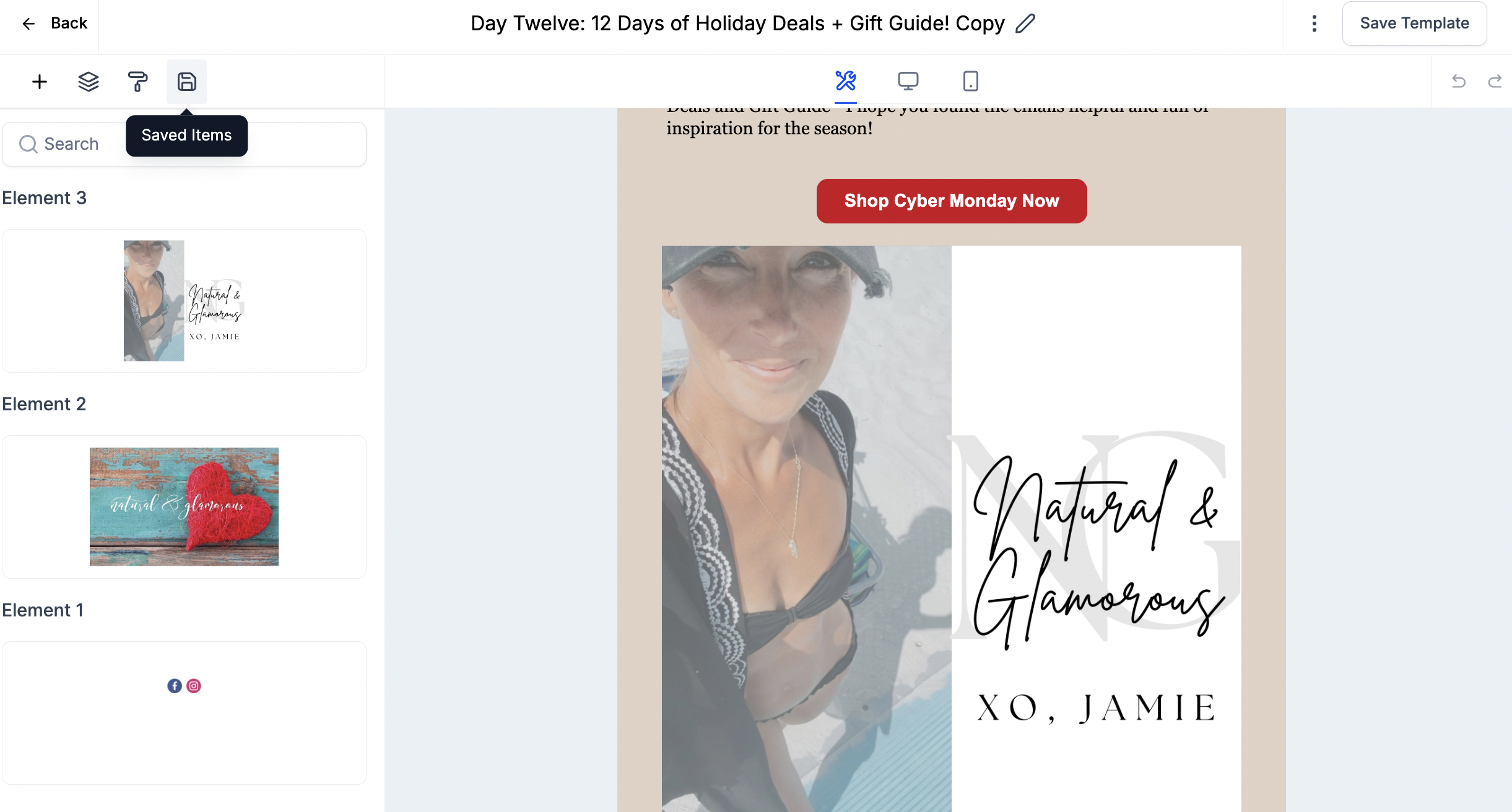
Click the disk icon on the editing side of the email to select and drag any saved element into your email template
Creating An Email Header and/or Signature Element:
Using a graphic for your email header and/or email signature will have your emails stand out and brand each one so your contacts know exactly who each email is from immediately.
This is optional, but fun to add in! When you first start using email, you can create elements such as:
Signature Element
Header Graphic
Social Media Banner
Button to your FB Group
Add A Photo:
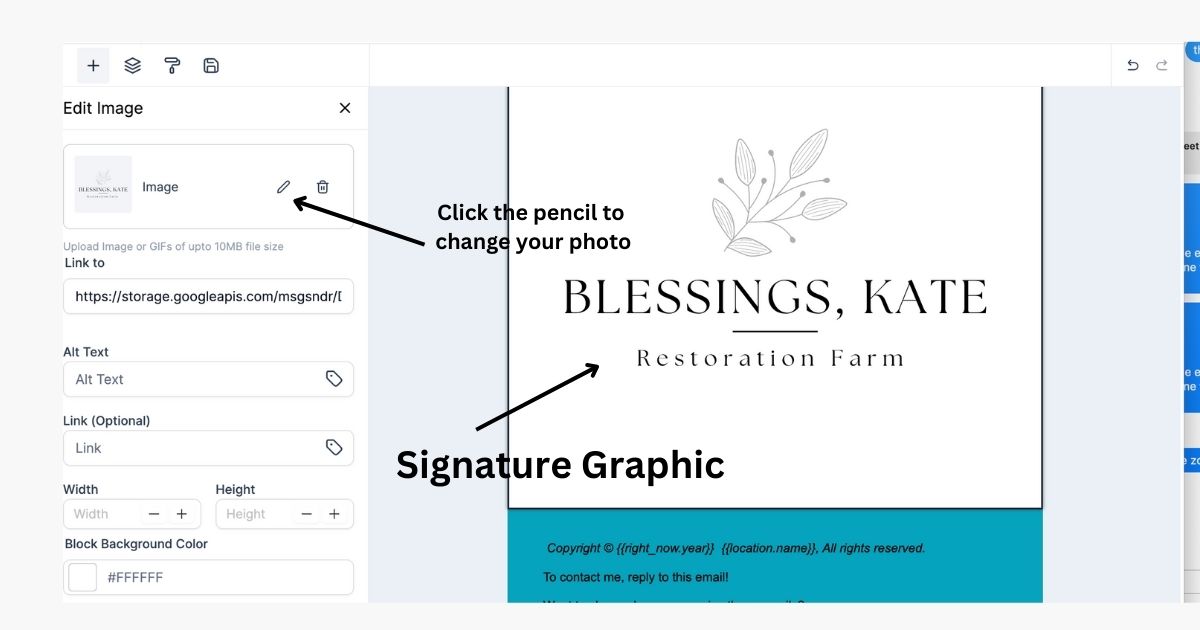
Select an Image Box from the elements side (left side) of the email template and drag it into your email.
The header graphic goes to the top of your email.
The signature graphic goes to the bottom of your email above the footer box.
Select the pencil icon on the photo editing side and select the photo you want from your DM photo album, or select 'Upload' on the top right of your photo album and to bring in a photo from your desktop..
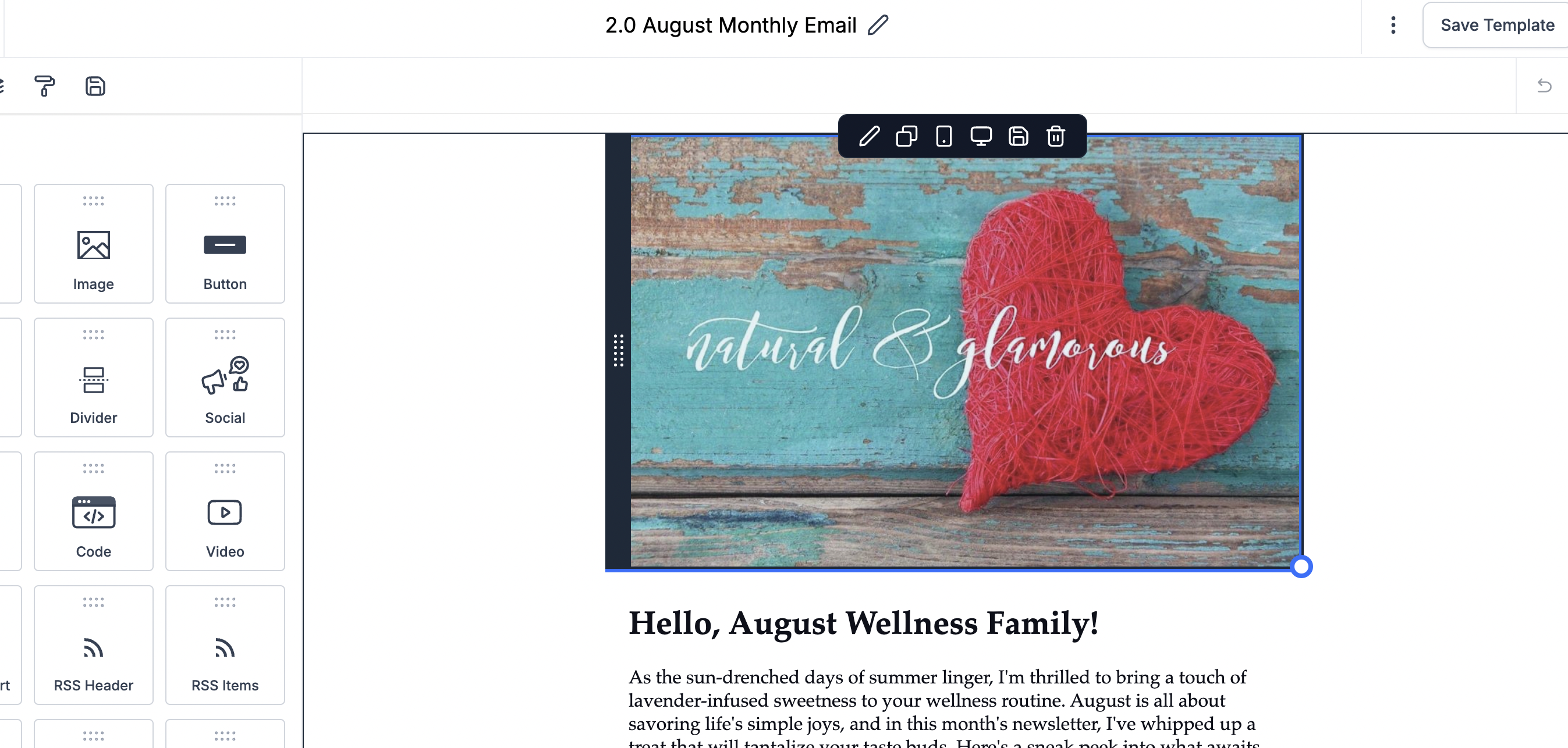
Save the photo element you created by hovering over the element box and clicking the disk icon on the top menu now on the element. You can now use this photo easily in any email template!
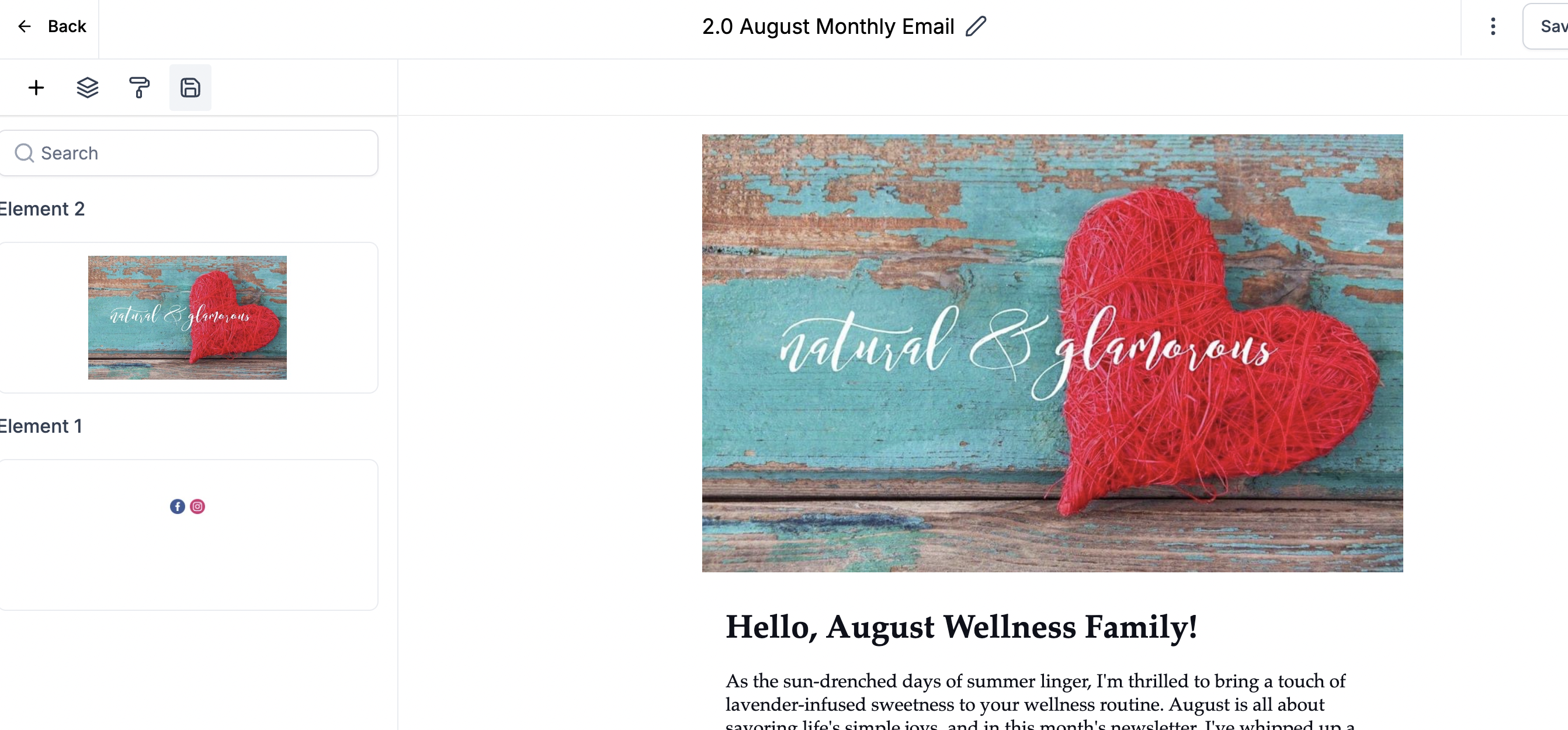
Drag in the Header/Signature Element from the Saved Elements (Disk Icon on the editing side of your email) into any email before you send a campaign!
Warm Up Your New Email:
Sudden email blasts from a cold or new sender address can raise spam flags and damage your sender reputation. Instead, gradually increase your sending volume to "warm up" your domain and build trust with email providers.
Consistency is key! Weekly or biweekly emails to your list (starting with your most engaged contacts) is the best long-term strategy for email success.
When sending from a brand-new domain or email address, follow this batch warm-up plan using Batch Schedule Mode inside your email campaign settings:
During Month 1:
Send in batches of 100 emails per hour
Set for a 10-hour daily window
500 total emails/day
During Month 2:
Increase to 300 emails per hour
Over a 9-hour daily window
2,100 total emails/day
During Month 3:
Increase to 600 emails per hour
Keep a 9-hour window
5,400 total emails/day
During Month 4:
Increase to 800 emails per hour
Still within a 9-hour window
7,200 total emails/day
Then continue doubling each month until you reach the size of your full list.
Once your domain is fully warmed up, you can switch back to regular sending. However, if you prefer, you can keep using the last batch size to continue protecting your reputation—especially for large lists.
Pro Tip: Always start with your most active and engaged contacts to keep open and click rates strong. You can create this segment using tags or email engagement filters inside Diamond Marketing.
Get our complete guide to Email Marketing Best Practices for 2025 here.
Part Two:
How to Send an Email Campaign & Pre-Made Email Templates
In the next lesson, we will go over how to create an email plus how to send an email campaign!
Diamond Marketing is a customer care platform design for Young Living Brand Partners. All content provided by Diamond Marketing is the property of Diamond Marketing App LLC and cannot be copied or redistributed outside of Diamond Marketing. without prior consent.