
Email Marketing 101: Part Two
Send an Email Campaign, Use Our Templates, and Create Your Own Emails
Learn how to confidently send your first email campaign using Diamond Marketing’s customizable templates—or create your own from scratch for a branded message that converts!

Complete Email Marketing Series:
Email Marketing Best Practices Here
Email Marketing Part One: Set Up Your Email Here
Email Marketing 101 Part Three:
Send Your First Email Campaign Here
Email Marketing 101 Part Four:
Create an Email Smart List + Send Your First Monthly Email Here
Inside your Diamond Marketing Portal, you’ve got an entire vault of pre-loaded email templates—ready to go!
Why does this matter? Because email is the one platform you own.
Social media might glitch, go down, or limit your reach—but your email list? That’s yours. And it’s one of the most powerful tools to build trust, boost reorders, and stay connected with your Young Living customers for the long haul.
Sending out regular emails is like showing up for coffee with your best customers—it keeps your community strong, engaged, and loyal.
And the best part? With Diamond Marketing, email marketing is simple, powerful, and done-for-you.
Start sending today and build a brand that lasts—no algorithm needed.
This lesson will walk you through:
Creating an Email
Sending an Email Campaign Step-by-Step
Our Pre-Made Email Temaplates:
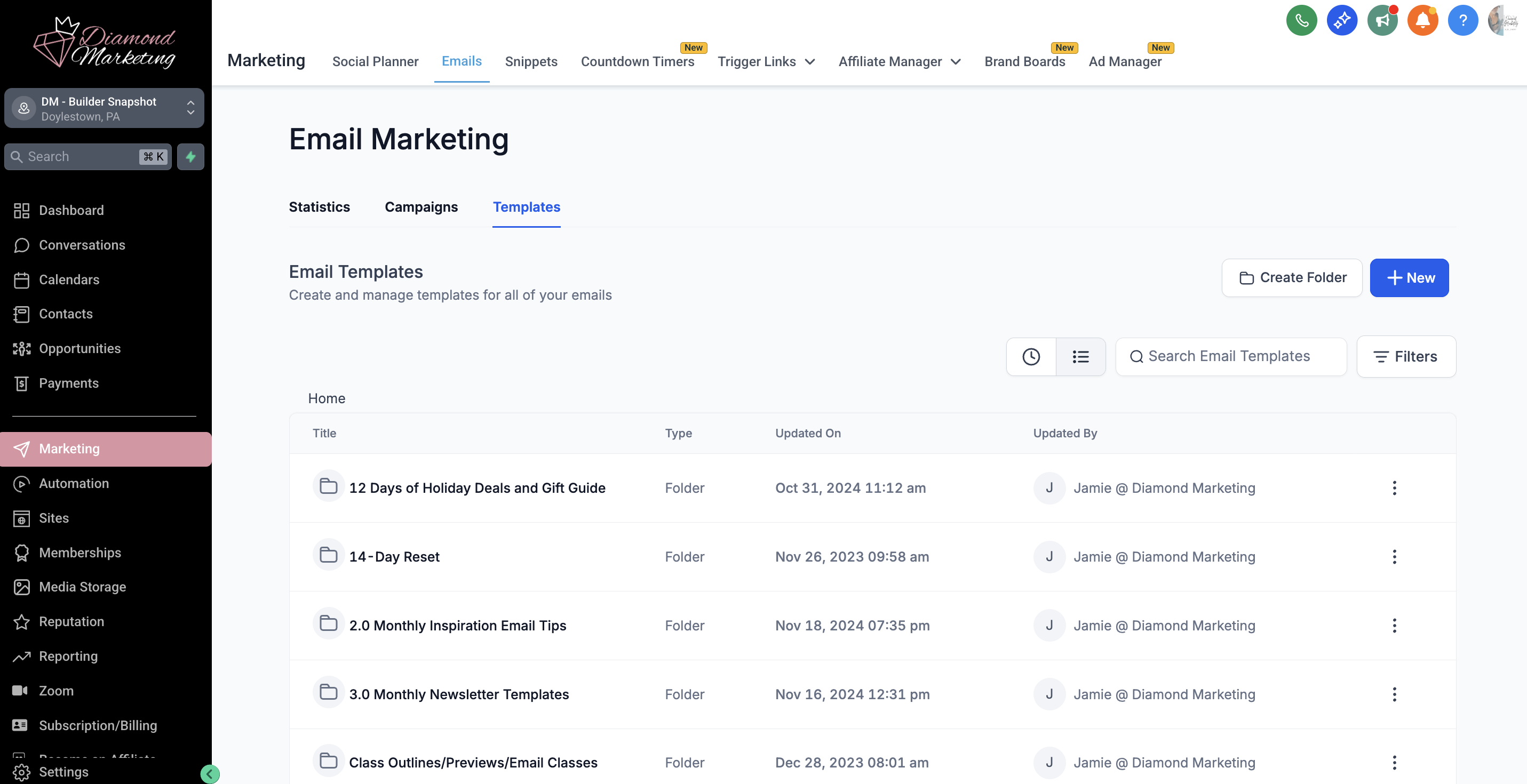
Expand Your Communication and Impact! You’ll never run out of ideas with our pre-made Young Living email templates!
Diamond Marketing’s email templates are designed to be easy to customize and use, providing you with professional, ready-to-send emails that help you engage and grow your customer base effortlessly.
Done and Ready to Send Newsletters: Upload your contacts and start sending email newsletters with our ready-to-send email templates. With a unique template for every month of the year, you can send them as they are or customize to fit your style.
Email Nurture Sequences: Pre-loaded nurture sequences for new customers, leads, inactive customers, brand partners and more!
Email Classes (Lead Magnet Emails): Turn curiosity into connection with our ready-to-send Email Classes—designed as lead magnets to educate, engage, and grow your list! These pre-written email series teach on popular oily topics (like natural cleaning, wellness routines, and emotional support) while gently introducing your readers to Young Living products. Perfect for attracting new contacts, nurturing interest, and guiding your audience toward your custom wishlist—automatically.
Pre-made email templates can be sent as campaigns to individual contacts, tagged groups, or smart lists you’ve created. Our nurture emails are already pre-loaded into your automated business systems—like New Customer, New Account, Brand Partner Onboarding, and the In-Person/Vendor Event Lead Magnet.
You’ll learn exactly how to use each of these features as you move through the subscriber training!
How To Create Your Own Emails:
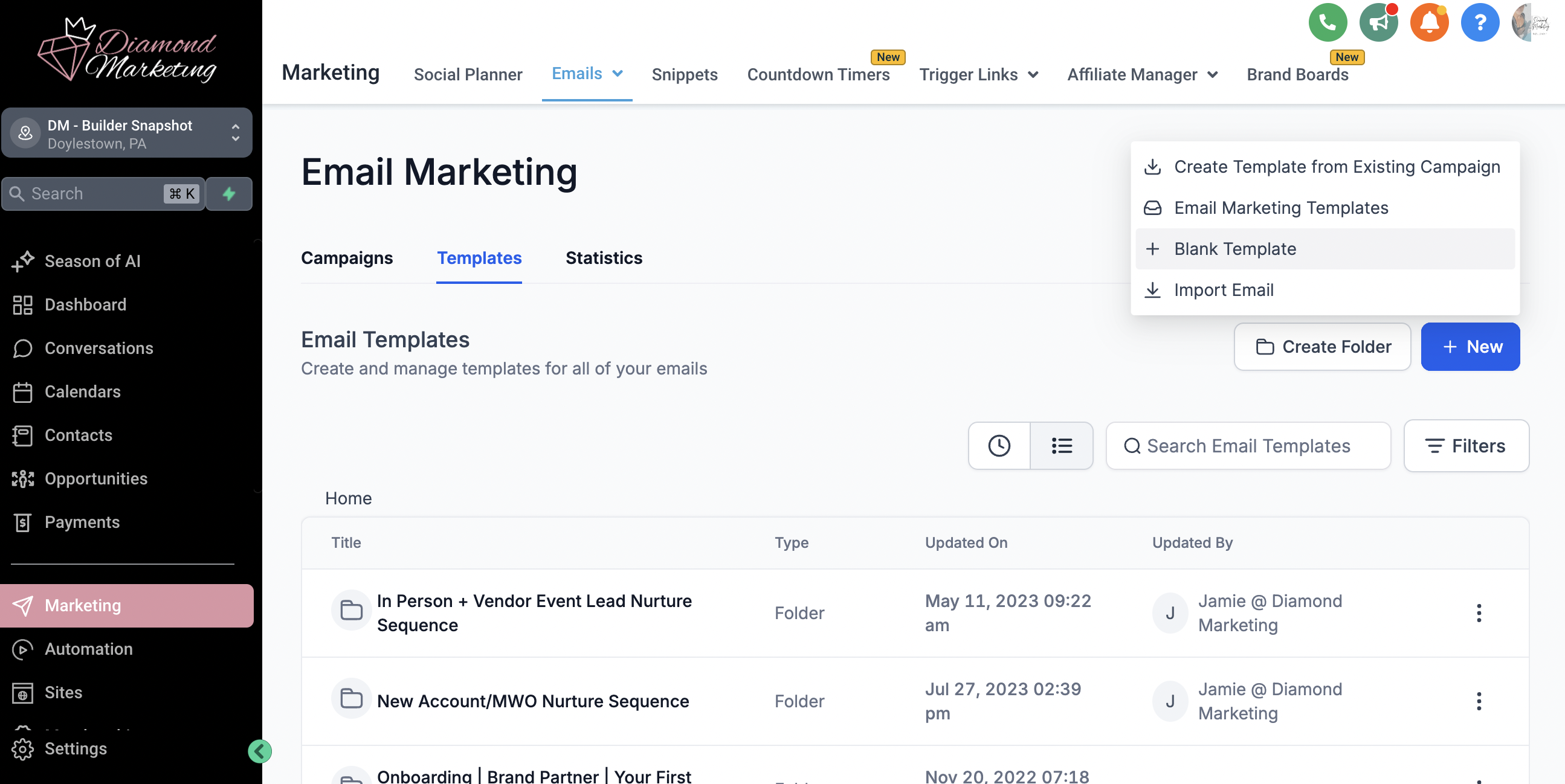
Create an Email From Scratch:
In the Marketing Tab, select the +New button and select + Blank Template
Click 'Design Editor' to start building
Add your email template title where it says 'New Template' at the top
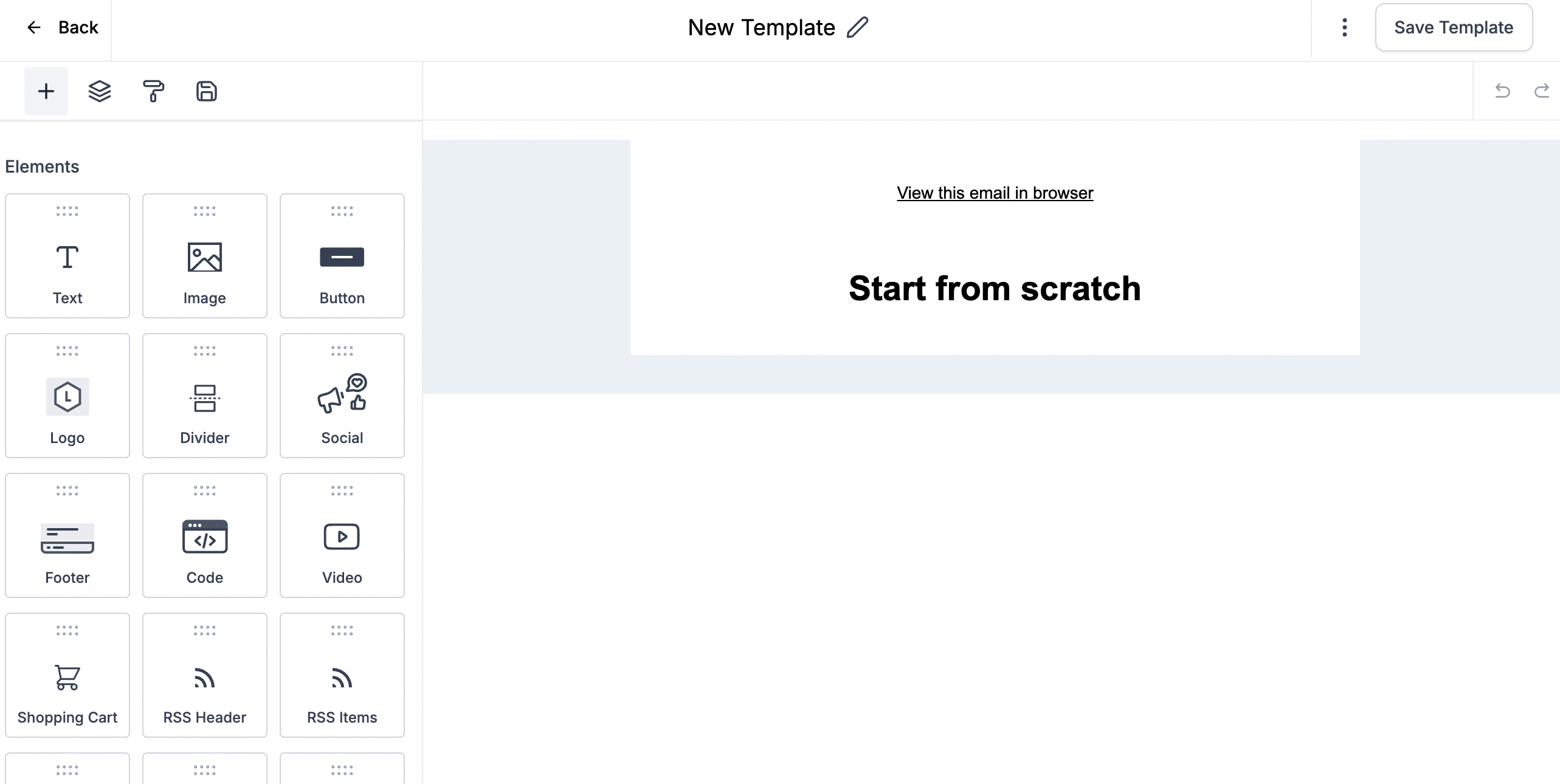
Adding Email Elements: The left side of the email screen is the element side. Here you will select an element to drag into the email. You will also edit your elements here.
Save Your Branding Elements: Hover over any element in your template and select the disk icon to save it for future emails. Your saved elements can be found by clicking on the disk icon on the editing side of the email builder and used by dragging them into your email
Preview Your Email: Click the three dotes next to 'Save Template' to preview your email from all devices, send a test email and enter your email settings.
Template Settings: You can select the tag icon on the from name and from email boxes and scroll to 'custom values' and select "master from name' and 'master from email' to auto-populate your marketing email and from name.
Play around with creating emails! It is super easy and fun!
How To Send an Email Campaign:
When sending an email to an individual, a group tag or a smart list, you will create a campaign.
This lesson shares how to create an email smart list, although we will share more when you get to Email Marketing 101 - Part Four: Create an Email Smart List + Send Your First Monthly Email.
Use the below steps to create a campaign from any email template!
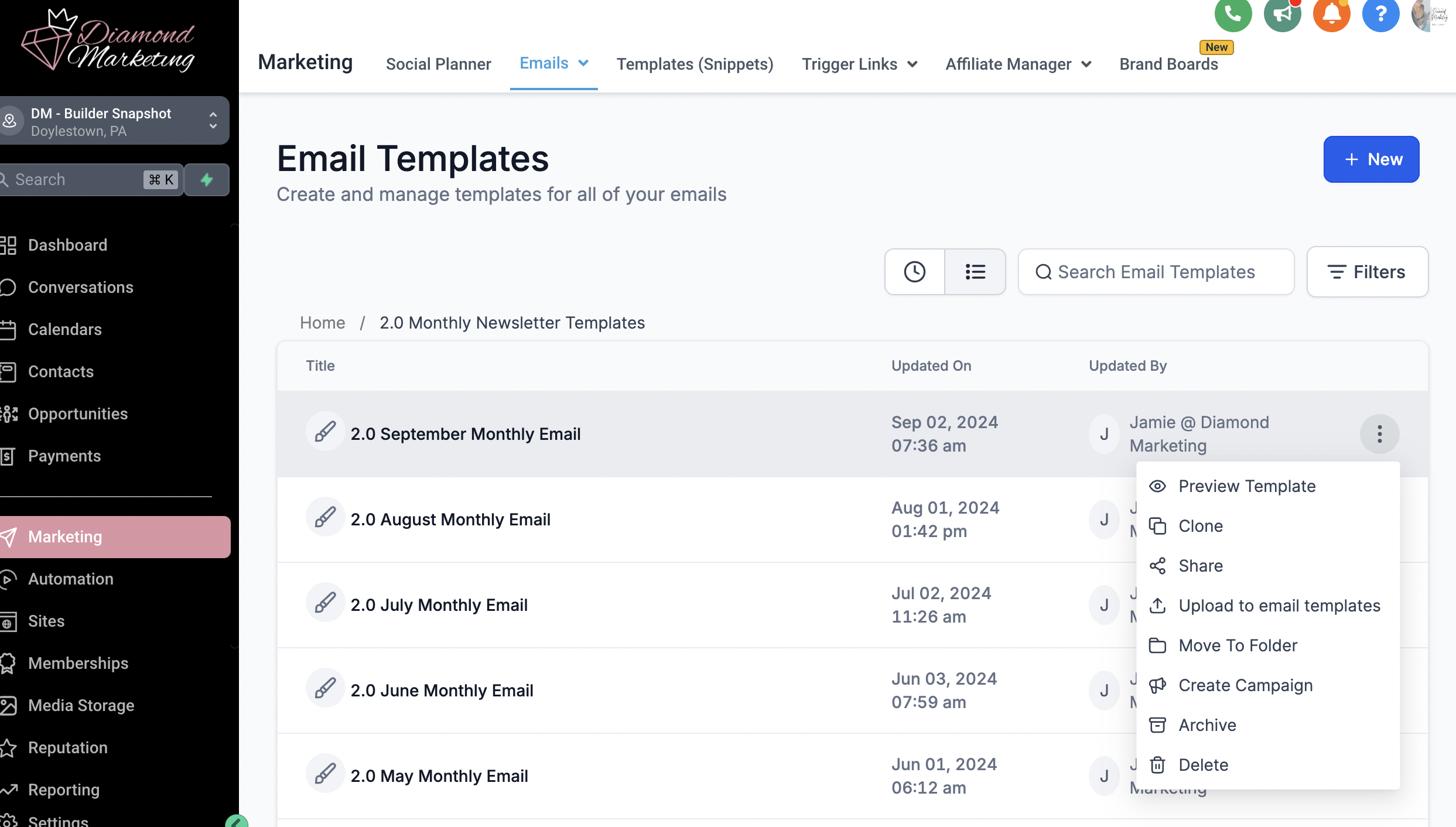
Send Your Campaign:
Find the email template you want to send.
Scroll over to the three dots on the email and click 'Create Campaign'
Edit and or add your email header and/or signature and any other team-specific elements
Select the Send/Schedule button
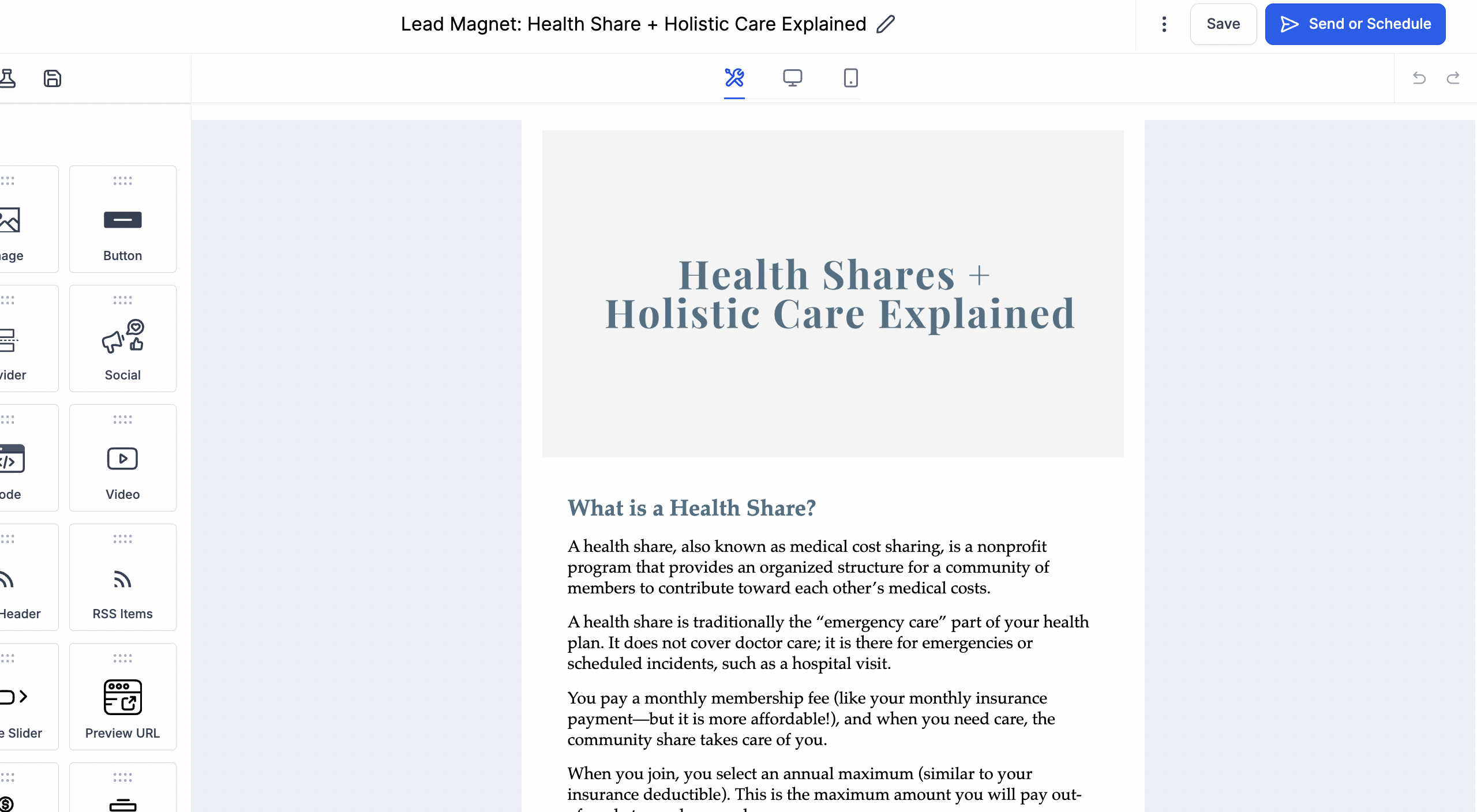
Select the tag, person or smart list you'd like to send the email to by selecting Smart List or Tags and clicking the + button to choose which smart list or tag and then click 'Review and Send'
Smart Lists allow you to select multiple tags or filters at once. The list will automatically be added to when contacts are added to the filters you selected for the smart list. How to Create a Smart List here.
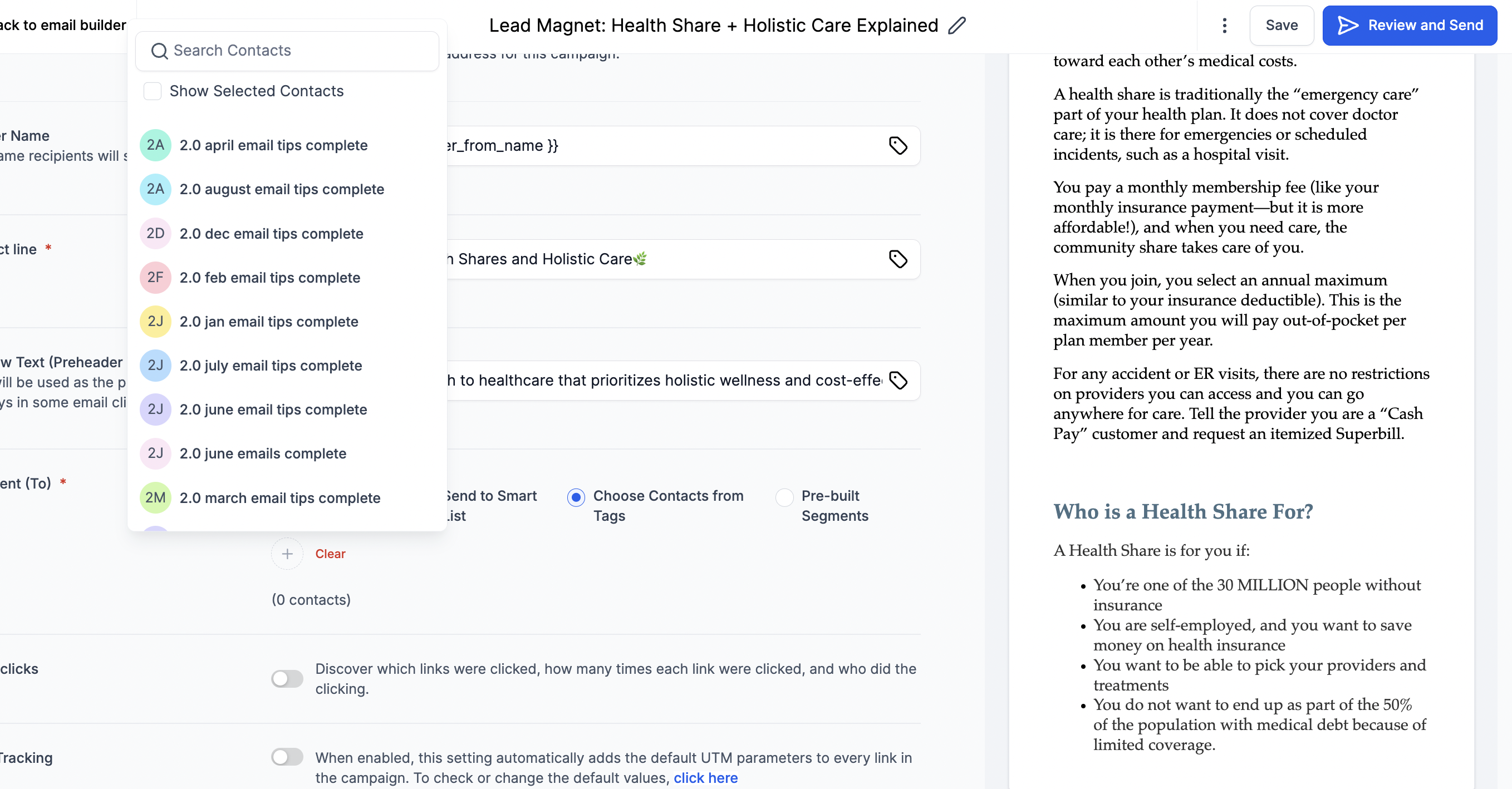
Checking Email Statistics:
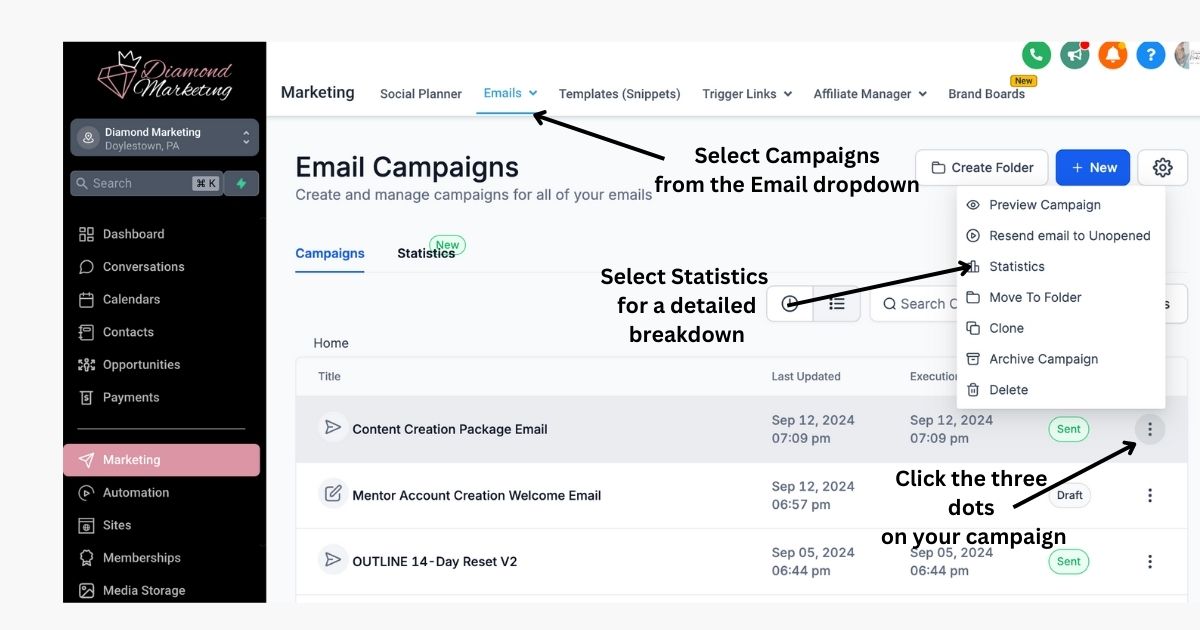
View Your Statistics and 'Re-Send to Unopened':
Head to the Marketing Tab
Select Campaigns from the Email dropdown
Click the three dots on any email campaign
Select Statists or Resend Email to Un-Opened.
NOTE: If you didn’t send your email as a campaign, you can check Bulk Actions in the Contacts tab to view limited statistics for each bulk email sent. However, we recommend sending emails as campaigns to access detailed statistics like opens and clicks
Great statistics for Email Marketing:
20-30% Open rate is industry average
1% Click rate is industry average
Anything higher and you are doing GREAT!
Increase Your Open Rate: Announce Your New Contact Info to Your Team:
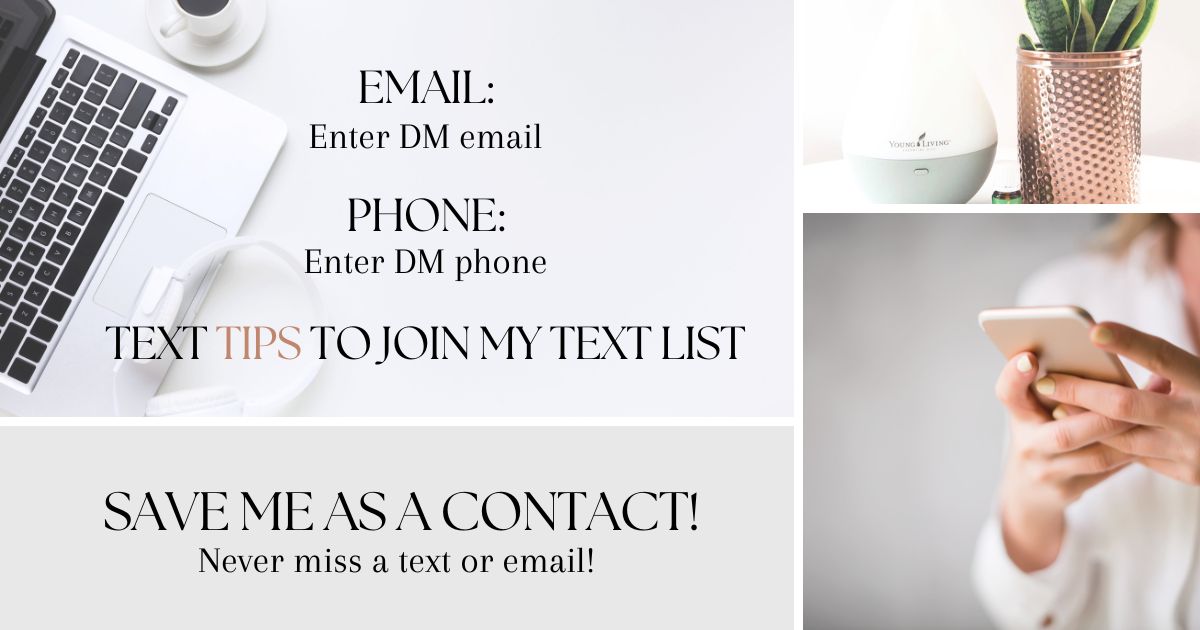
Sharing your new business contact information with your team when you first start using your DM email and phone number can greatly enhance your communication efforts.
This helps your audience recognize your messages, increasing the likelihood of them opting in to receive texts and emails while reducing the chances of your messages being missed or marked as spam.
Here’s a post template you can use to spread the word:
"Exciting News! We’ve updated our team phone number and email to better serve you! Please save our new contact details below to stay connected.
And don’t miss out on our weekly tips—opt-in to receive our text updates directly to your phone, ensuring you never miss valuable info!
This will help us bypass the spam folder and deliver the best tips right to you.
We appreciate your support and look forward to staying connected with you!"
Part Three: Send Your First Email Campaign!
In the next step, we will share about our First-Email Template and how you can use it to send your first email campaign to your downline!
Diamond Marketing is a customer care platform design for Young Living Brand Partners. All content provided by Diamond Marketing is the property of Diamond Marketing App LLC and cannot be copied or redistributed outside of Diamond Marketing. without prior consent.