
Text Messaging 101: Part Two
Let's Send A Text Blast!
Learn exactly how to set up, personalize, and send your first message to inspire action and build engagement with your team.
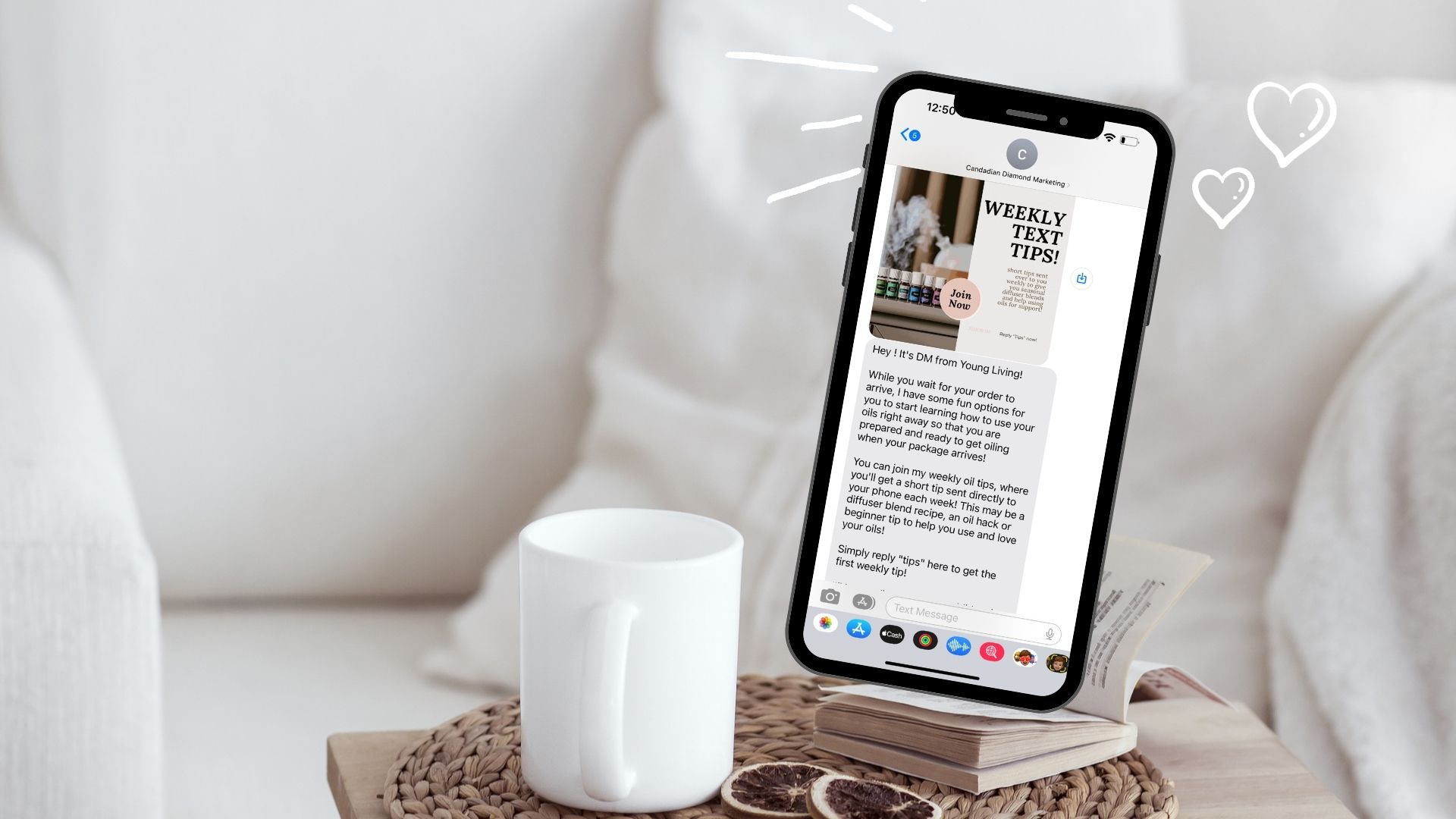
Texting is hands-down one of the most powerful tools you have as a Young Living Brand Partner—and you’re just steps away from using it to grow your biz like never before.
✨Why texting works:
98% of texts are read within minutes (yes, MINUTES!)
It’s personal—your customers feel like you’re talking just to them
It’s perfect for product tips, reorder reminders, class invites, promos, and more
It helps you stay top of mind without overwhelming your audience
⚡️You don’t need to be techy. You just need to get started—and we’ve made it simple.
Let’s make your wellness biz unforgettable—one text at a time!
Step-by-Step Guide to Sending Text Blasts:
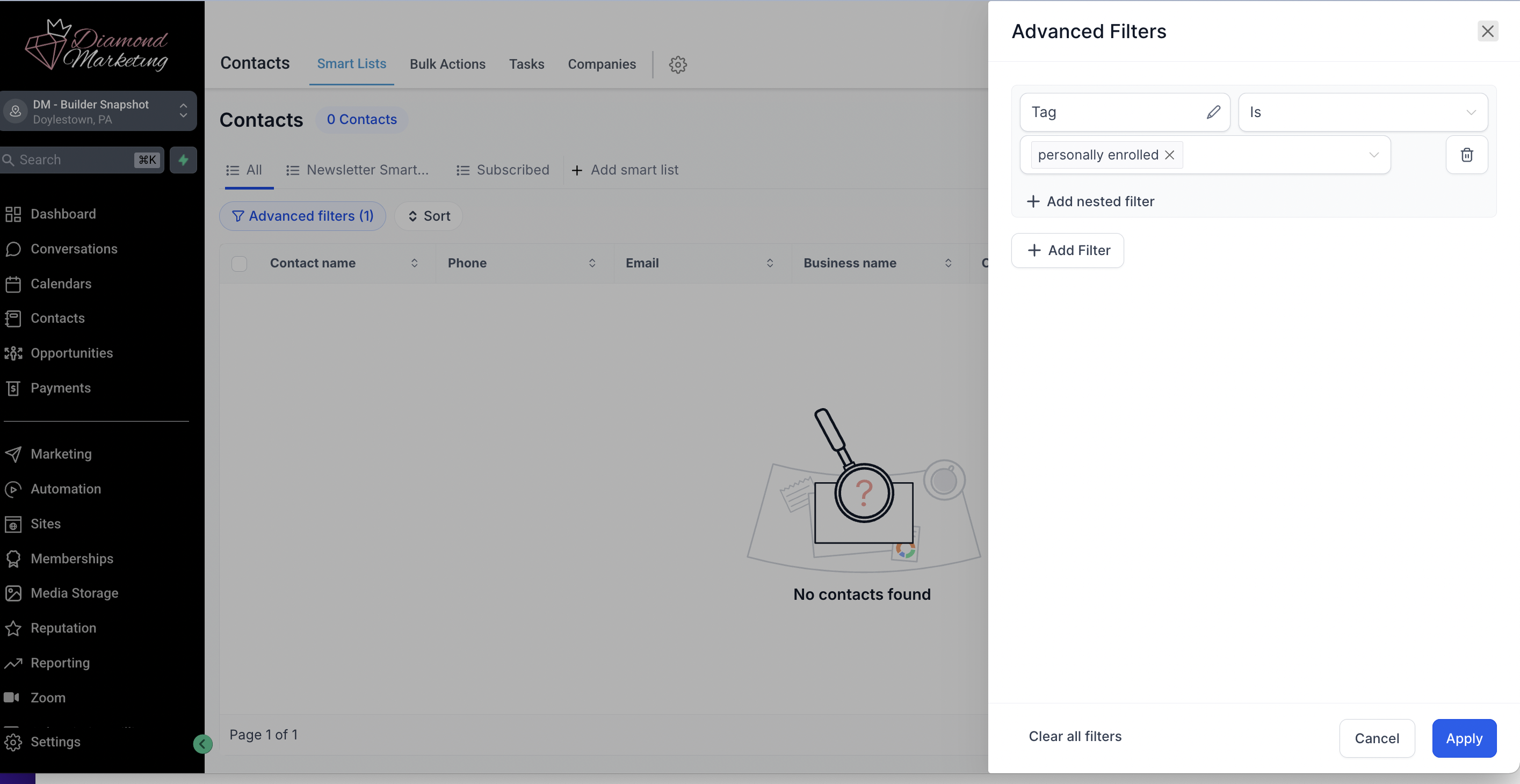
Select Your Contacts: In the Contacts screen, filter for a tag, a workflow or any of the options in the 'Advanced Filters' tab.
Filtering your contacts helps you target a specific group of contacts with a text! Please keep in mind, you should have opt-in from each contact. See our next step for a pre-made text or email template to send to your team to invite them to opt in.
You can also select a Smart List from the lists you have created.
Enter the word 'Tag" in the search box and select the tag you want. Click Apply at the bottom
An idea of Tag Filter Options:
Personally Enrolled
Downline
Brand Partner
Engaged: DM will automatically tag anyone who is in your Weekly Tips or has taken any of your classes as "Engaged". This is a great tag to text!
Subscribed: DM will automatically tag anyone who has responded "Here for It" from the Inactive Outreach Workflow or anyone who has filled out the Newsletter form as "Subscribed".
Any tag you have added
You can also filter for for Zip Code (to find local customers.) MWO (Months Without Order), Customer/Brand Partner (customer type) and a variety of other options in the More Filters Tab!
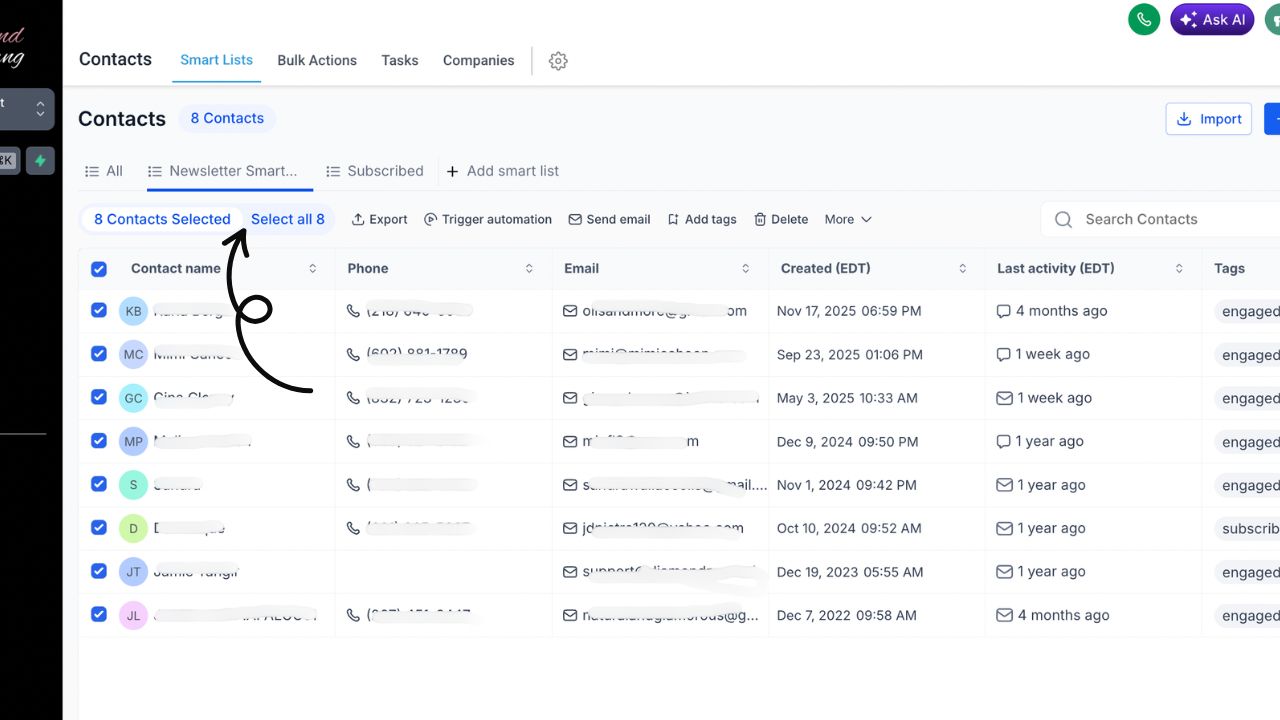
Select the check box above the first name, and it will select all contacts on that page. For multiple pages, click the 'Select All' link.
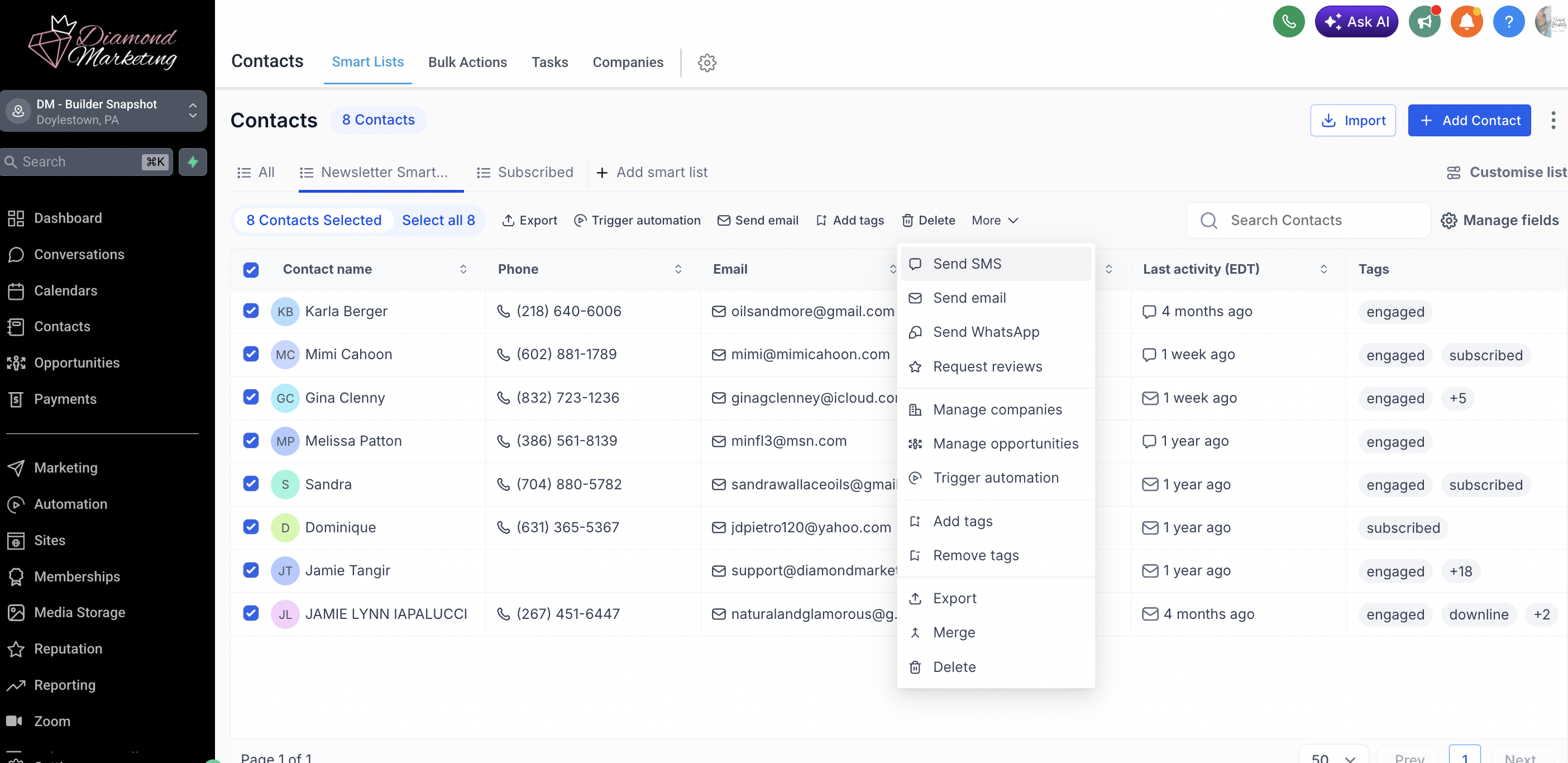
Select the MORE drop down and select Send SMS (or Trigger Automation to select a pre written workflow text to add them to)
Create an Action Name
Select your marketing phone number from the drop-down
Type your message and don't forget to add a photo!
IMPORTANT: Add a Photo for More Characters Per Text:
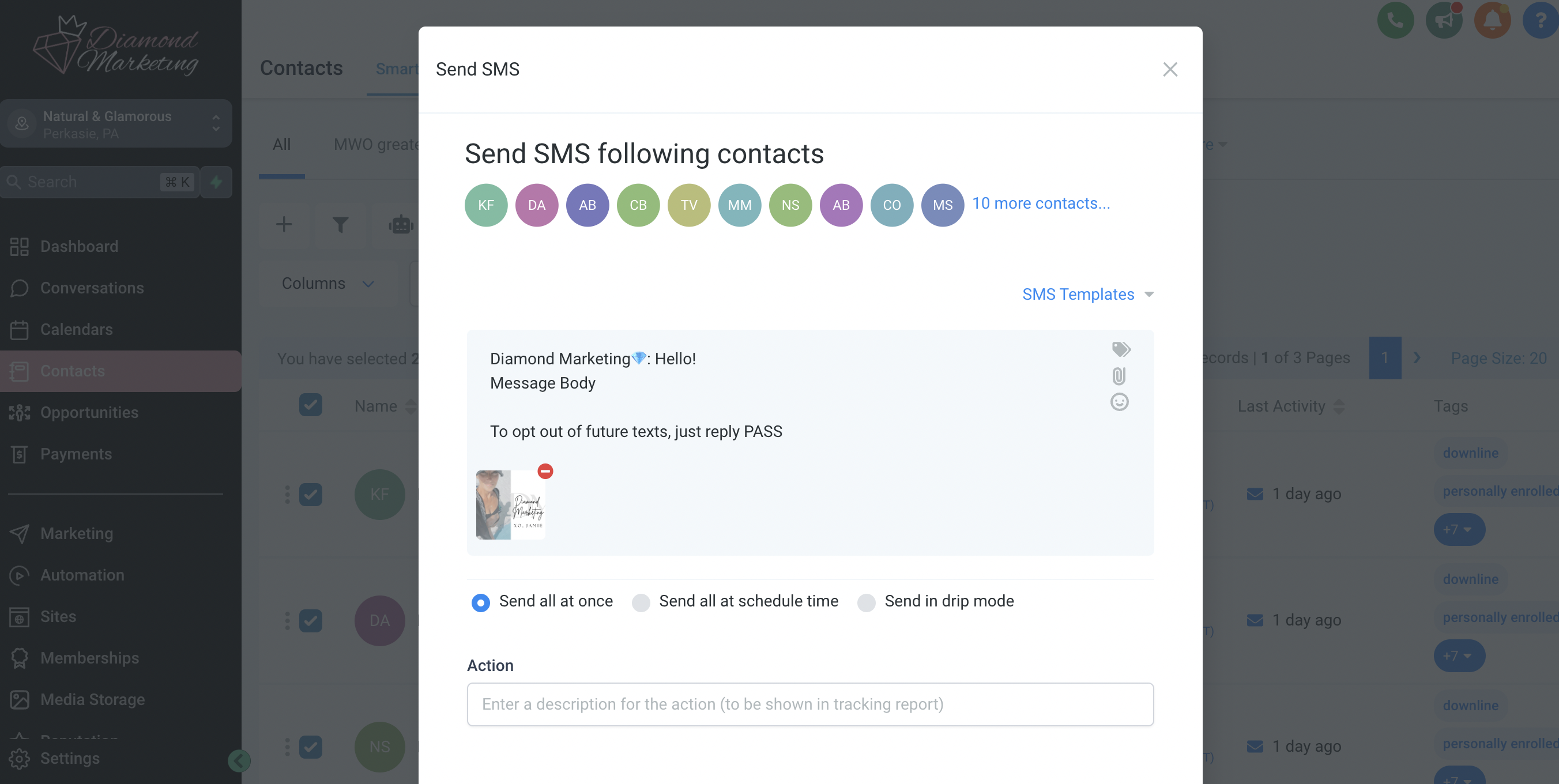
Texts without an image have a character limit of 160 and CANNOT include emojis.
Texts with a photo have a limit of 1600 and can include emojis.
Check that you have your text typed and a photo attached before you select 'send or schedule'!
*For text blasts to more than 500 at a time, select "send in drip mode" and select Drip of 10 texts every 60 seconds
Be sure all contacts on this list have opt-ed into receiving texts from you!
A greater percentage of 1% opt-out (replied back with the word STOP) will cause a carrier violation and possibly loss of your number.
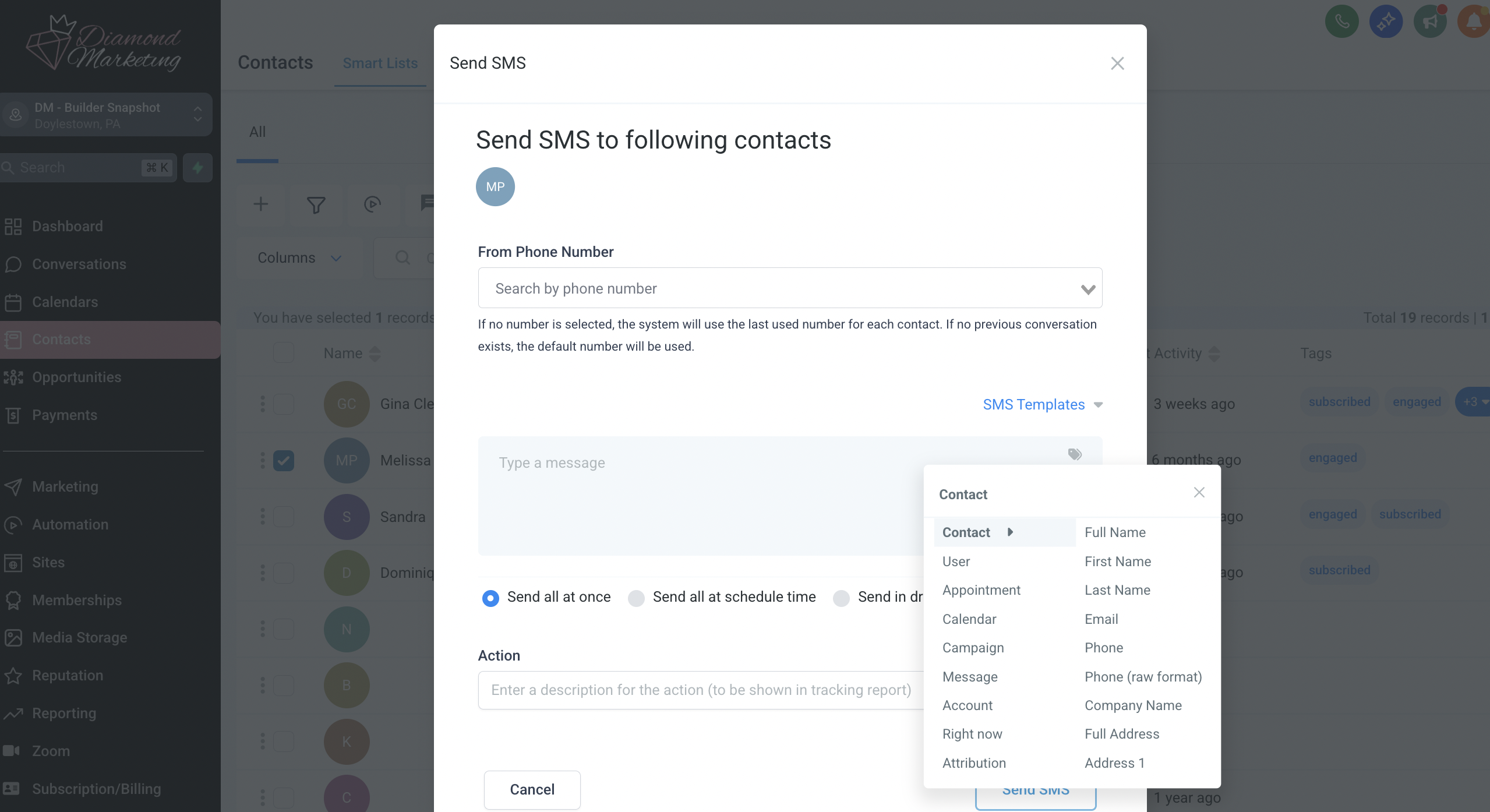
Insert Custom Values:
Custom values let you personalize your texts automatically—so instead of sending “Hi there,” you can send “Hi Sarah!” to every contact in your Smart List without manually changing each message.
Here’s how to do it:
When you’re ready to insert the contact’s first name, click the tag icon (it looks like a price tag or label).
In the drop-down menu, select Contact and then First Name.
This will auto-populate a placeholder that looks like this:
➝ That’s the magic! When the message sends, each contact will see their name.
Example:
You type: Hi , don’t forget to RSVP for tonight’s class!
They see: Hi Emily, don’t forget to RSVP for tonight’s class!
You can use other custom values too—like last name, email, or even custom fields you’ve added—just be sure to select them from the dropdown so the formatting is correct.
🔧 Common Mistake to Avoid:
Typing the name directly (like "Hi Jamie") or using incorrect brackets (like [first_name]) won’t work. Always use the dropdown to insert your tag!
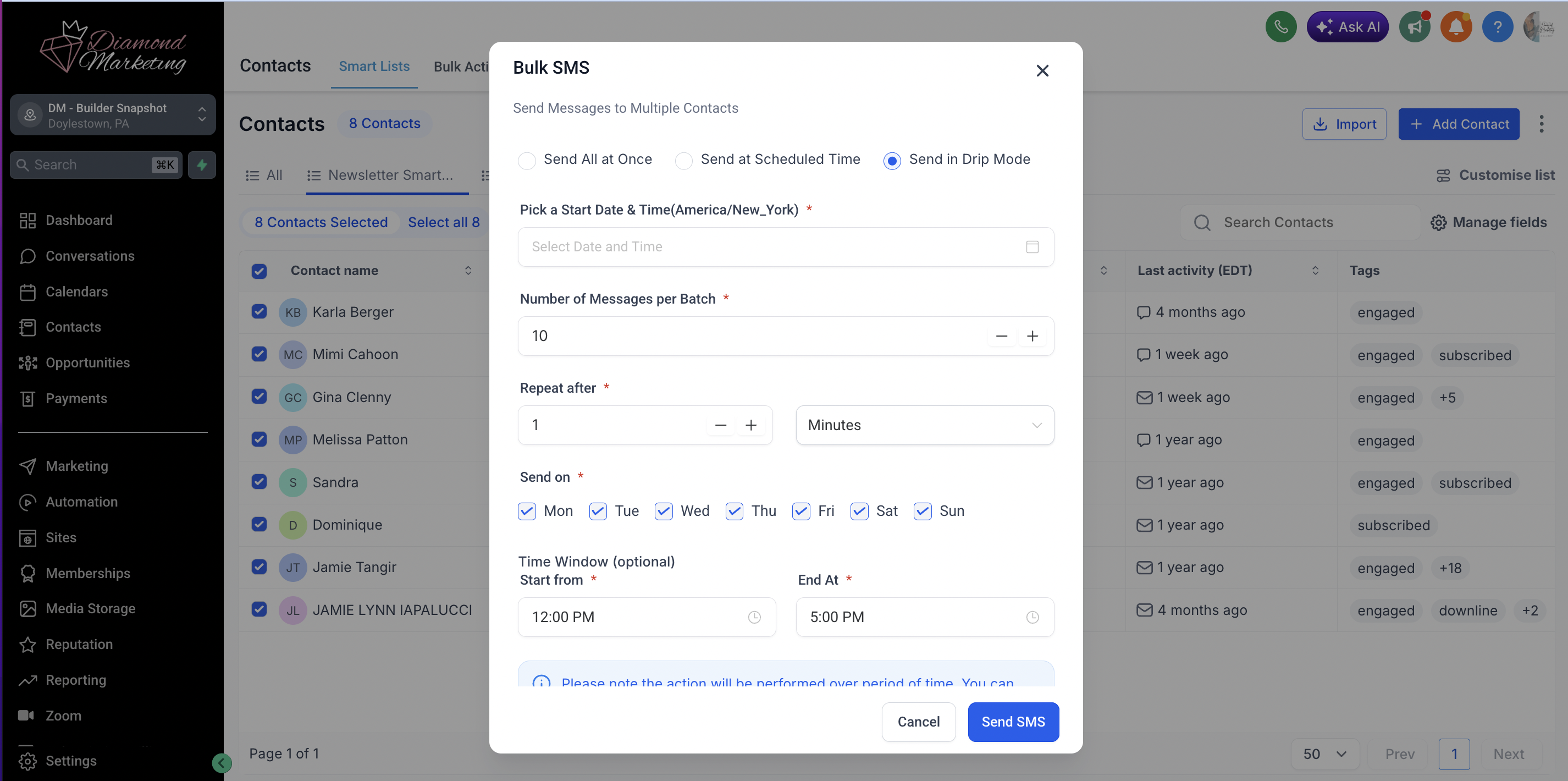
To Use Drip Mode:
Use Drip Mode for over 500 texts or more (be sure this group HAS OPT-ED in to receiving texts.
Select Your:
Action Name
The Day and Time to start to send
Batch Quantity is 10 EVERY 1 MINUTE
Reasonable text days and hours incase the texts take a while to process, select the hours to text between such as 10am-5pm.
Text Message Marketing Compliance Recap:
Here are some guidelines to follow when texting. Texting can begin when you receive the TCR Registration Approval email from [email protected]. This typically takes a few days!
Add your name or business name in each message: It is recommended to add your brand name at the top of your texts so contacts know EXACTLY who is texting them without having to open the text. This avoids getting deleted or marked as spam!
Opt-Out Language-When sending a text blast (text to more than one person):
Always offer new contacts the Opt Out word PASS to no longer receive text messages from you so they DO NOT report your message as spam or use the word STOP. STOP and PASS will work to turn on that contacts DND (Do Not Disturb); however, PASS does not alert carriers to spam like STOP does.
PASS in Diamond Marketing Triggers a DND (Do Not Disturb) for that contact for SMS (text) messages. You can still email the contact.
Contacts can text back START whenthey want to resume texts again.
DO Not Send: SHAFT
SHAFT is an acronym that represents the key elements of text marketing compliance and what is not allowed.
S - Sex
H - Hate
A - Alchohol
F - Firearms
T - Tobacco
*For the Young Living Brand Partner specifically, there can be no mention, creative language or graphics of CBD over text messaging using a marketing (Campaign Registered) phone number.
DO NOT send Shortened links such as bitly are seen as spam. DO NOT shorten your links in texts.
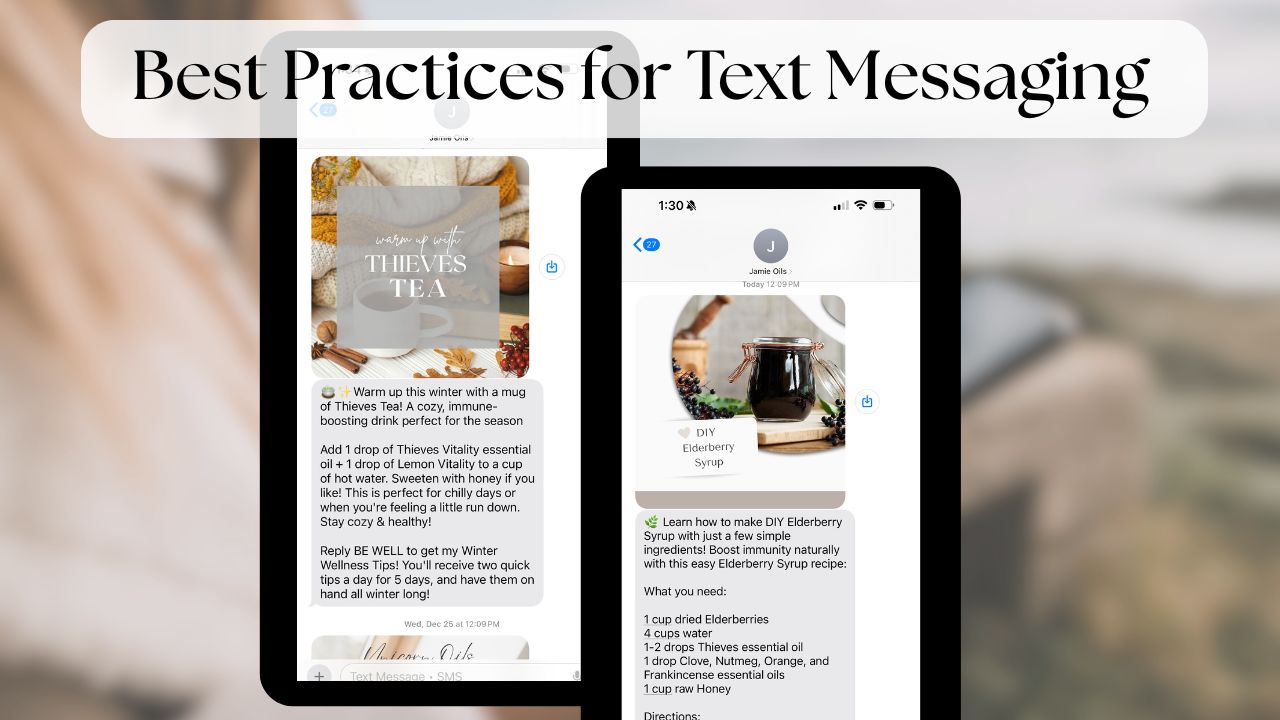
For more tips on text marketing, read this blog on Best Practices for Text Messaging. This isn’t just about compliance—it’s about making sure your messages are welcomed, read, and acted upon.
Up Next: Send Your First Text:
In the next step, let’s make your very first text unforgettable! In this lesson, you’ll use our easy-to-customize First-Text Template
to send a warm, engaging message to your personally enrolled customers—and start growing your
engaged list from day one. Here’s what you’ll learn inside:
✅ How to send your first opt-in text blast (yep, it’s FREE!)
✅ Grow your list with weekly tips+ build trust through education
✅ Opt-in marketing basics to keep your messages compliant and welcome
✅ More about the Oily Tips feature—and why it keeps your audience coming back
Let’s get your team connected and inspired—one simple text at a time. 🚀
Diamond Marketing is a customer care platform design for Young Living Brand Partners. All content provided by Diamond Marketing is the property of Diamond Marketing App LLC and cannot be copied or redistributed outside of Diamond Marketing. without prior consent.