
The Future of Text Marketing for Young Living Brand Partners:
Why Opt-In Marketing is the Only Way in 2025

In 2025, Broadcast Marketing is Out
Text marketing has changed drastically over the past few years. If you've been using text marketing for a while, you probably remember the days of sending out mass messages without much regulation. But in 2025, broadcast marketing is out—and opt-in marketing is the only way forward if you want to stay compliant and effective.
Why Broadcast Marketing is No Longer Effective
Carriers have implemented strict filters to block unsolicited messages, making it harder than ever to reach people with mass text blasts. If you're still relying on old-school broadcast marketing, you may have noticed:
Higher message filtering and delivery failures
Increased opt-out rates from annoyed recipients
Stricter carrier regulations leading to potential fines
The reality is, if your audience didn’t explicitly ask to receive your messages, your texts are likely getting flagged as spam—or worse, never even delivered.
Sent vs. Received Messages
One of the biggest changes in 2025 is how text messages are sent and received as two separate components.
1. Messages Sent via Diamond Marketing
Your texts are sent through Diamond Marketing. Here’s how you can ensure your messages are being sent correctly:
Check Your Bulk Actions in your Contacts Tab– After a text blast is sent, you can see a record of messages sent, along with delivery status updates.
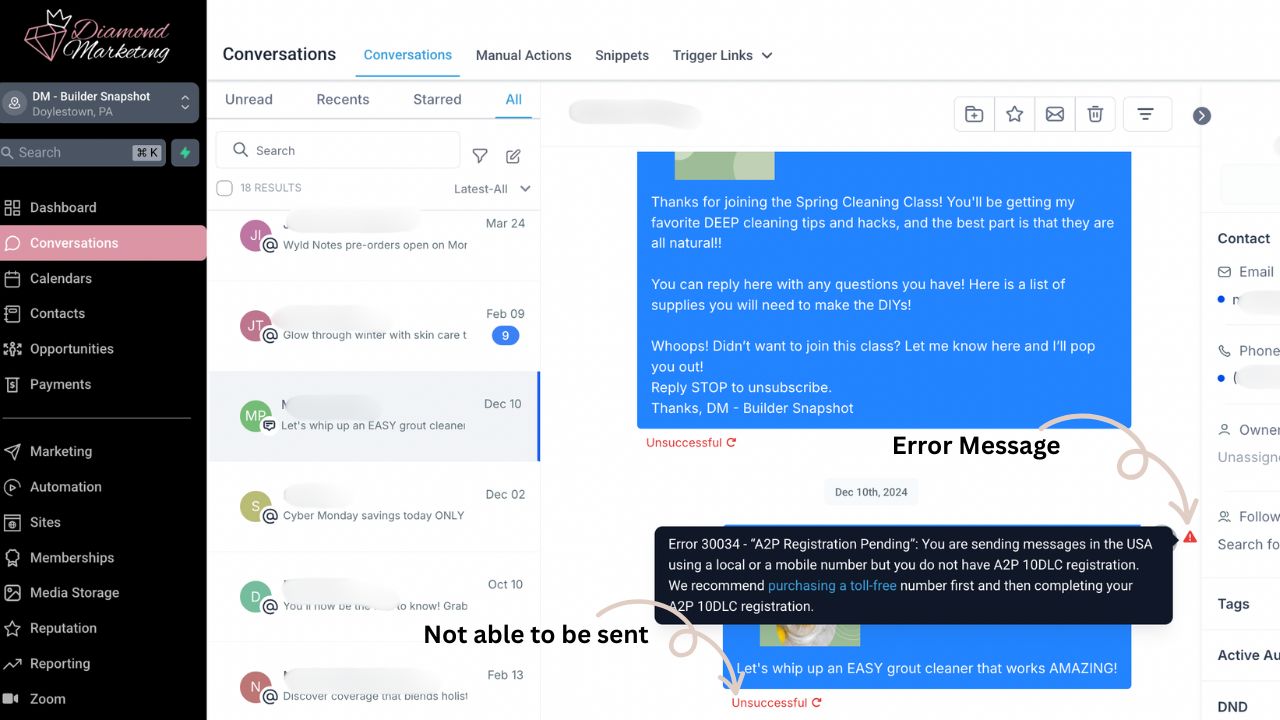
Monitor for Errors– Diamond Marketing provides error codes for messages that fail to send. Common reasons include incorrect numbers, carrier filtering, or unregistered numbers. These errors will be seen in your Conversations tab on the text that was unable to be sent.
Registered & Verified Numbers Matter– If your number isn’t properly registered under the new 10DLC guidelines, carriers may block your texts before they even leave the platform. Don't worry we take carry of this for you when you sign up!
2. Messages are Received via Contact’s Carrier (Carrier Filtering in 2025)
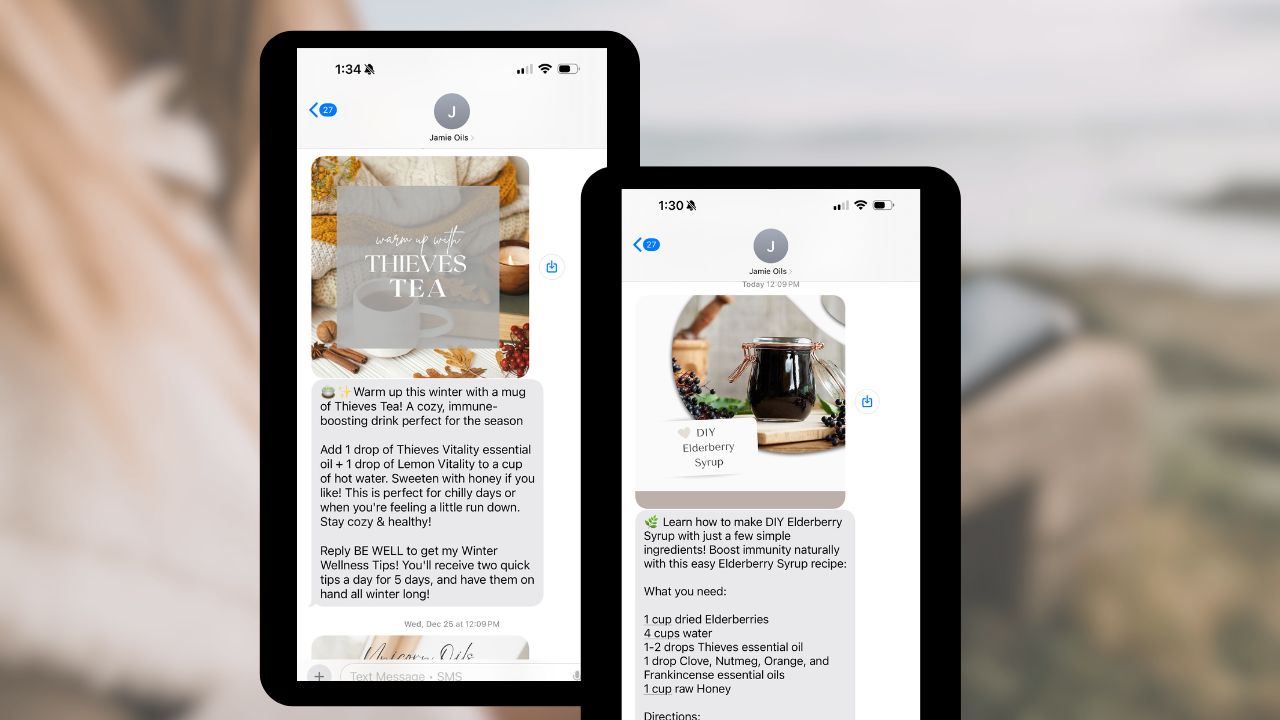
Even if your message is successfully sent through Diamond Marketing, your recipient’s carrier still has the final say on whether the message gets delivered. Carriers now use AI-driven filtering that:
Blocks messages that look like spam, especially if they contain suspicious links or too many promotional phrases.
Flags messages with unverified sender IDs, which can result in non-delivery or being sent to a “junk” folder.
Prioritizes messages from numbers that have a history of engagement, meaning conversations (rather than one-way broadcasts) are more likely to be delivered.
Unverified Sender IDs: What You Need to Know
Unverified sender IDs refer to phone numbers or alphanumeric sender names that have not been officially registered or verified with carriers under compliance frameworks like 10DLC for business texting (U.S.) or international A2P (Application-to-Person) messaging standards. Again, Diamond Marketing takes care of your registration or verification! We got you!
This is why it’s crucial to use a registered 10DLC number or a verified toll-free number for all business messaging.
Additionally, as part of the 10DLC registration process, you must provide proof of opt-in to carriers—meaning you need explicit consent from recipients before sending texts.
Even if a contact appears in your Virtual Office, you must have their permission to text them using your marketing number.
Opt-In Marketing: The 2025 Standard for Text Success
Sub-Headline
Opt-in marketing means only texting people who have given clear, verifiable permission to receive messages from you.
Higher engagement: People who opt in actually want to hear from you.
Better deliverability: Messages to an opted-in audience are less likely to be filtered as spam.
Stronger relationships: When someone voluntarily subscribes, they’re more likely to trust and engage with your brand.

This isn’t just about compliance—it’s about making sure your messages are welcomed, read, and acted upon.
PROVEN Best Practices for Text Marketing in 2025
Sub-Headline
To ensure your messages are seen (and not marked as spam), follow these key guidelines:
Get Clear Consent – Before texting anyone, make sure they’ve explicitly opted in. Use a sign-up form that they fill out to join your education list at the same time as purchasing their first order, use keyword opt-ins (e.g., "Text TIPS to 12345 to subscribe"). Even if a contact appears in your Virtual Office, you must have their permission to text them using your marketing number.
Keep It Personal – Texting is a one-on-one channel, not a billboard. Use first names and craft messages that feel like a conversation, not an ad.
Avoid Spam Triggers – Stay away from all-caps, excessive punctuation (!!!), and spammy phrases like “FREE MONEY” or “LIMITED TIME OFFER.”
Include an Opt-Out – Always provide a way for recipients to stop receiving texts (e.g., "Reply PASS to unsubscribe"). This keeps you compliant and prevents frustrated customers from marking you as spam.
Use Only Trusted Links – Avoid link shorteners. Instead, use branded or reputable direct website links.
Respect Frequency – No one likes to be bombarded. Stick to a schedule that keeps your audience engaged without overwhelming them—typically 1-2 messages per week.
From the Experts: Common Mistakes That Will Hurt Your
Text Marketing in 2025
Sub-Headline
Avoid these common errors that can lead to non-delivery, high opt-outs, or compliance issues:
Mass Text Blasts Without Opt-In – Sending texts to contacts who haven’t opted in will result in high spam complaints and message filtering. Contacts can report you as spam WITHOUT opting out, so you will never know when this happens!
Overuse of Promotional Language – Messages that sound overly salesy (e.g., "LIMITED TIME OFFER! BUY NOW!") are likely to be flagged as spam.
Ignoring Engagement – One-way messages with no interaction history are more likely to be filtered. Keep your texts conversational. Each of our automated text classes asks for questions to be sent throughout the class and offers a CTA to stay in touch at the end-both to help with engagement.
Failing to Include an Opt-Out Option – Every marketing text must have a clear way for recipients to unsubscribe. In Diamond Marketing, we use the word PASS to automatically turn on the DND (Do Not Disturb) for contacts who opt out. This way you are sure not to text them agqain.
Using Shortened or Untrusted Links – Avoid generic link shorteners that look suspicious to carriers and recipients.
Practical Solutions for Diamond Marketers
Sub-Headline
Create Your Own Opt In
Create a Form for Opt-In – Set up a form that allows new customers to opt in as part of their order instructions. The form should trigger a workflow that sends a double opt-in request, such as a “Thanks for joining!” text that asks them to reply to confirm.
Head to Sites, select Forms from the top menu and select Builder
Select +Create New Form and then Create Form From Scratch
Ask Contacts to Save Your Number and Email – Encourage customers to save your phone number and email as a contact. This improves deliverability and reduces spam filtering.
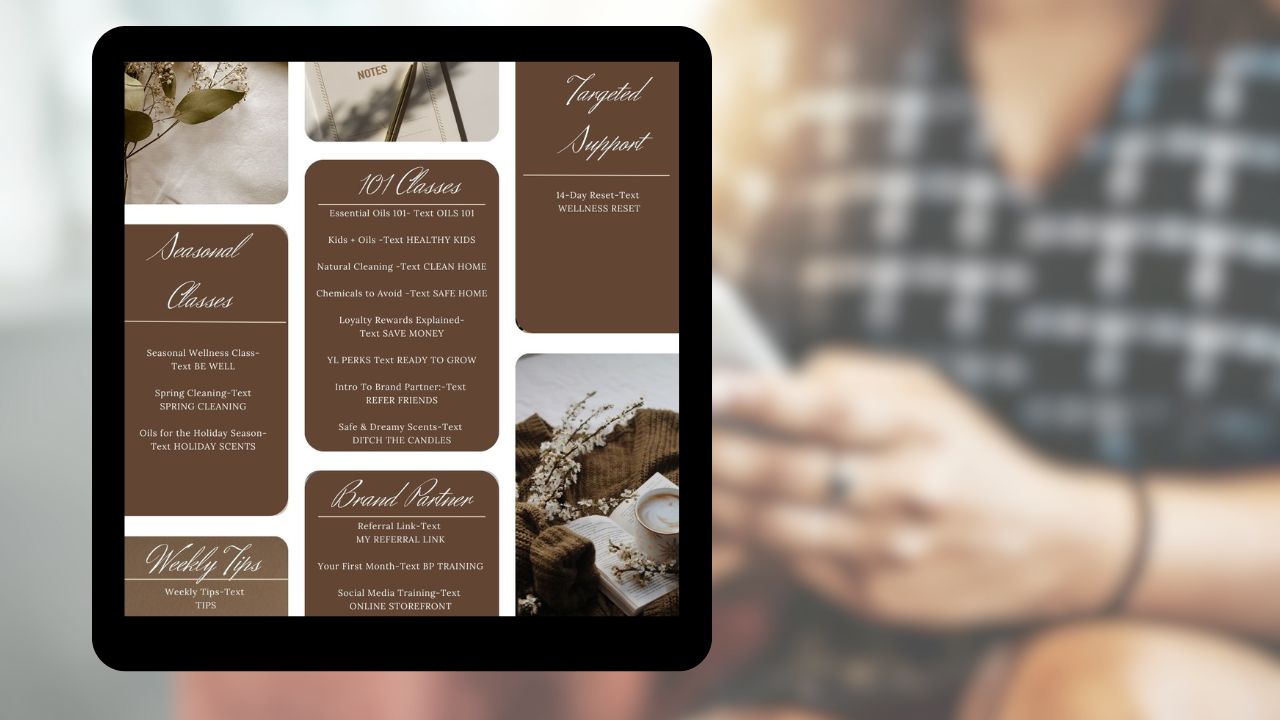
Promote Your Text Class Opt-Ins – Share your Diamond Marketing text class trigger words in your Facebook groups, Instagram stories, and in person. The more your audience opts in, the stronger your engagement and deliverability will be.
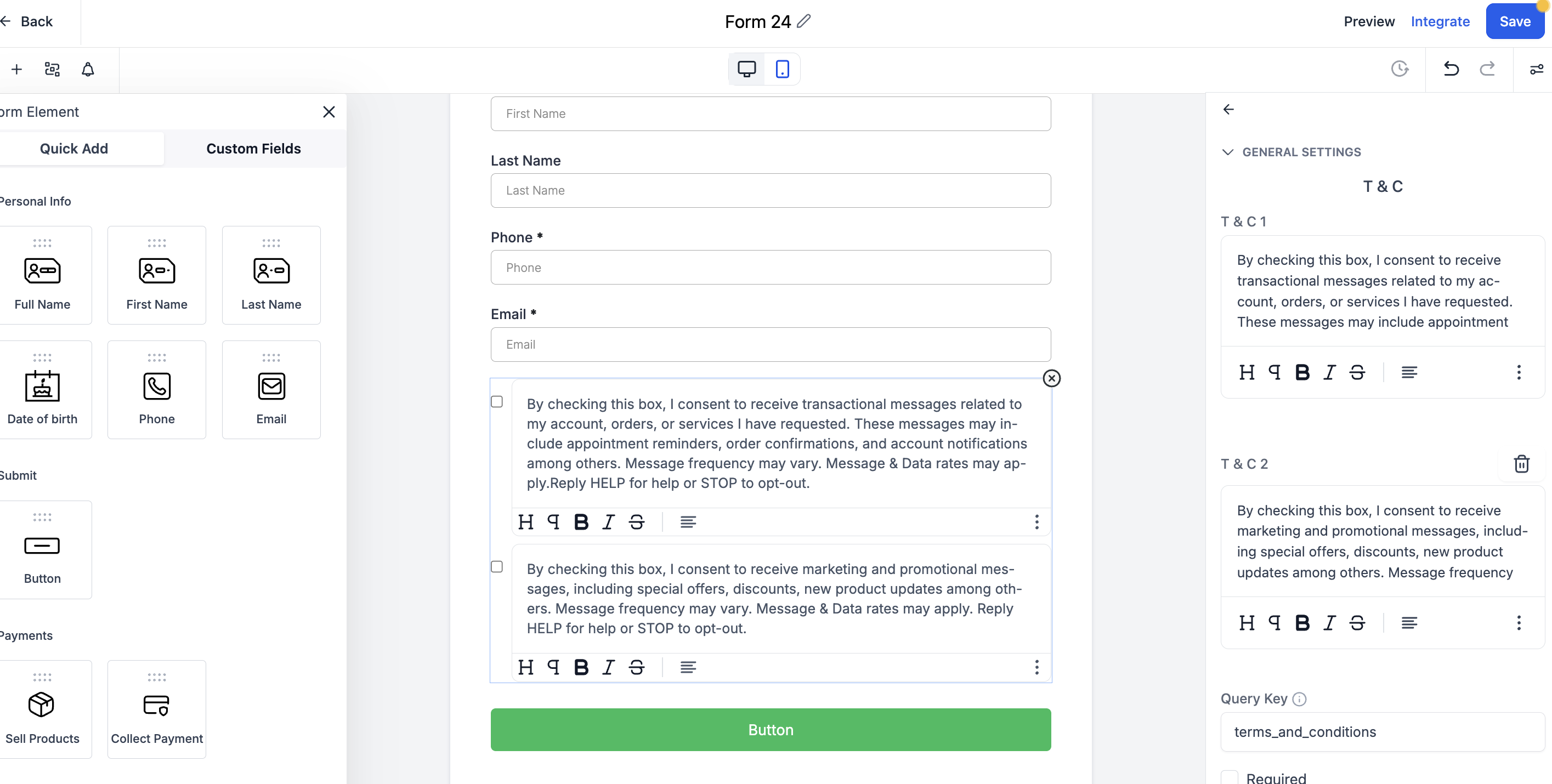
Customize the T&C 1:
Click on the first Check Box and customize the T&C 1 on the editing side
Sample Message:
I agree to receive text messages from [Your Business Name] at the number provided. Message frequency varies. Reply PASS to unsubscribe at any time. Standard message and data rates may apply.
Make this box required
Customize the T&C 2:
Click on the second Check Box and customize the T&C 2 on the editing side
Sample Message:
Yes! I want to receive emails from [Your Business Name] about exclusive offers, updates, and wellness tips. You can unsubscribe at any time.
Make this box required
Save your form link:
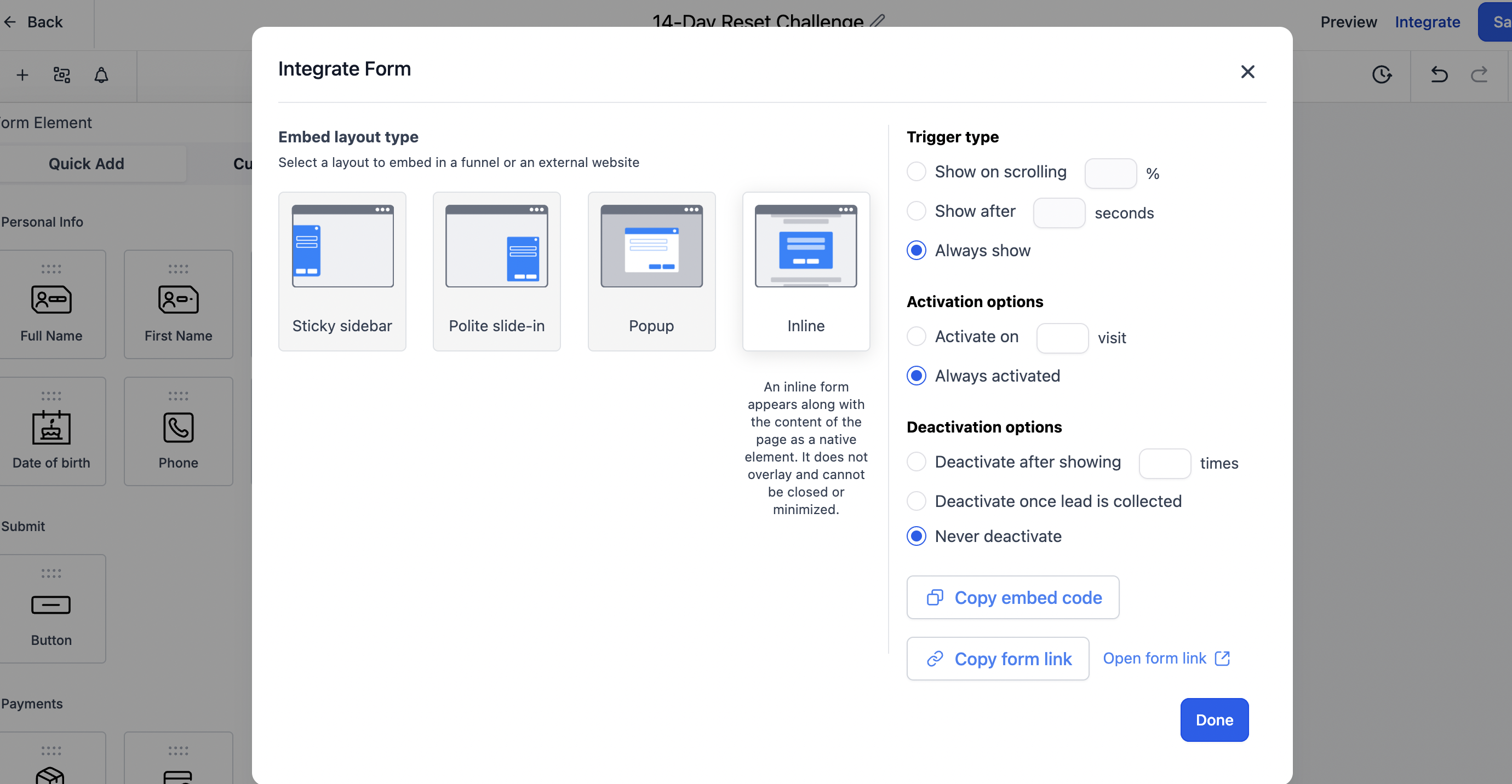
Click on Integrate inside the form and Copy the form link
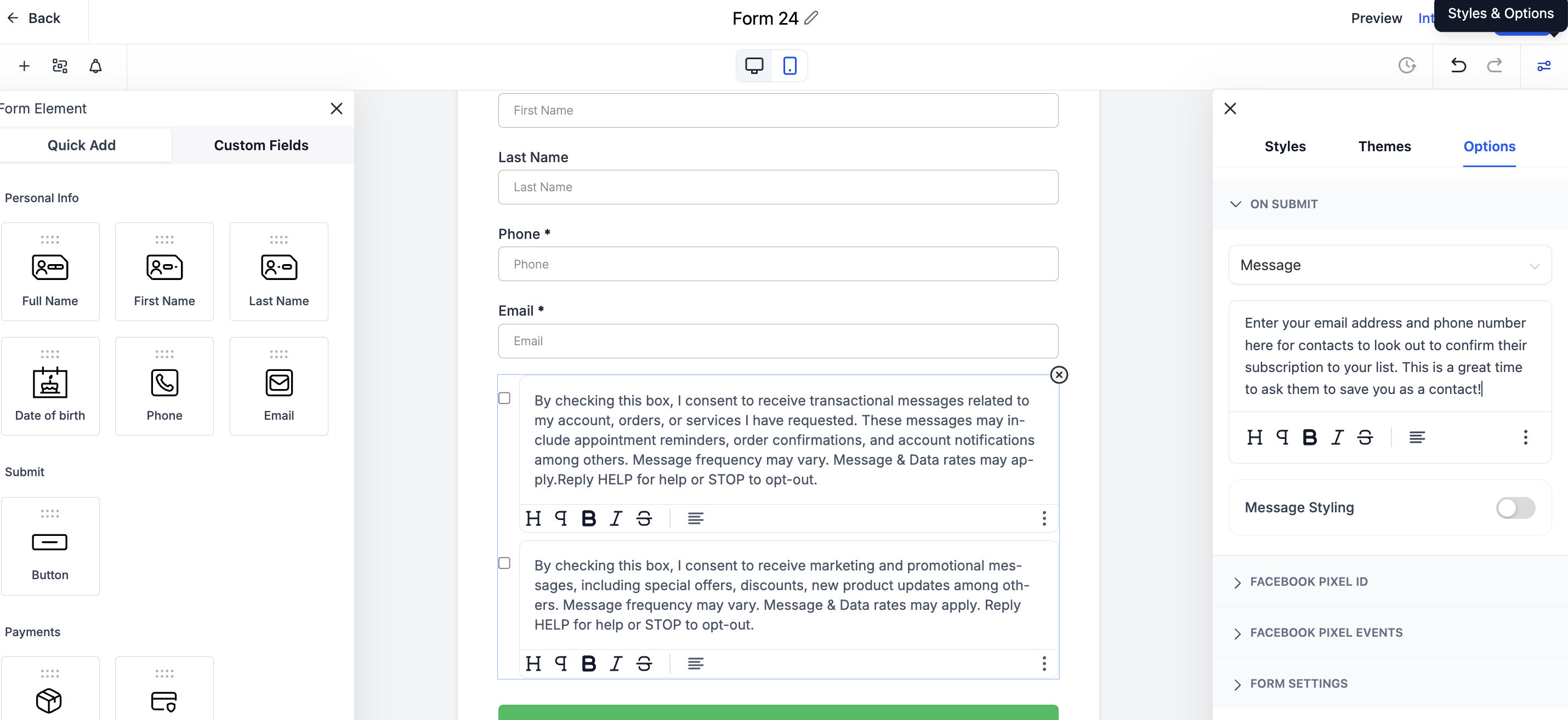
In the Styles & Options Icon, Click on Options and On Submit to personalize the form submission message (the message contacts receive after they hit the subscribe button:
Enter your email address and phone number in the submission confirmation message so contacts know to look out for a text and email to confirm their subscription.
This is also a great opportunity to ask them to save your number as a contact to ensure your messages are delivered straight to their inbox or text messages!
Sample Message:
Thanks for subscribing to [Your Business Name]! Look our for a text from [ Your Marketing Number] and an email from [YourMarketing Email] to confirm your subscription.
💬Tip: Be sure to save our number as a contact to make sure you never miss out on our messages!
Let's add the Form to a Landing Page:
Integrating forms into landing pages enhances your brand's presentation by displaying content under your custom domain, offering a cohesive and professional appearance. In contrast, standalone forms utilize a widget ID in their URLs, which may not align with your branding efforts.
It's important to note that access to landing page creation is contingent upon your subscription plan. Builder subscription plans do not have the landing pages feature, while Leader and Mentor Plans do.
To add the form to a webpage:
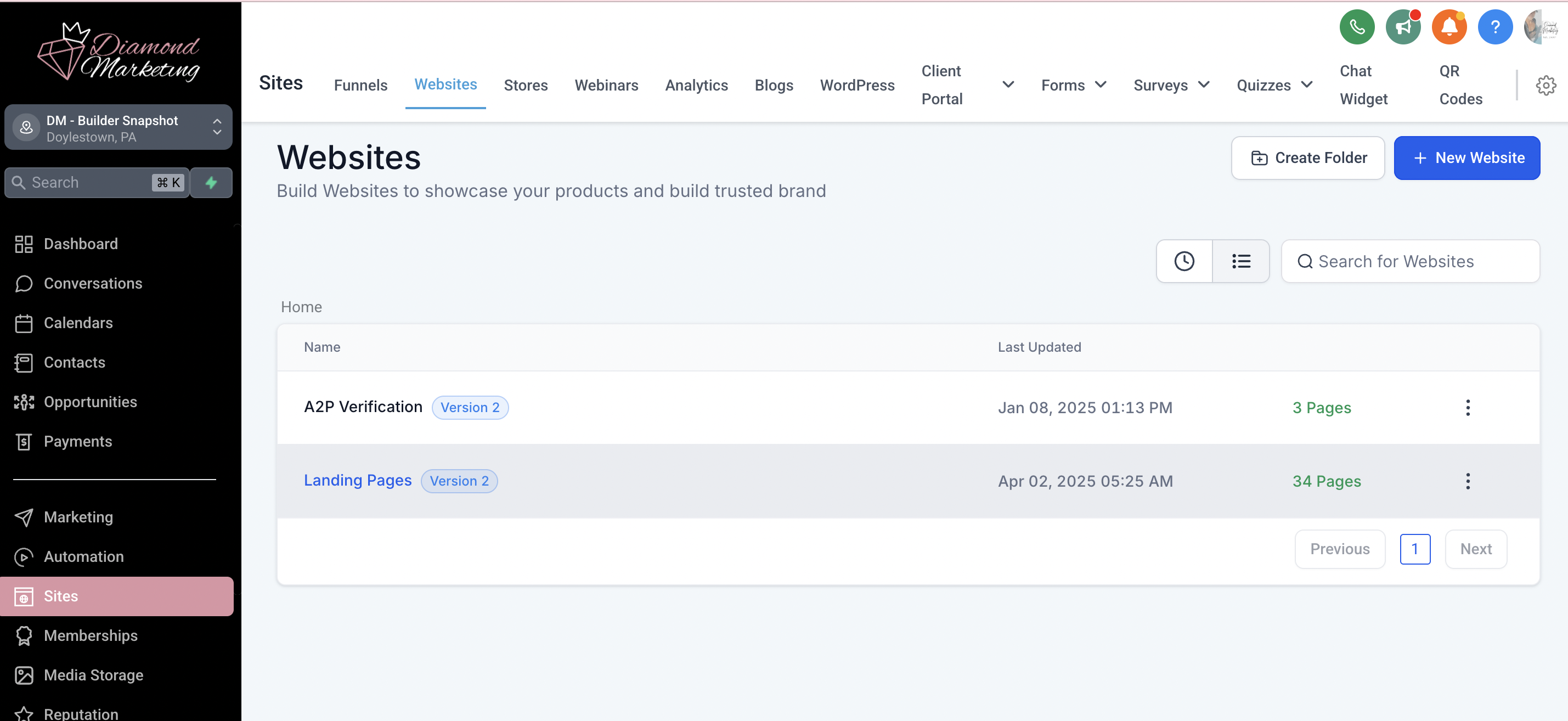
Click on websites from the top menu (visible for Leader or Mentor plan subscribers only)
Select 'Landing Pages'
Here all your landing pages templates are stored
Clone or Create a New Webpage:
Click on websites from the top menu (visible for Leader or Mentor plan subscribers only)
Select 'Landing Pages'
Here all your landing pages templates are stored
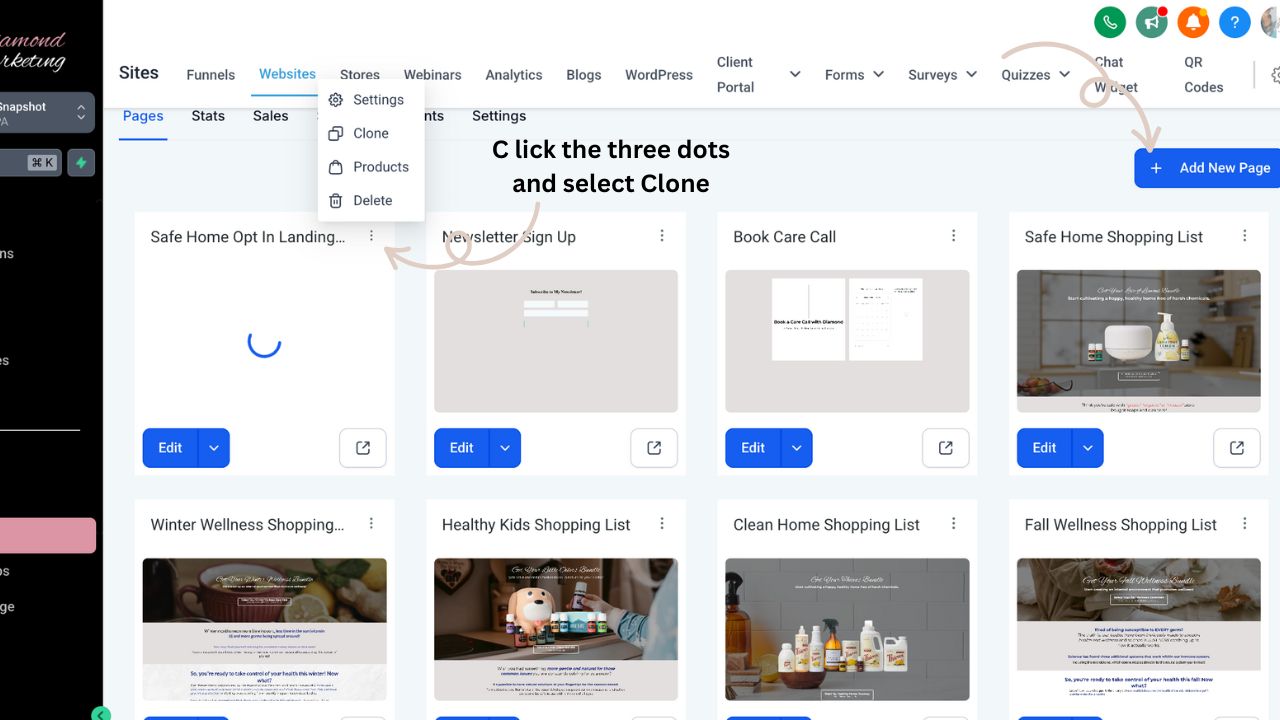
Select the three dots on any Opt in Landing page and select 'Clone' and 'Clone to this website' then click edit to customize this template with photos colors and a new form. When cloning a page, click the three dots and then the Settings option and change the page name and url path to match your new page.
You can also Click +Add New Page to Create a New Landing Page
Add your form to the landing page:
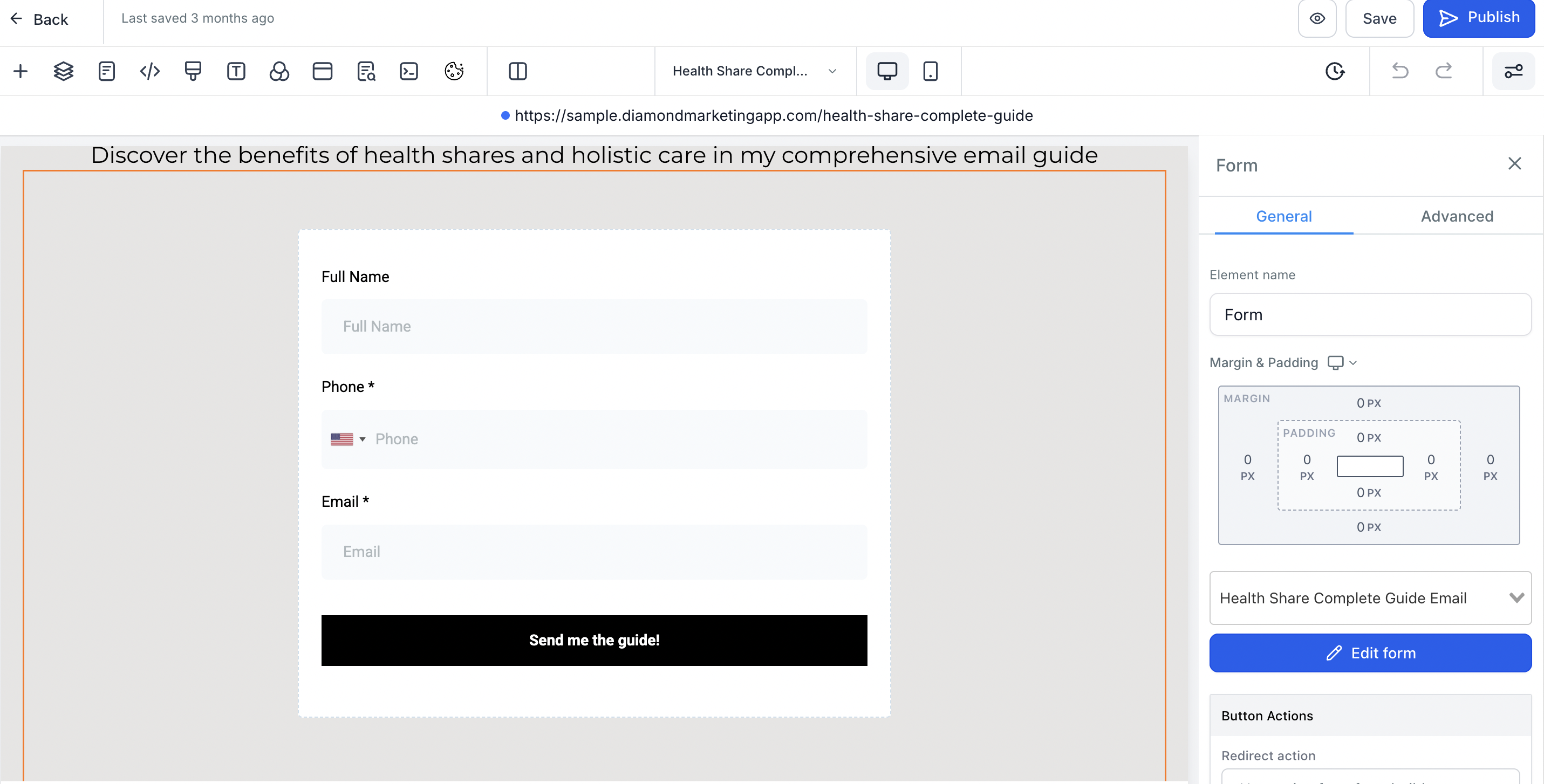
If creating a new landing page click the + button in the top menu to drag in elements. Use the form element
Click on the form element to bring up the settings
Here you can select the form you created
Save your webpage and publish it when done customizing.
To Use the Form Without a Landing Page:
Click on Integrate inside the form and Copy the form link
Let's create a workflow:
Creating a workflow in Diamond Marketing that is triggered by a form submission or a product purchase allows for efficient automation of follow-up actions, enhancing customer engagement and streamlining sharing your products.
Below are step-by-step instructions for setting up workflows based on these triggers:
Access the Workflow Builder:
1. Navigate to the Automation section in your GoHighLevel dashboard.
2. Create a new workflow or select an existing one to edit.
Set the Trigger:
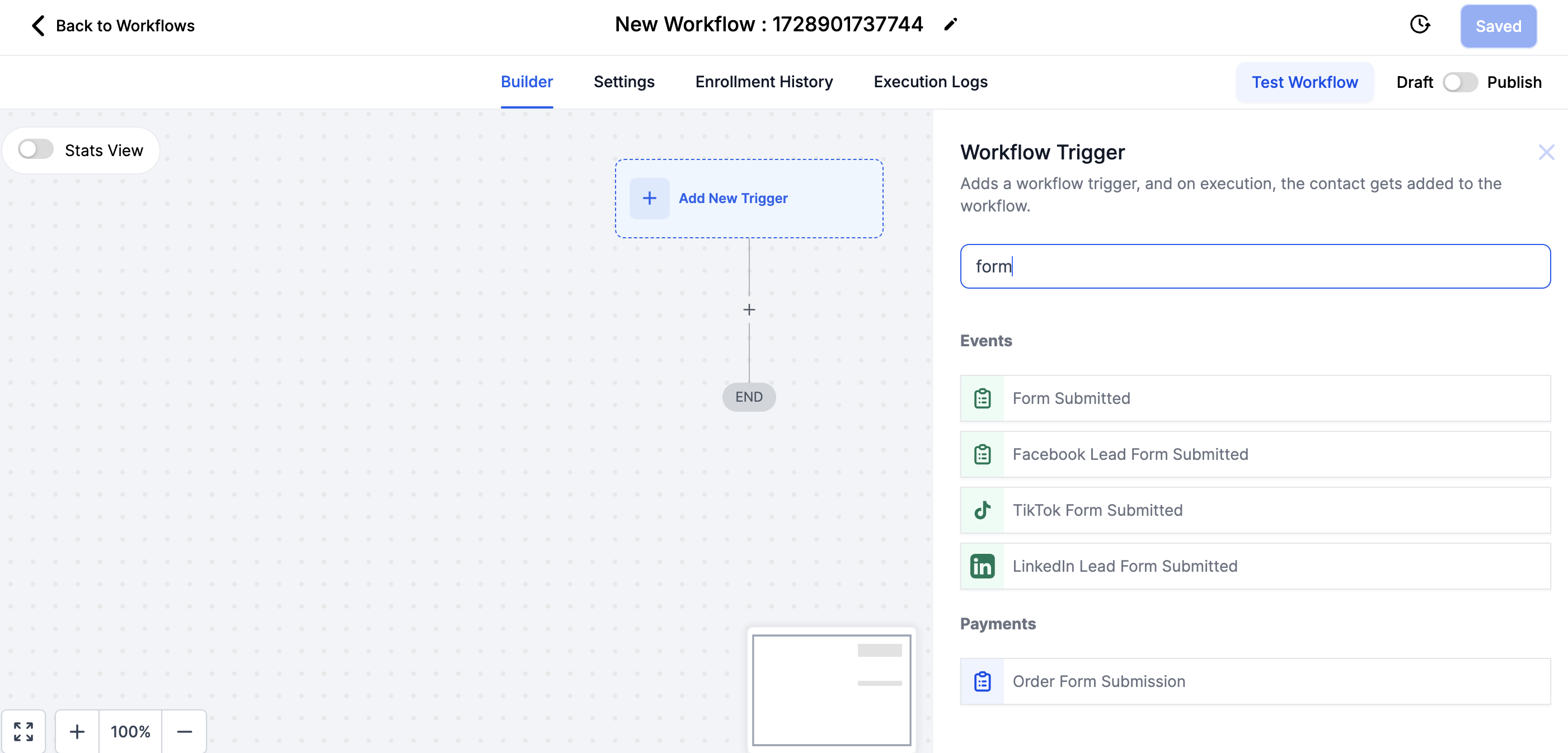
1. Click on 'Add New Trigger'.
2. Choose 'Form Submitted' from the list of triggers.
Configure Trigger Filters:
1. Specify the form that will activate this workflow by selecting it under the "Form Is" filter.
Add actions to be performed once the form is submitted, such as:
Sending a confirmation email to the submitter. Select the Email Subscriber Confirmation we have set up for you!
Sending a Confirmation Text.
Sample Text:
Thank you for joining [Your Business Name]! 🎉
We’re excited to keep you updated with exclusive offers, tips, and news. To confirm your subscription, please reply YES.
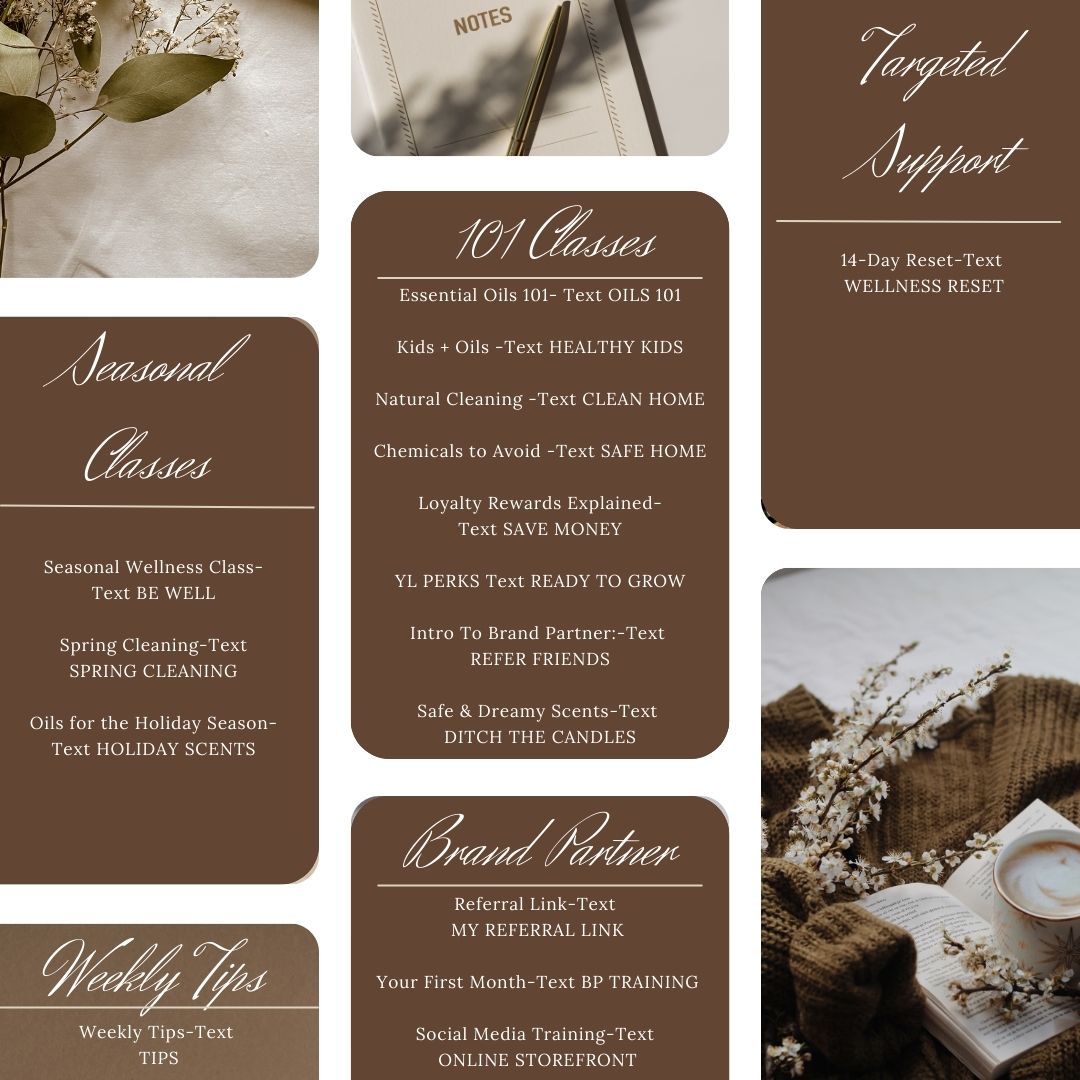
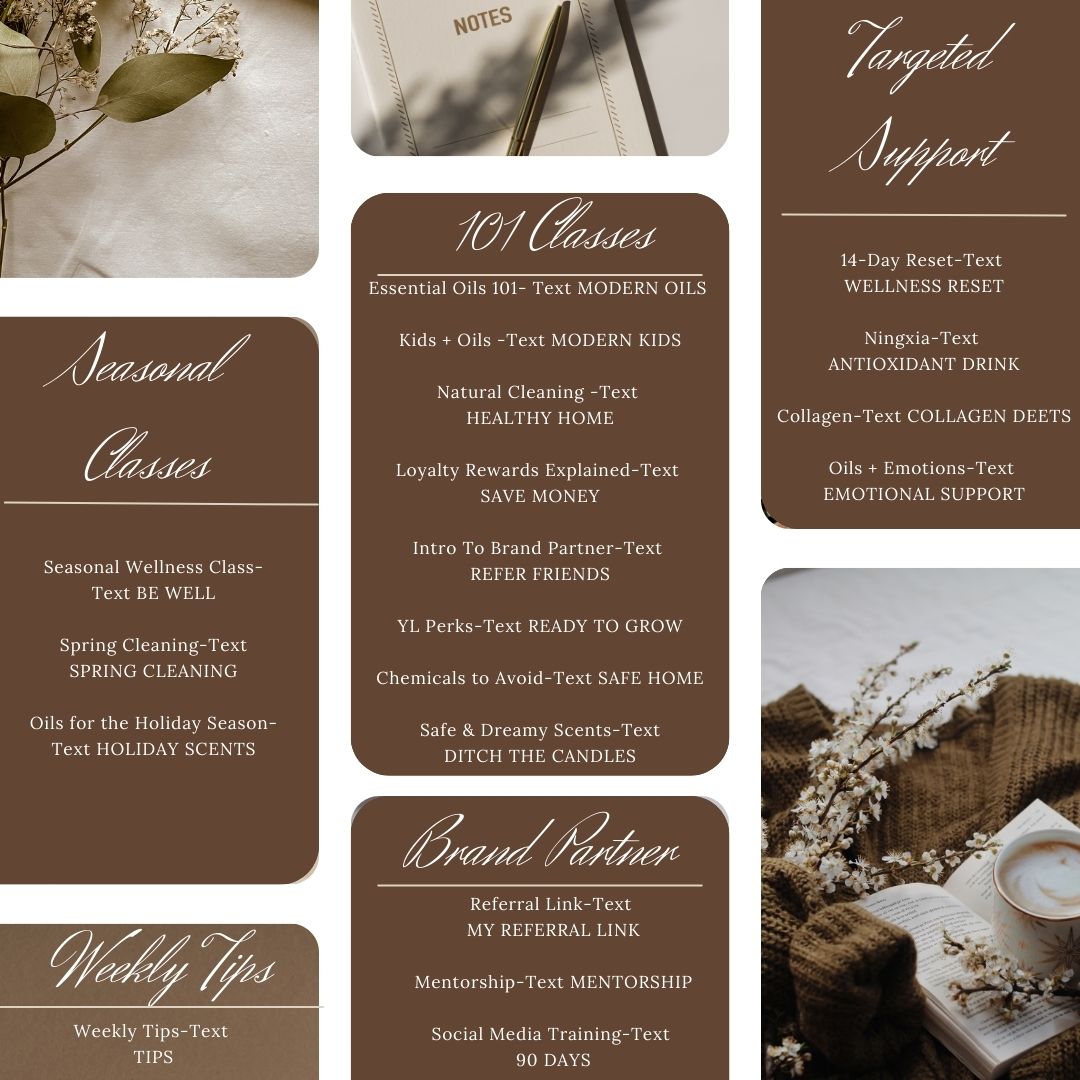
💡 Want instant access to our text education series? Choose a class below and reply here with the trigger word to start receiving all the tips right away!
Don’t forget to save this number as a contact so you never miss an update! 😊
[Include the Trigger word graphic to give them access to all of the text education right away!]
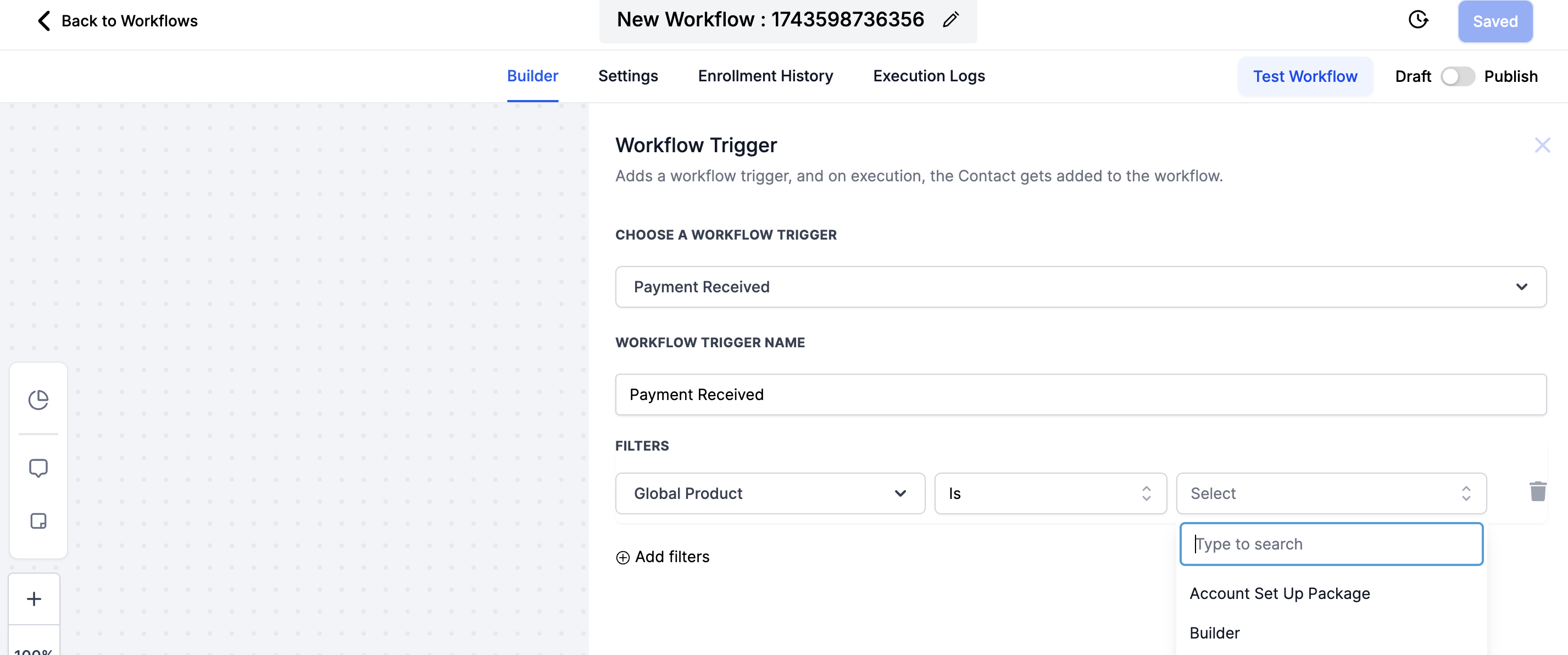
You can also select the trigger that a product was purchased:
Set the Trigger:
1. Click on 'Add New Trigger'.
2. Select the 'Payment Received' Trigger
Filter will be Global Product IS and select your product
Add actions to be performed once the form is submitted, such as:
Sending a confirmation email to the submitter.
Notifying internal team members.
Sending a text with a link to access your product
More details on adding action to workflows here.
Diamond Marketing
Text Class Opt-In Trigger Words
Modern + Co Team
Text Class Opt-In Trigger Words
Following these best practices will ensure your text marketing is compliant, effective, and welcome in 2025.
If you’re still using old broadcast methods, now is the time to switch to opt-in marketing and build a sustainable, high-converting text strategy.
Complete Text Marketing Series:
Text Messaging 101 Part One Here
Text Messaging 101 Part Two Here
Text Messaging Part Three: Send Your First Text Here
Diamond Marketing is a customer care platform design for Young Living Brand Partners. All content provided by Diamond Marketing is the property of Diamond Marketing App LLC and cannot be copied or redistributed outside of Diamond Marketing. without prior consent.