
New Account Onboarding
Nurture the Wellness Journey
Support and guide your new account holders—who haven't ordered yet—with simple steps, helpful tools, and personalized encouragement.
Effortless Text Tips: Encourages your New Accounts to subscribe to your oily tips. Keep them engaged with valuable insights, empowering them to make the most of their essential oils. Text and Email are available!
Tailored Class Access: Provides the DM class trigger words strategically to guide account holders toward the class that aligns with their goals, ensuring your New Accounts receive information tailored to their needs.
Fosters a personalized and enriched learning experience for each individual with direct access to a one-on-one conversation with you to ask you questions. during a text class.
Empower with Resources: Empower your New Accounts with the knowledge and resources needed to thrive on their wellness journey with Young Living oils.
Build a Community of Wellness: Encourages your New Accounts to join your Facebook Group. Connects them with a supportive community where they can share experiences, ask questions, and find inspiration.
The Workflow-
This onboarding is for new customers who have created a FREE account without placing an order.
Inside The Onboarding
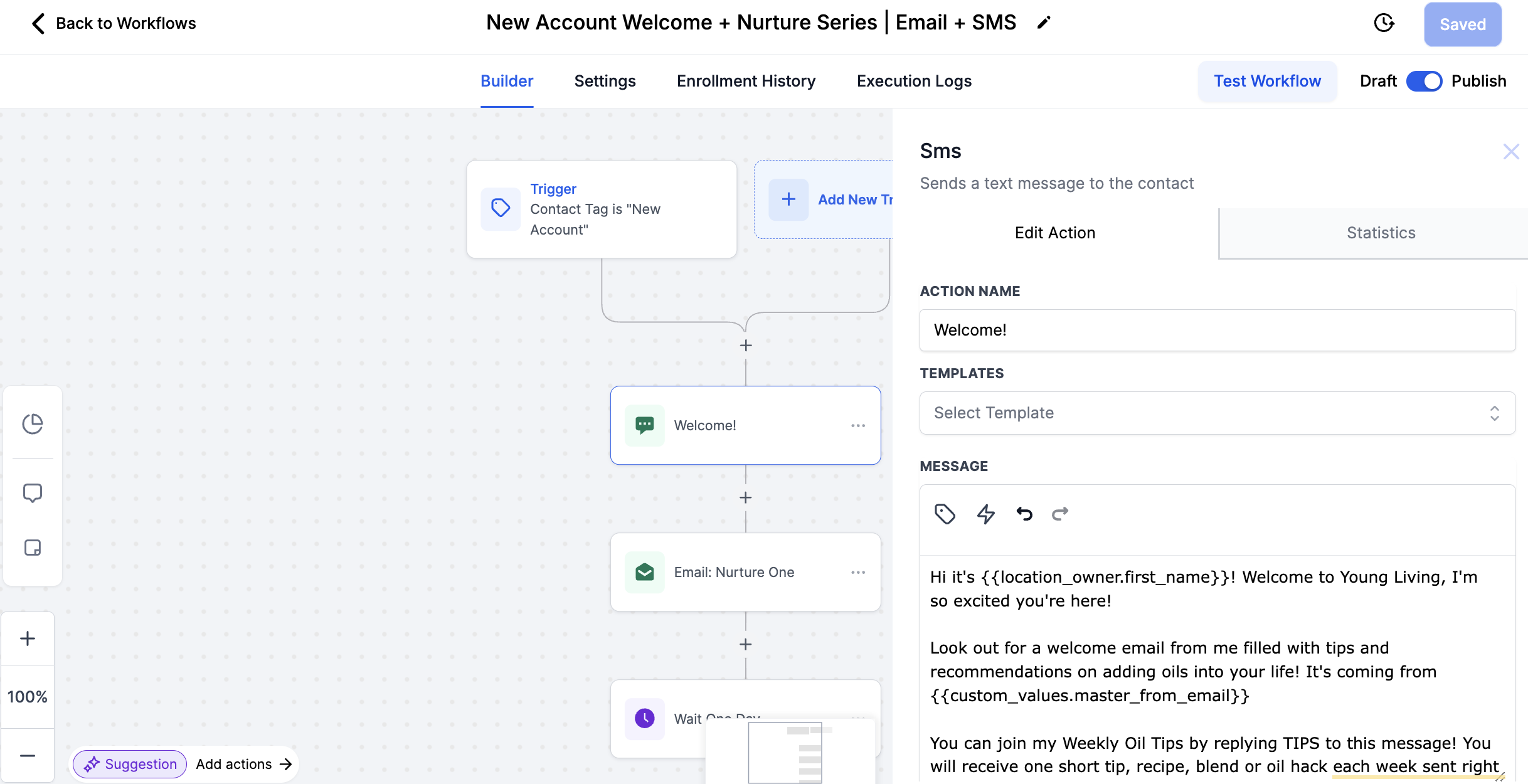
Your welcome text includes:
✅ Your name introduction
✅ Your marketing email
✅ A call-to-action to join your weekly text tips
✅ The required PASS opt-out message
Tip: Update the custom values to the name your contacts know you by best! (See Below)
4-Part Email Nurture Series
Find this series in the Marketing Tab Under Email Templates inside the New Account Onboarding folder.
Email 1: Natural Living Made Easy
An introduction to what makes an essential oil valuable, how to identify quality oils, and how essential oils work aromatically.
🔹Call-to-Action:Join My Oil Community
(Must add your Facebook group link—see below!)
Email 2: Topical & Remedy Use of Oils
Includes DIY recipes, roller & diffuser blends using PSK oils, and an intro to natural home care with Thieves Cleaner & Thieves Laundry Soap recipes.
🔹Call-to-Action: Join Your Oily Tips (Email or Text)
Email 3: Dietary Use of Oils
Explains Vitality (Plus) Oils, introduces French Aromatherapy, highlights how oils improve supplement absorption, and includes a NingXia & Thieves Tea recipe.
🔹Call-to-Action:Take One of Your “Targeted-Support” Classes (Uses the trigger word graphic for DM classes.)
Email 4: How to Get Oils at the Best Price
Features the ‘Bundles That Save Wishlist’ (or Canada shopping site), a spotlight on the Premium Starter Bundle, an overview of the Make-a-Shift Kits, details on the Loyalty Program, a Ditch & Switch list, and a 10% off first-time orders highlight.
How to Edit the Welcome Text in the New Account Onboarding:
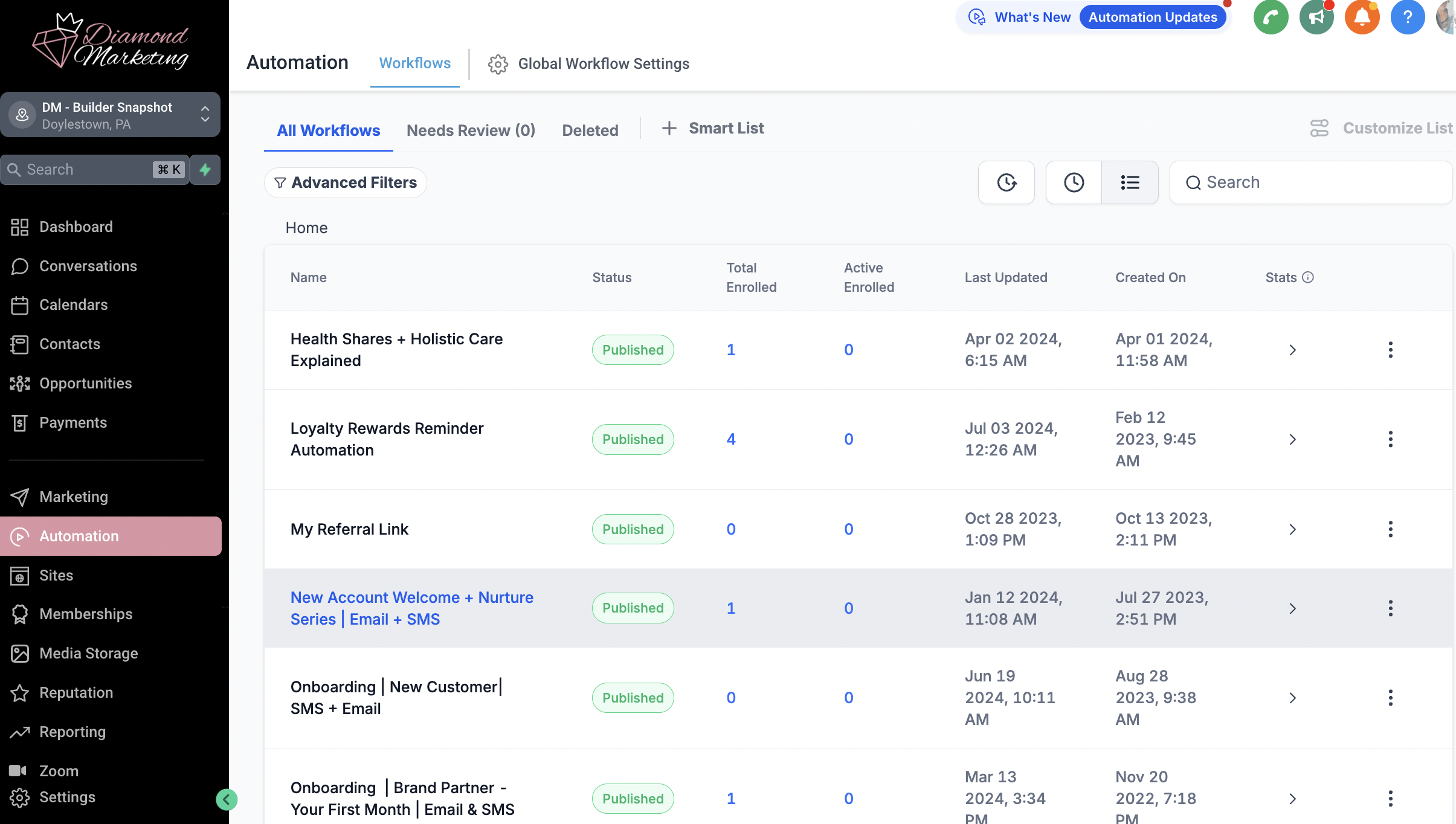
Updating your welcome message is quick and easy! Follow these simple steps:
Go to the Automation Tab in your Diamond Marketing portal.
Find the New Account Welcome + Nurture Series | Email + SMS workflow and click to open it.
Click on the Welcome Text message to edit it.
Replace the placeholder name with the name your contacts recognize you by—this makes your message feel more personal!
Do NOT remove the opt-out language at the bottom—this is required for compliance.
Keep your name or intro in the first line to help prevent your message from being marked as spam.
Click Save inside the action, then Save the entire workflow in the top right corner.
That’s it! Your welcome message is now personalized and ready to go.
How To Add Your Oily Community Link to Email One of the Nurture Series:
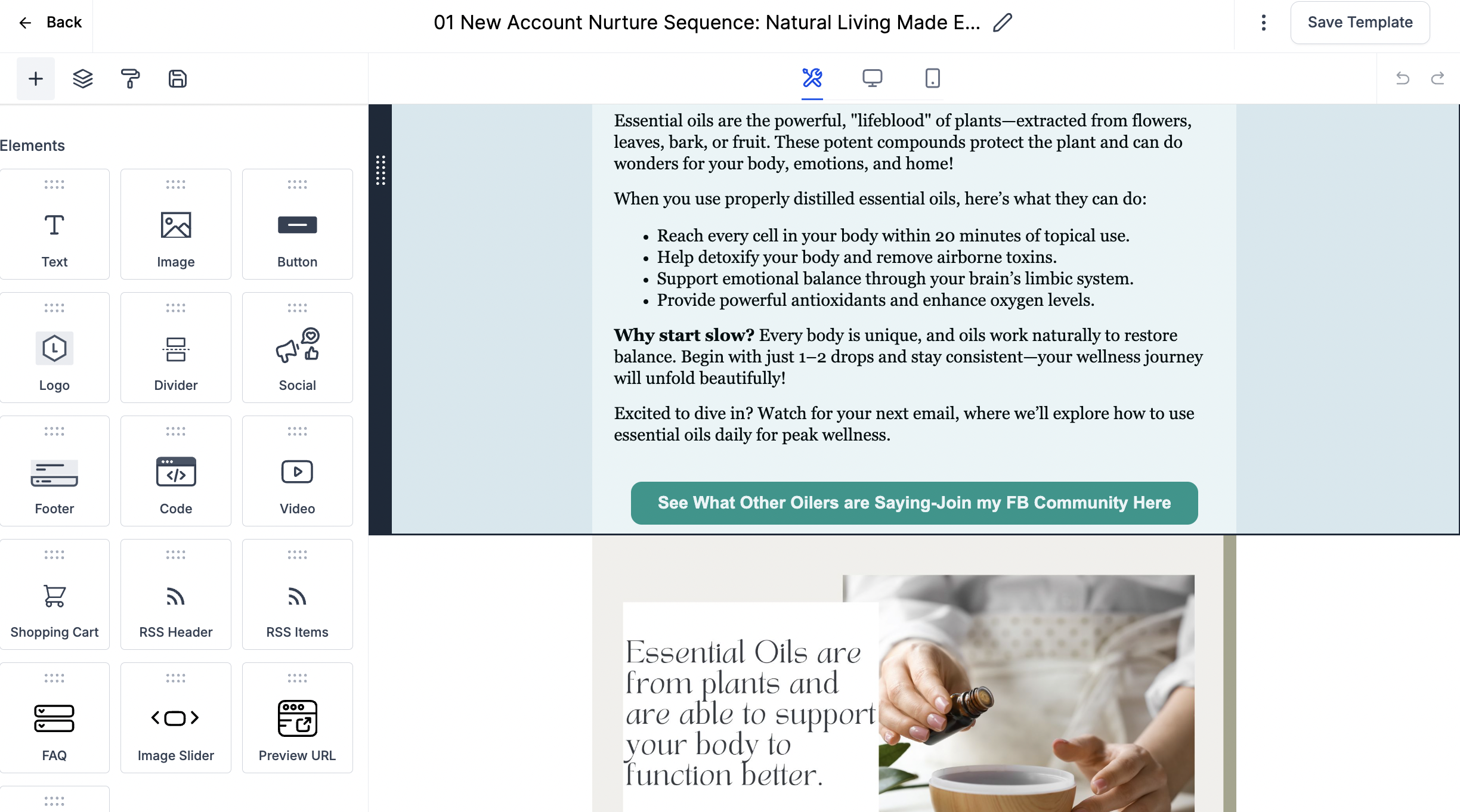
Open the Onboarding New Account Email Template Folder in your Marketing tab in the email templates drop-down.
Locate Email 01 New Account Nurture Sequence: Natural Living Made Easy
Scroll to the button labeled: See What Other Oilers Are Saying - Join My FB Community Here.
Click on the button, and on the left side of the screen, find the Link URL box.
Enter your Facebook group link into the Link URL box.
Click the Save button at the top right of the screen.
How To Add Your Email Signature to the Nurture Email Series:
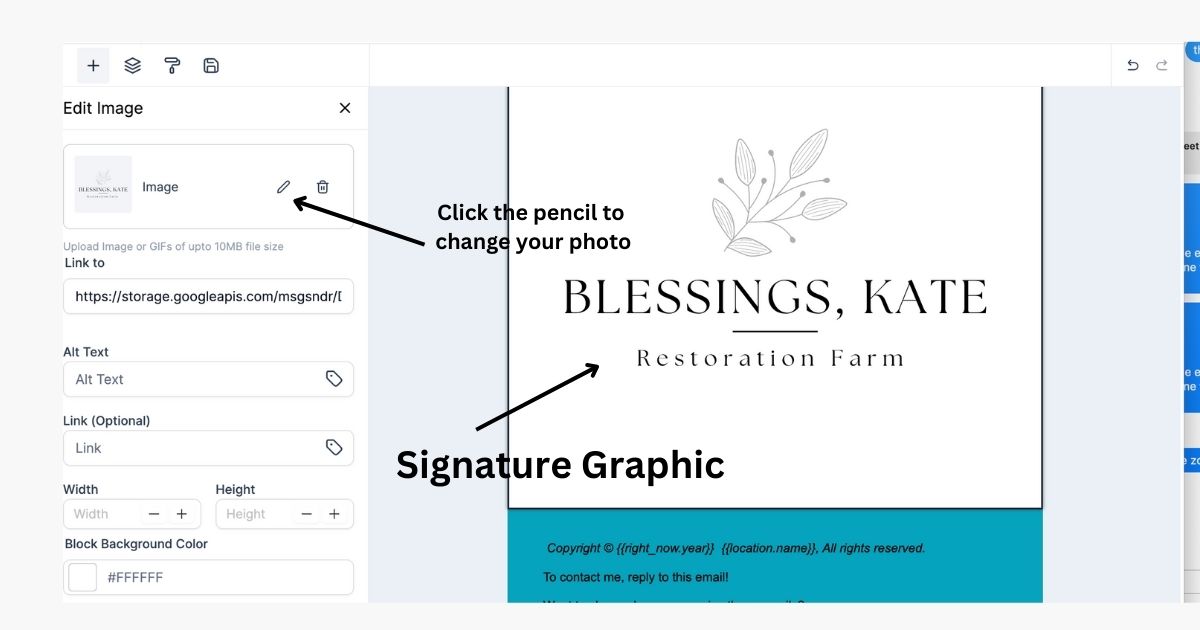
Open the Onboarding New Account Email Template Folder in your Marketing tab in the email templates drop-down.
Inside the first email, click the + button in the elements side of the email
Drag in an Image Element above the footer of the email
Select the Pencil Icon to select your signature graphic from your media library (Select Upload to add your graphic)
Click the Disk Icon on your image to Save your signature into your saved elements for future use.
Click the Save button at the top right of the screen.
After saving your signature element, you can simply select the Disk Icon on the elements side of any email template and drag in your signature.
How To Send the Onboarding:
Turn curiosity into confident first orders—with ease.
This ready-to-use workflow is designed specifically for those who’ve created a free Young Living account but haven’t ordered yet. It helps you guide them through their next steps with warmth, education, and encouragement—so they feel supported from day one.
What It Does
Sends a beautifully written email and text sequence to help new account holders:
Learn how to place their first order
Understand the benefits of getting started
Feel confident choosing products that fit their goals
How It Works:
Trigger: Tag Added- New Account
Add this tag when importing a New Account Report or manually inside a contact’s profile in Diamond Marketing.
Once tagged, the workflow runs automatically—no follow-up steps needed!
Step One: Run a Report in your VO
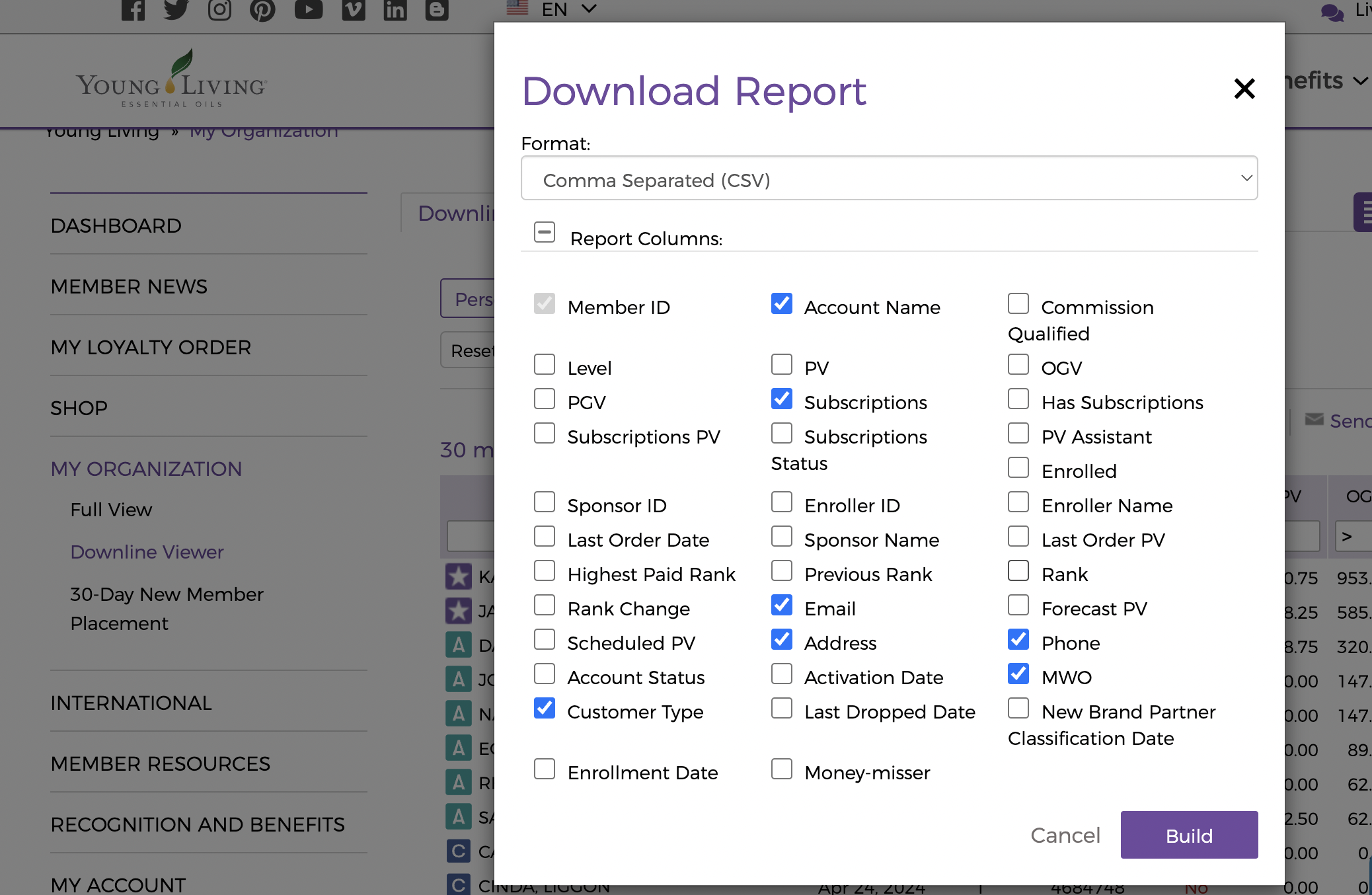
Select Personally Enrolled or New to Team
Select the the previous month in the month drop down
Add the filter 'Has Zero PV'
Include Customer Type, Account Name, Subscriptions, Email, Address, Phone and MWO
*NOTE: When Onboarding your new customers (who have placed orders) be sure to remove this list of contacts from that report first so you can send a targeted onboarding to the two groups. Onboard New Customers here.
Step Two: Import into Diamond Marketing
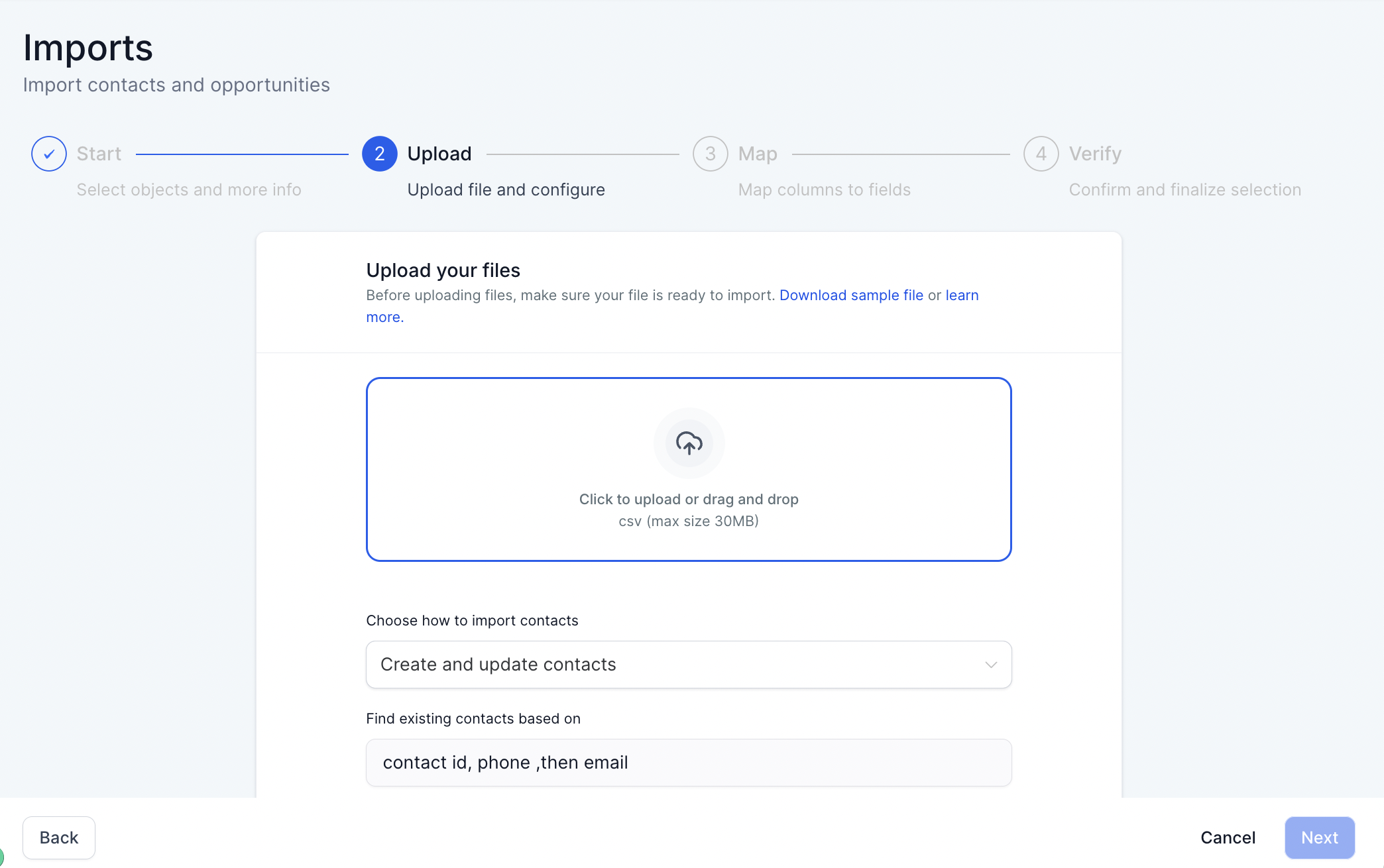
In the Contacts Tab: Select the Import Icon
Select Contacts & Upload Your File
Map the fields: Subscription will go with Process Day and Customer Type with Customer/Brand Partner
In the Verify Step of Import: Add the tag Personally Enrolled if you ran a PE report to update your PE list
AND Add the tag 'New Account' in the Advanced Step to add to your Onboarding Workflow
Full lesson here


Diamond Marketing is a customer care platform design for Young Living Brand Partners. All content provided by Diamond Marketing is the property of Diamond Marketing App LLC and cannot be copied or redistributed outside of Diamond Marketing. without prior consent.