
MWO (Months Without Order) Oily Refresh Nurture Series
An inspiring guide and connection for customers who haven't ordered oils in months.
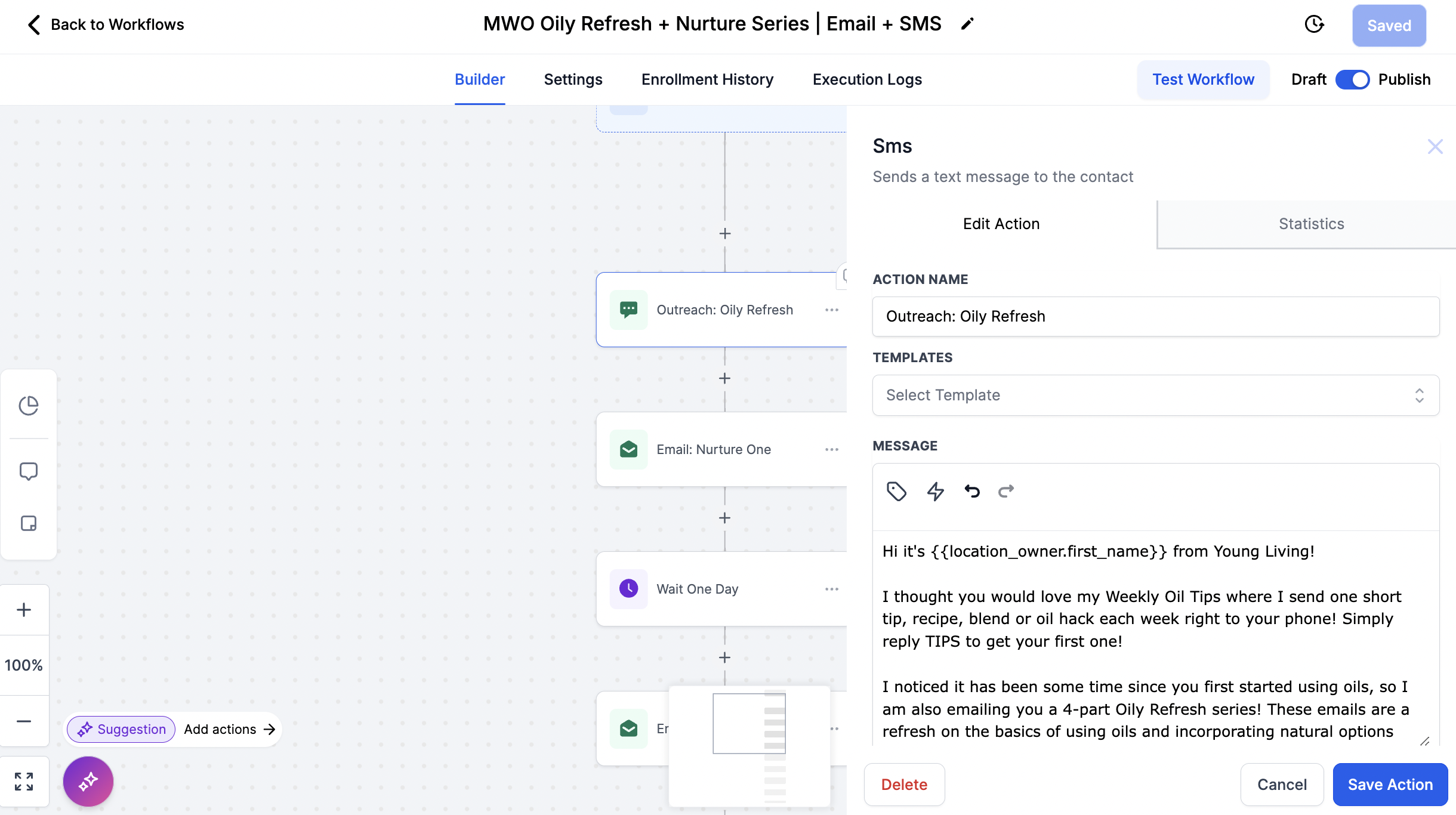
Effortless Text Tips: Encourages your About-to-go-Inactive Customers to subscribe to your oily tips. Keep them engaged with valuable insights, empowering them to make the most of their essential oils.
Tailored Class Access: Provides the DM class trigger words strategically to guide account holders going inactive toward the class that aligns with their goals, ensuring they receive information tailored to their needs.
Foster a personalized and enriched learning experience for each individual with direct access to a one-on-one conversation with you to ask you questions during the text classes.
Empower with Resources: Empower your customers who haven't ordered in months with the knowledge and resources needed to thrive on their wellness journey with Young Living oils.
Build a Community of Wellness: Encourage your account holders to join or check back into your Facebook Group and connect with a supportive community where they can share experiences, ask questions, and find even more inspiration!

Set Up the Nurture Series For Your Team:
STEP 1: Update Your Welcome Text
1️⃣ Log in to your dashboard.
2️⃣ Go to the Automation Tab and open the MWO Oily Refresh + Nurture Series Workflow
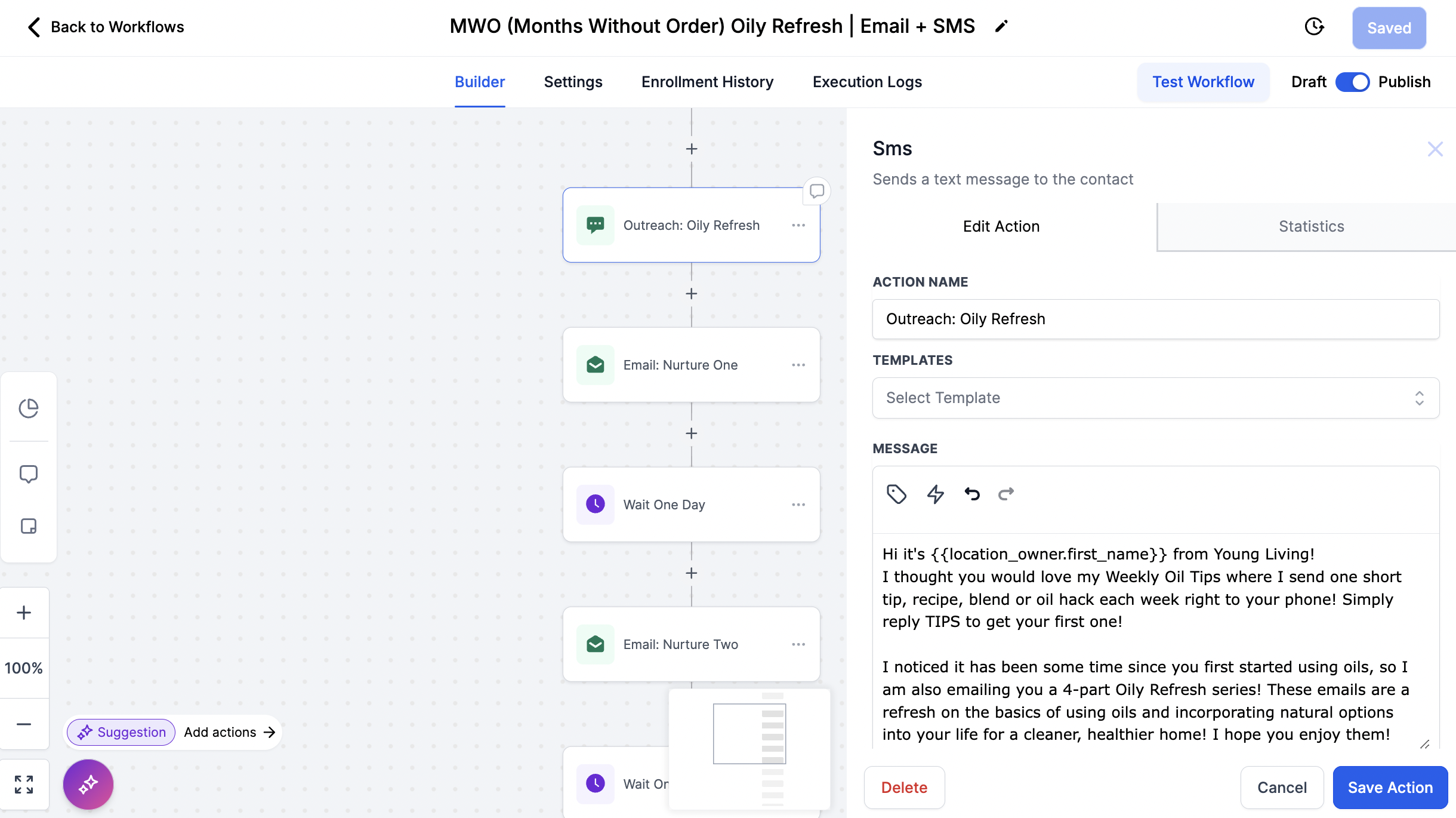
3️⃣ Review the text and add personal touches if you'd like!
We recommend updating the custom values name to the name your customers know you by best. Keep your name at the very top of the text to prevent it from being marked as spam.
4️⃣ Save your changes by clicking “Save” within the action.
5️⃣ Save the entire workflow in the top right corner.
STEP 2: Customize Your Emails
1️⃣ Go to the Marketing Tab and select Email Templates from the top drop down.
2️⃣ Find the MWO folder and open the emails.
3️⃣ Read through each email and add your personal touches if you'd like.
4️⃣ Don't forget! Add your Facebook group link in the first email.
Once you're done, your nurture series is fully personalized and ready to go! 🚀
How To Send the Nurture Series:
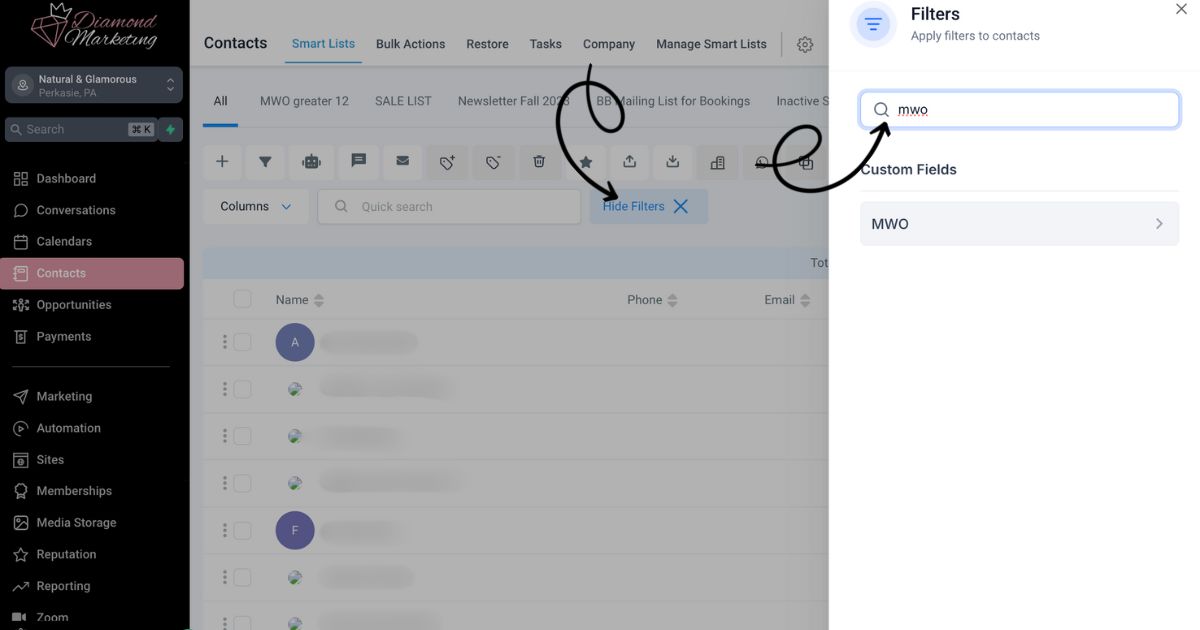
Step One: Filter Contacts by MWO Value in the Contacts Tab:
Go to the Contacts Tab: Navigate to the Contacts screen in your dashboard.
Open Filters: Click on the "More Filters" option.
Set the MWO Filter:
1, Search for the "MWO"
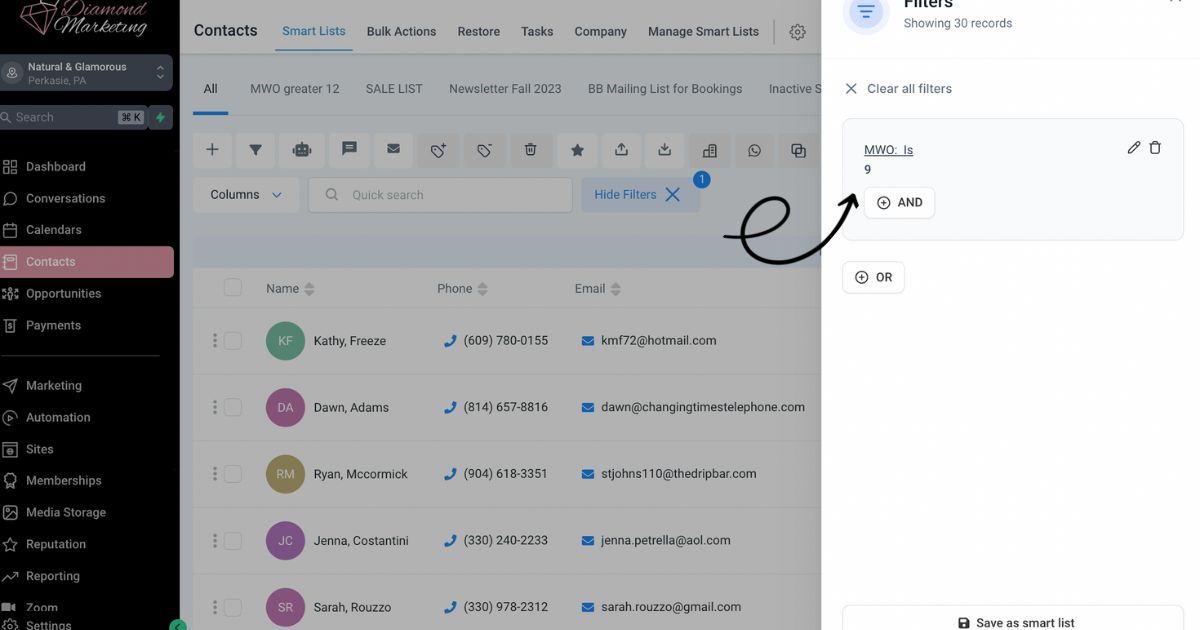
2. Choose the value that fits your criteria (e.g., MWO = 9 or MWO > 4)
*We recommend sending it to contacts 9 months without order.
Apply the Filter: Click "Apply" to see the filtered results.
Close the Filter Panel: Click the "X" to close the filter screen and view your contacts list without obstruction.
Step Two: Adding Contacts to a Workflow:
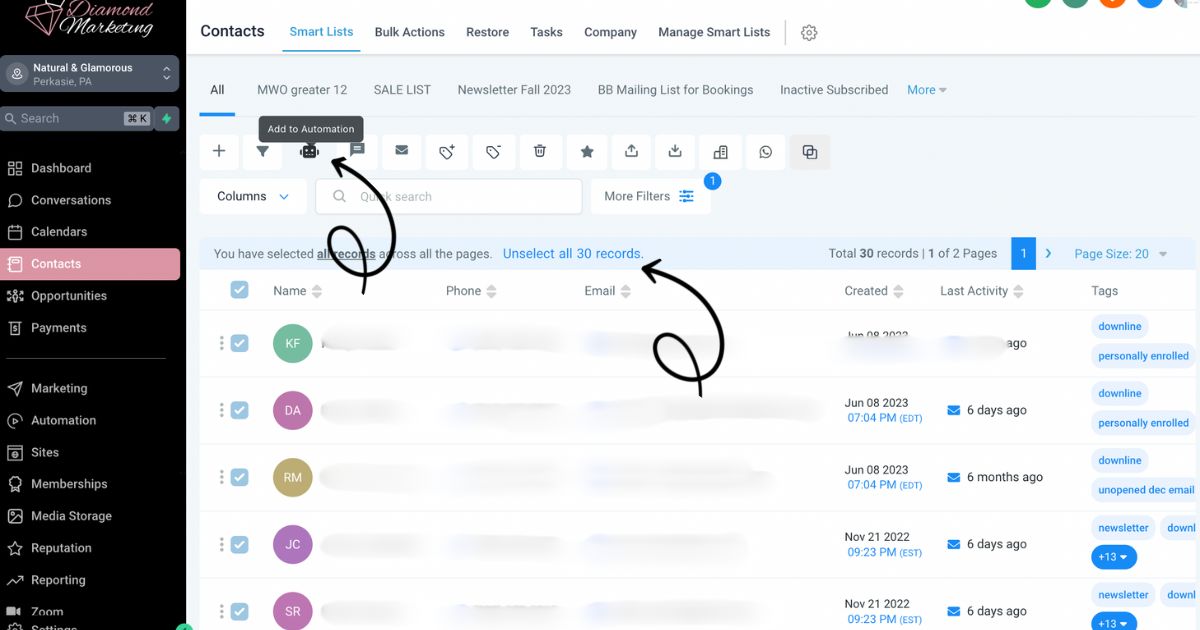
Select Contacts: Check the box next to a contact’s name to select them.
To select all contacts across multiple pages, click "Select All."
Add to Workflow: Click the Robot Icon (automation icon).
Choose the workflow: Outreach: MWO Oily Refresh + Nurture Series | Email + SMS.
This workflow is set to NOT allow re-entry so contacts will not be re-enrolled. If you use the MWO value '9' each time, you should always get a different list of customers.
This workflow requires you to run a report and update your contacts PRIOR to filtering and sending the worfklow so they MWO values are accurate and the most-recent from your Virtual Office
Update Customers' MWO (Months Without Order)
Before adding contacts to the Oily Refresh,Run a Report and Import To Diamond Marketing:
Step One: Run a Report in Your VO:
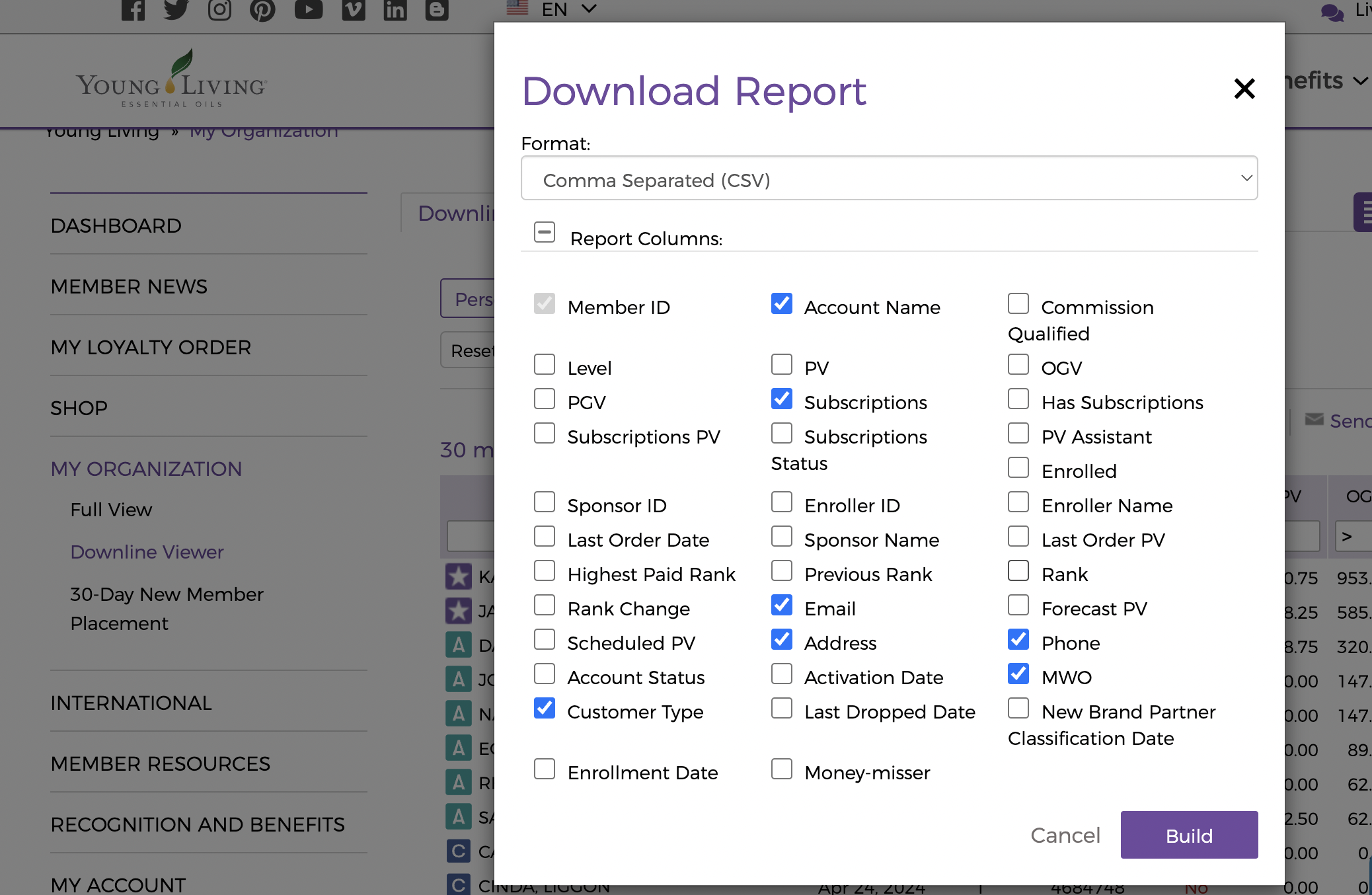
Select Personally Enrolled OR All Accounts
*We recommend downloading and All Account report and uploading to DM once a month as part of our monthly tasks.
Select the the this month in the month drop down
Include: Customer Type, Account Name, Subscriptions, Email, Address, Phone and MWO
*NOTE: We recommend this workflow for your personally enrolled contacts who know you, however choose your all-accounts report if your downline knows you and you take care of them. You know your team best!
Step Two: Import into Diamond Marketing and Add Contacts to the Series:
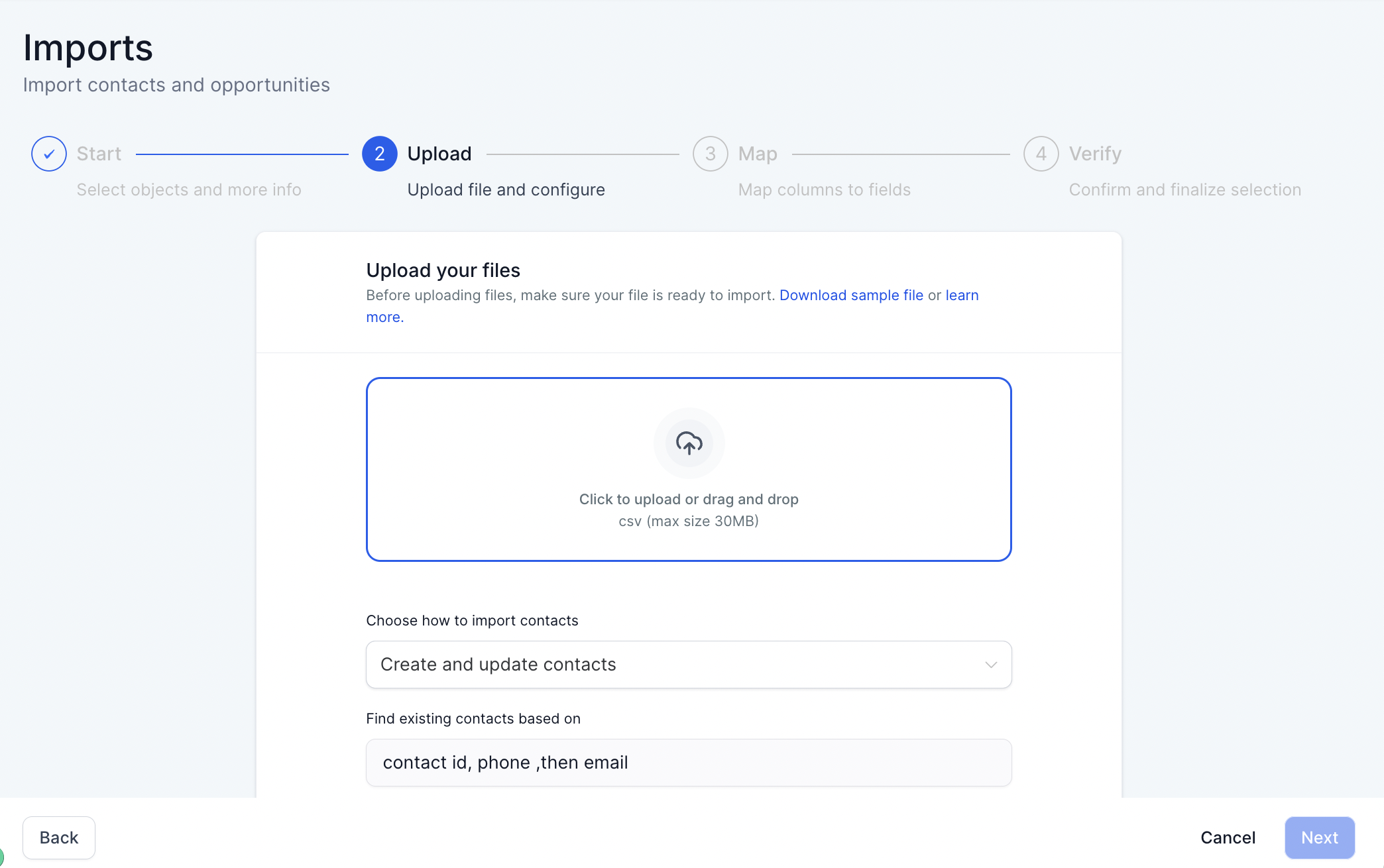
In the Contacts Tab: Select the Import Icon
Select Contacts & Upload Your File
Map the fields: Subscription will go with Process Day and Customer Type with Customer/Brand Partner
In the Verify Step of Import: No tags are needed
After Import: In the contacts screen and select 'More Filters'
Filter for Personally Enrolled if just using for your PE (Skip this step to include your entire downline)
Add AND to add an additional filter and select MWO click apply
Add Greater than 9 (or however many without order months you'd prefer.
Select all the contacts in this filter by clicking the box above 'Name' and click the robot icon to add them to the workflow: MWO Oily Refresh + Nurture Series | Email + SMS
For accounts on the verge of going inactive, this Oily Refresh provides inspiration and personalized connection, helping them rediscover how Young Living meets their needs
Inside The Oily Refresh is an Oils 101 Crash Course!
Welcome Text Includes:
✅ A warm name introduction
✅ Your marketing email for easy communication
✅ A call-to-action inviting contacts to join your weekly text tips
✅ Required: PASS opt-out language for compliance
Quick Setup Tip: Personalize it!
Update the custom values to the name your customers know you by best. Remove default placeholder, which pull the name you signed up for Diamond Marketing with.
4-Part Email Nurture Series Includes:
1 - Natural Living Made Easy: An introduction to
what makes a quality oil, how to identify high-quality essential oila, and how they work aromatically.
📌Call-to-Action: Join my Oil Community (Add your FB group link! See below for help)
2 - Topical & Remedy Use of Oils: Full of
recipes, roller blends, and diffuser blends
using PSB oils—plus an intro to natural cleaning with
Thieves Cleaner & Thieves Laundry Soap.
📌Call-to-Action: Join my Oily Tips (Email or Text)
3 - Dietary Use of Oils: Learn about
Vitality (Plus) Oils, French Aromatherapy, and how oils enhance supplement absorption. Features a
spotlight on Ningxia + the Thieves Tea recipe.
📌Call-to-Action: Take one of my “Targeted-Support” classes. Includes the trigger word graphic for your DM classes.
4 - How to Get Oils at the Best Price: Includes links to the Bundle & Save Wishlist (or Canada shopping site)
with a spotlight on the PSB & Make-a-Shift Kits + Loyalty Rewards info, a Ditch & Switch list, and a
10% off first-time order code!
This series is designed to educate, nurture, and convert
—all while keeping things simple for you! Find the nurture email series in your Marketing Tab under the email templates drop down and inside the MWO (Months Without Order) Nurture Email Series folder.
How to Edit the Welcome Text in the New Account Onboarding:
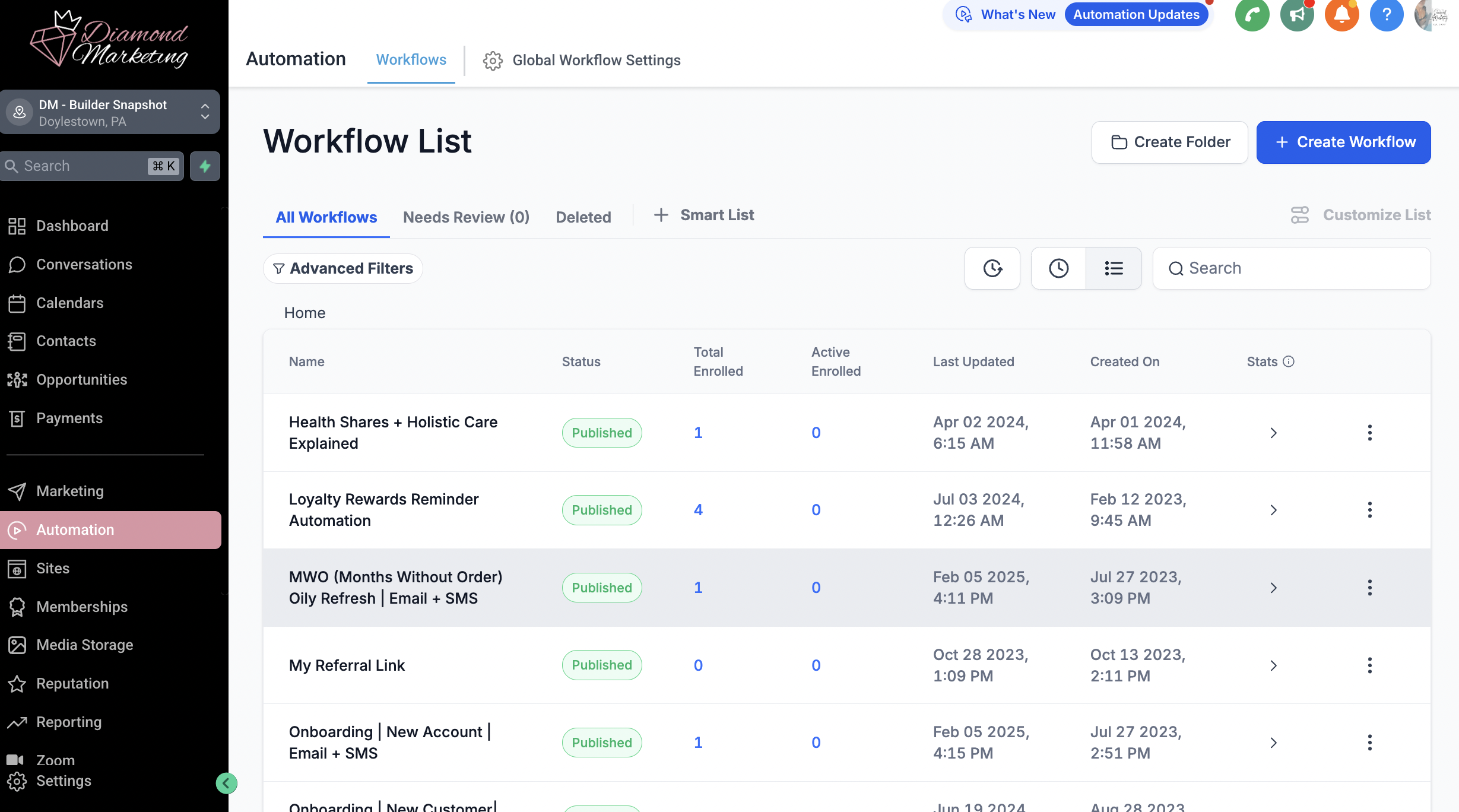
Updating your welcome message is quick and easy! Follow these simple steps:
Go to the Automation Tab in your Diamond Marketing portal.
Find the MWO (Months Without Order) Oily Refresh | Email + SM workflow and click to open it.
Click on the Welcome Text message to edit it.
Replace the placeholder name with the name your contacts recognize you by—this makes your message feel more personal!
Do NOT remove the opt-out language at the bottom—this is required for compliance.
Keep your name or intro in the first line to help prevent your message from being marked as spam.
Click Save inside the action, then Save the entire workflow in the top right corner.
That’s it! Your welcome message is now personalized and ready to go.
How To Add Your Oily Community Link to Email One of the Nurture Series:
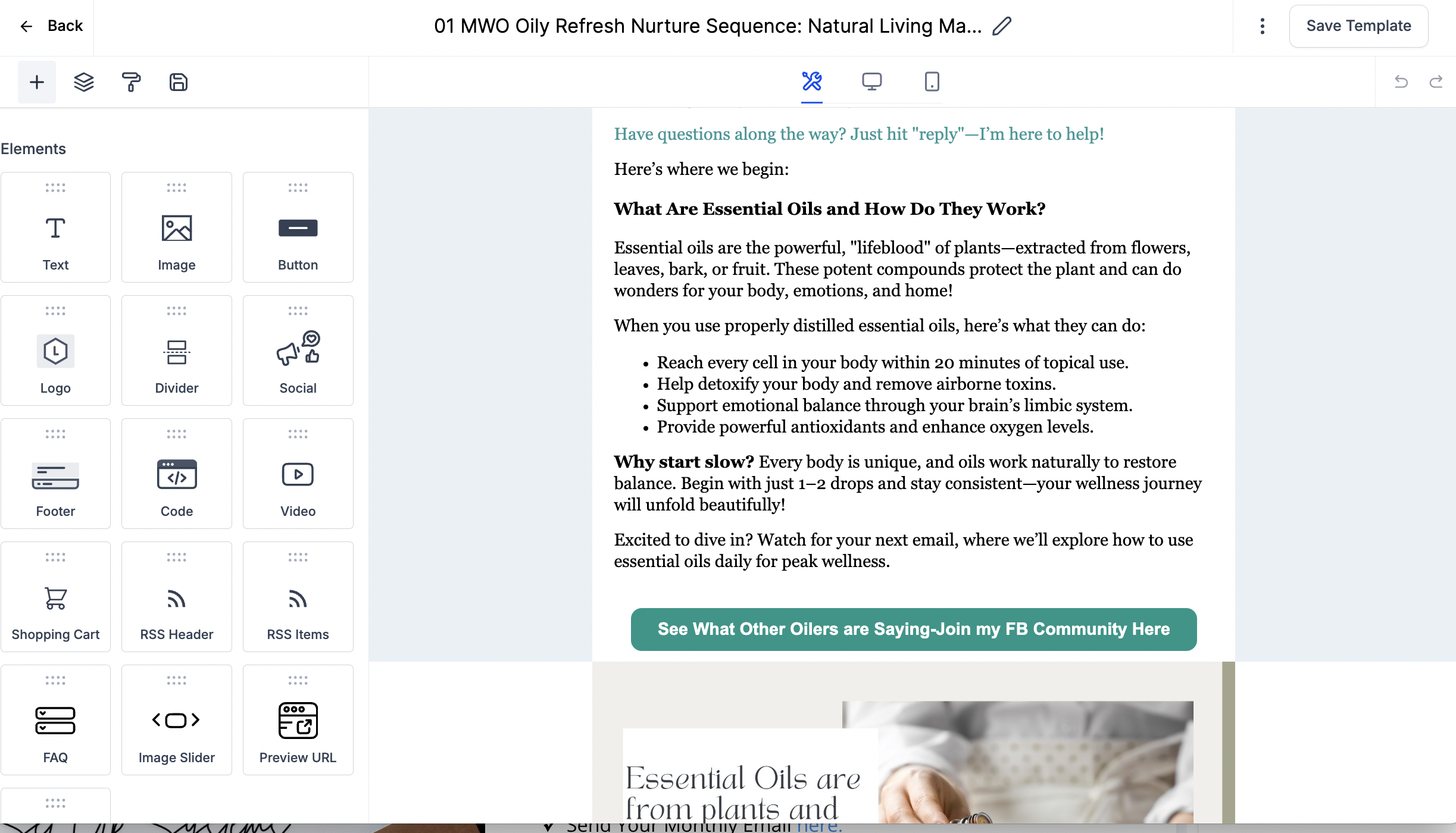
Open the MWO (Months Without Order) Nurture Email Series folder in your Marketing tab in the email templates drop-down
Locate Email 01 MWO Oily Refresh Nurture Sequence: Natural Living Made Easy
Scroll to the button labeled: See What Other Oilers Are Saying - Join My FB Community Here.
Click on the button, and on the left side of the screen, find the Link URL box.
Enter your Facebook group link into the Link URL box.
Click the Save button at the top right of the screen.
How To Add Your Email Signature to the Nurture Email Series:
Open the MWO (Months Without Order) Nurture Email Series folder in your Marketing tab in the email templates drop-down
Locate Email 01 MWO Oily Refresh Nurture Sequence: Natural Living Made Easy
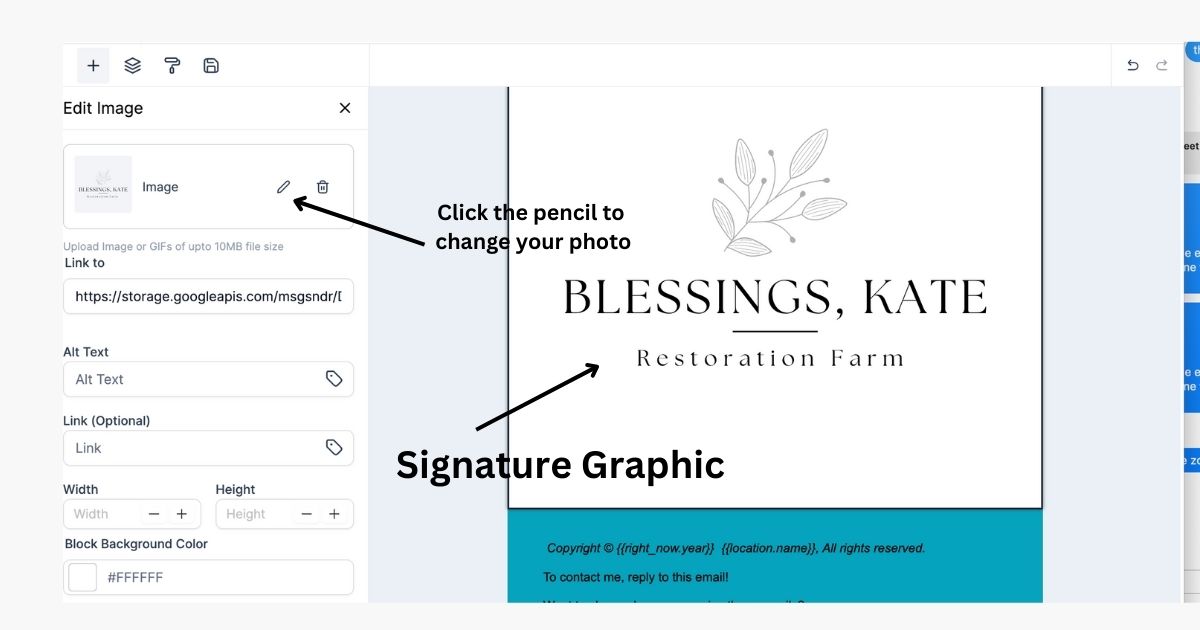
Click the + button in the elements side of the email
Drag in an Image Element above the footer of the email
Select the Pencil Icon to select your signature graphic
from your media library (Select Upload to add your graphic)
Click the Disk Icon on your image to Save your signature into your saved elements for future use.
Click the Save button at the top right of the screen.
After saving your signature element, you can simply select the Disk Icon on the elements side of any email template and drag in your signature.

Diamond Marketing is a customer care platform design for Young Living Brand Partners. All content provided by Diamond Marketing is the property of Diamond Marketing App LLC and cannot be copied or redistributed outside of Diamond Marketing. without prior consent.