
Loyalty Rewards Reminders Guide
Keep your customers ordering month after month—automatically.
Use these smart, automated reminders to educate, encourage, and inspire your contacts to stay active in Loyalty Rewards, helping them get the most from their wellness routine (and boosting your retention along the way!)
Enhanced Customer Engagement: Stay connected with your customers, ensuring they never miss an opportunity to update their orders.
Effortless Automation: Set it up once, update monthly with a simple VO report and let the system do the work for you.
Increased Retention: Keep your customers satisfied and loyal with timely reminders and hassle-free order updates.
How the Workflow Works:
The system identifies the process date of each contact and waits until 3 days before
The workflow reminds your customers via text AND email to update their order
*Use text and/or email for your personally enrolled OR use email only for your entire downline. Following Text Message Best Practices will ensure the best deliverability of your texts.
Text and Email Reminders both provide a link for contacts to conveniently make necessary updates for the month
Email Reminders provide a Monthly Essentials Wishlist of suggested products
Automated Email Reminders for SMS-DND:
If using both text and email reminders, and a contact's generates a DND (Do Not Disturb) for SMS (texts), our system automatically sends contacts ONLY an email reminder
SPersonalize The Email Template
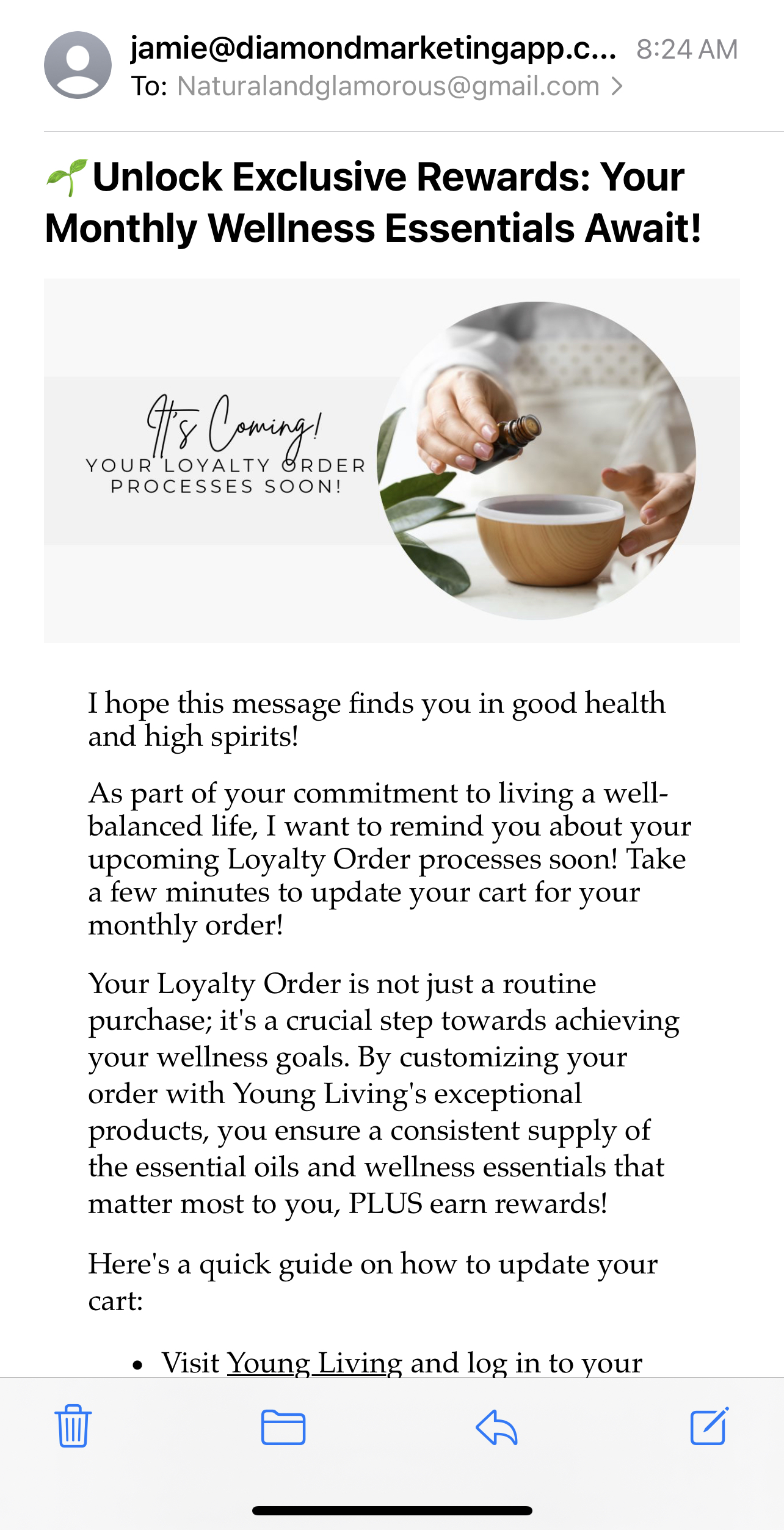
Our "Order Processes Soon" email template is designed to remind your Loyalty Rewards customers about their upcoming orders. This gentle nudge ensures they have time to review and update their orders if needed, avoiding surprises and maximizing their benefits.
The template includes a friendly reminder about their processing date, steps to update their carts for the month, and a highlights a list of Top Ten Monthly Order Ideas. As products come and go with Young Living, we will update this template. Be sure to add yourself to the Always Update Content List to automatically receive updates. If you personalize this template with your Top Ten, DO NOT add yourself to the Update list as any updates will overwrite your changes. Stay alert to our Content Update emails, which will send you the changes to copy and past in yourself!
By sending this timely email, you not only provide excellent customer service but also keep customers engaged and excited about their wellness journey.
Personalize the Workflow:
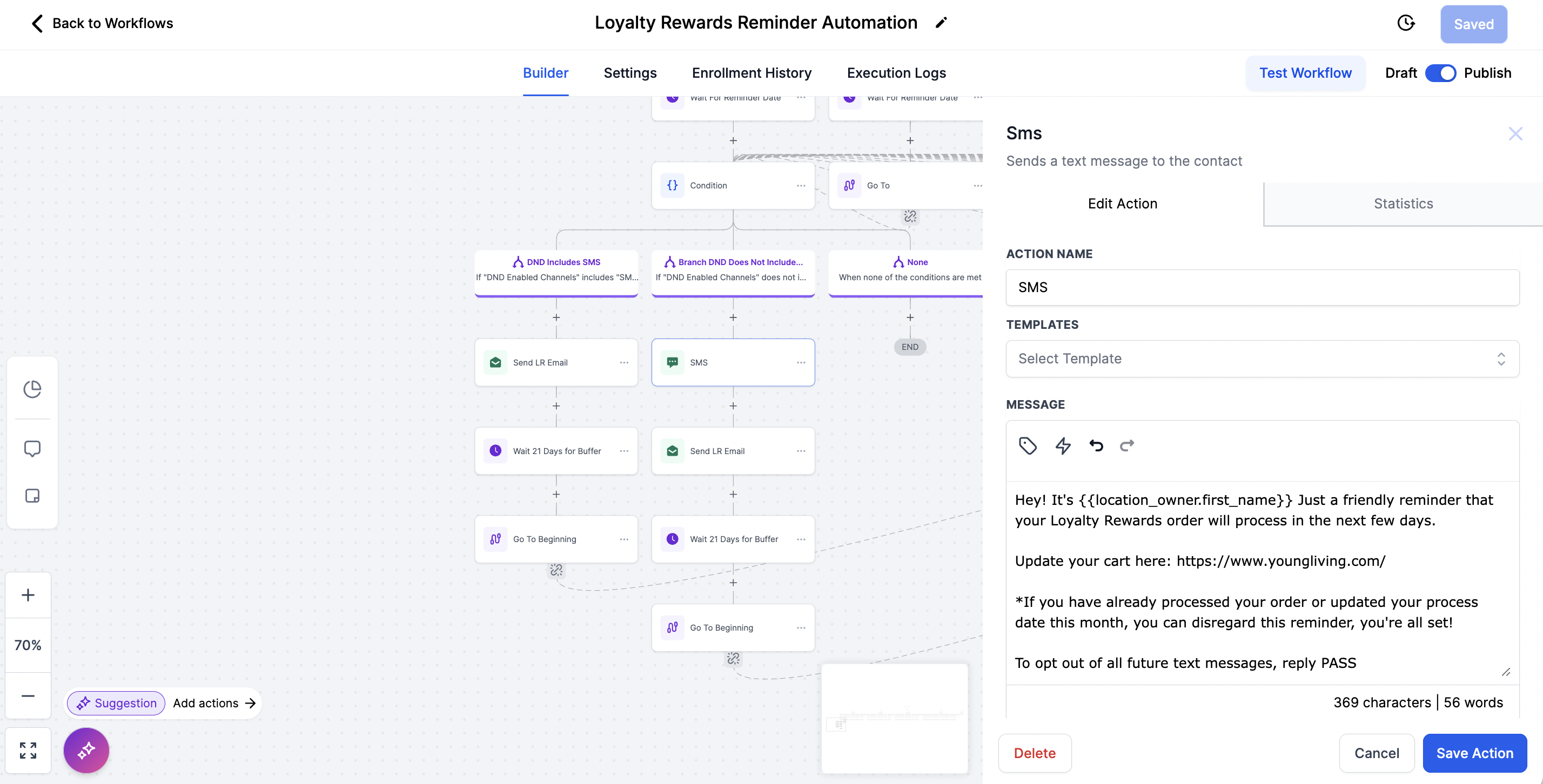
Head to the Automation Tab and locate the 'Loyalty Rewards Reminder' workflow to review the text sent
Scroll over to the left side of the screen to thefirst date of the month to see the text (sms) and email actions.
Customize for your Team
To Add Your Downline: Delete the text reminder and keep the ONLY the email reminder in the workflow *See how to delete the sms action below.
To Add JUST Your Personally Enrolled: You can use both the email & text (sms) for your personally enrolled, however you may decide to choose one or the other based on your team.
Edit the SMS Introduction:
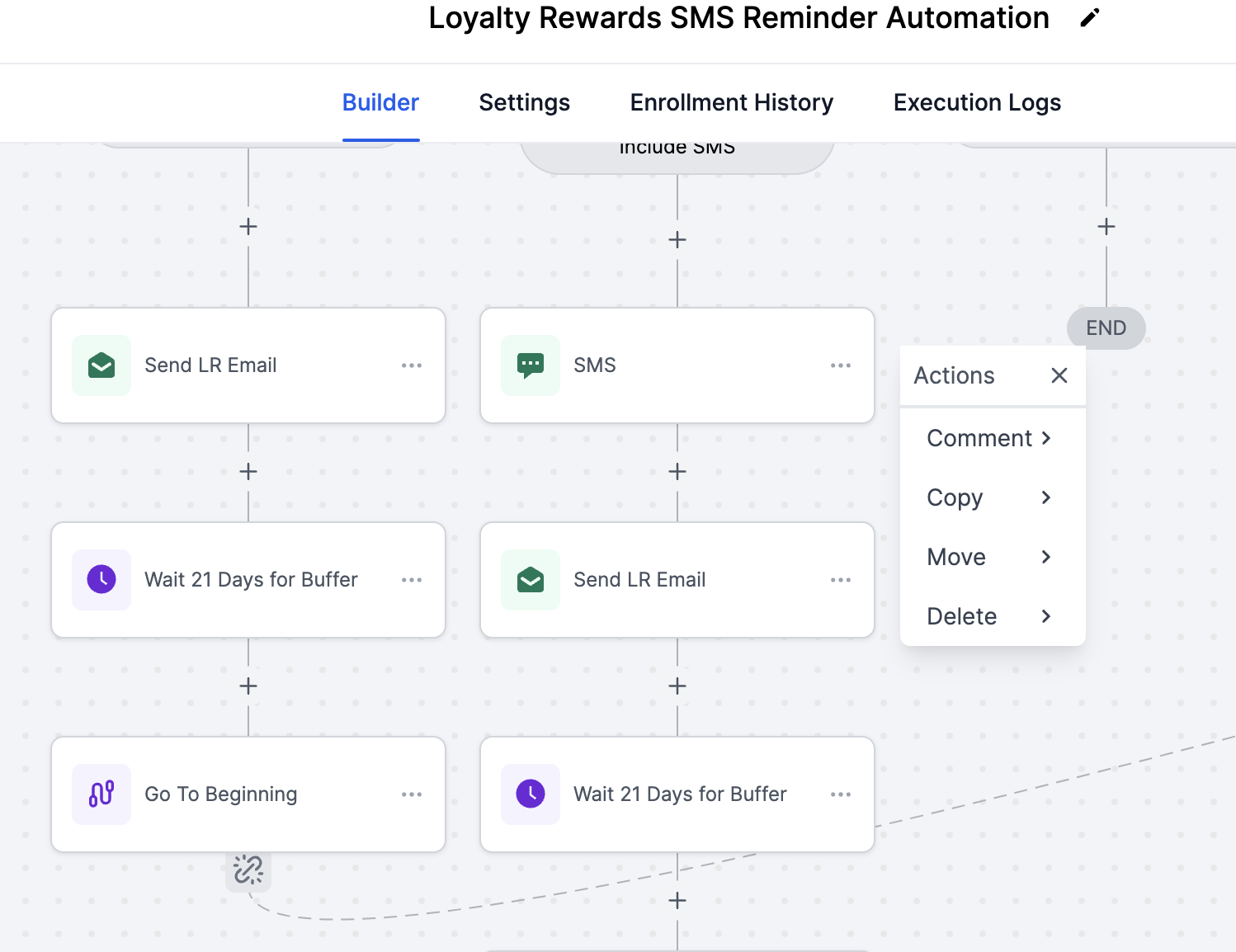
We recommend replacing the custom values {location owner first name} to an introduction that your customers know you by so they know EXACTLY who is texting them right away! This helps your open-rate and lowers your spam-rate.
For example;
💎Diamond Marketing:
Hey, it's Jamie from Natural and Glamorous!
Save the action AND then save the workflow in the top right after any edits.
*Add your Personally Enrolled IF using reminder texts.
*Add your Downline IF using reminder emails ONLY.
To Delete the Email or the Text Reminder:
Head to the Automation Tab: Find the
Loyalty Rewards Reminder workflow
Scroll to the left of the page to Process Date "1"
Locate the SMS and Email Action and click on the three dots on the action to select
'delete'. Delete the action, then save the workflow in the top right.
*Delete the text/SMS reminder to use this workflow for your entire downline or just use email reminders for your personally enrolled.
NOTE: You can review and customize the email template in the action itself OR in the
Marketing Tab in the Order Processes Soon Email Template. The email is linked to the workflow, and any updates to the template will be automatically linked to the workflow.
Follow Text compliance for best results.
Import a VO Report to Set Up Current Customers:
Begin using the Reminder Workflow with one simple import!
Select the group you are sending the reminders to. Choose 'Personally Enrolled' or 'All Accounts' for downline in your virtual office.
Current Customers Import Process:
Select the group you are sending the reminders to. Choose 'Personally Enrolled' or 'All Accounts' for downline in your virtual office.
Step One: Virtual Office Report:
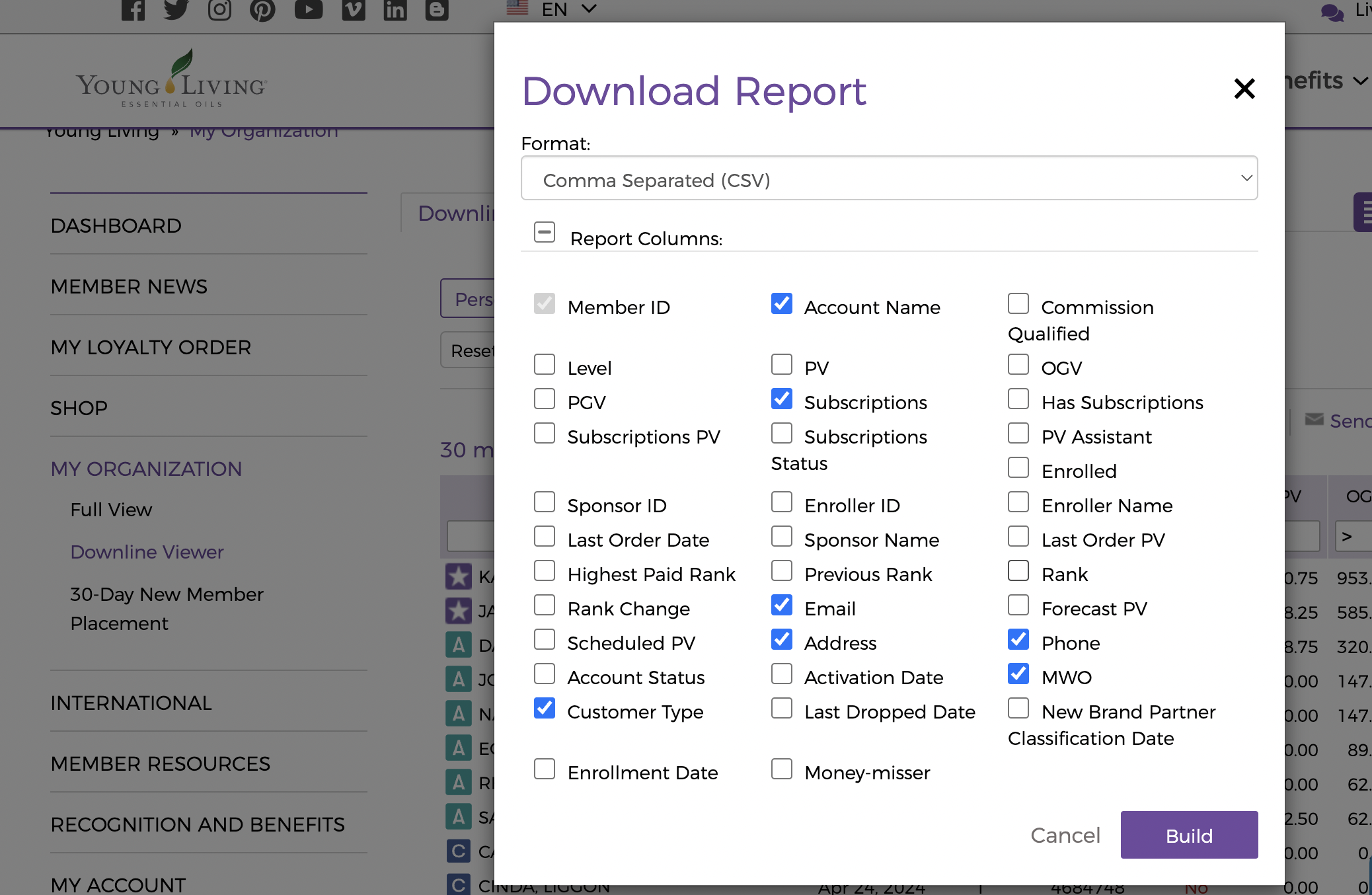
Select Personally Enrolled or
All Accounts (for email reminders only) and select the PREVIOUS month in the drop down for month
Include Customer Type, Account Name, Subscriptions (for Order Reminders) Email, Address, Phone and MWO
Step Two: Import the Report:
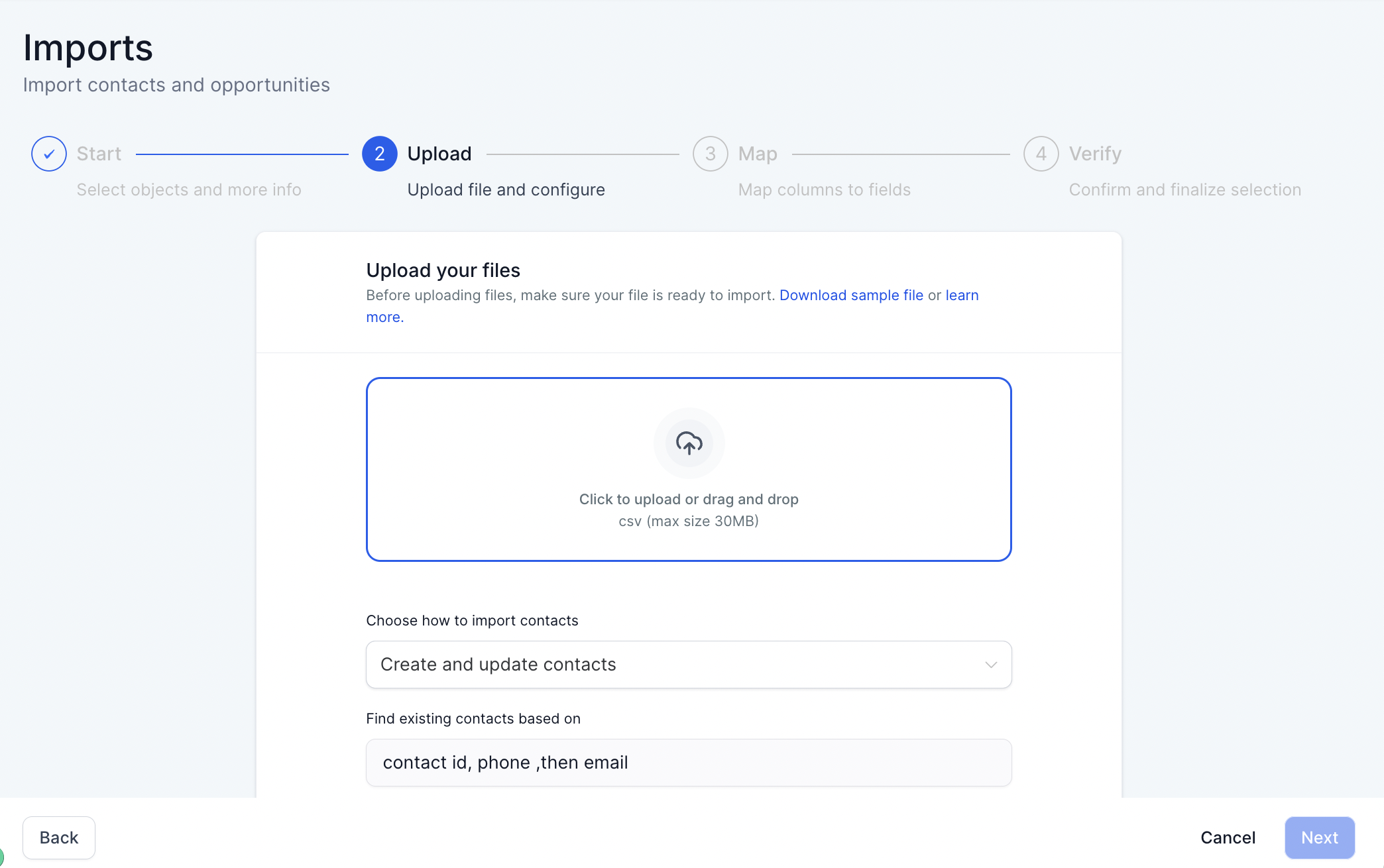
In the Contacts Tab: Select the Import Icon
Select Contacts & Upload Your File
Map the fields: Subscription will go with Process Day and Customer Type with Customer/Brand Partner
In the Verify Step of Import: Add the Tag ''loyalty rewards' in the US or 'essential rewards' in Canada. This tag triggers the workflow: Loyalty Rewards Reminders
Full lesson here
*NOTE this action adds your entire report to the workflow to capture future LR subscriptions. If contacts in your report DO NOT have a process date, they are moved to the 'none' section, and DO NOT receive a reminder, however the system will check again for a process date every 7 days and move them to their date if they have added one.
This ensures you never miss a reminder for anyone who adds a subscription after you set up the reminders.
New Customers Import Process:
Add new customers to the reminders by adding an action in your New Customer Onboarding
See New Customer Onboarding lesson to add the tag 'loyalty rewards' (or 'essential rewards' in Canada) right to your onboarding to simplify the process of adding your new customers to the workflow
The Monthly Import:
*Note: The VO is not always accurate with removing the process date right away. If you notice someone has canceled and the VO is not up-to-date, you should report this issue to YL and update the process date manually to '0' in the contact. You can also remove an individual contact from the workflow by clicking the X on the workflow Loyalty Rewards Reminders within their contact.
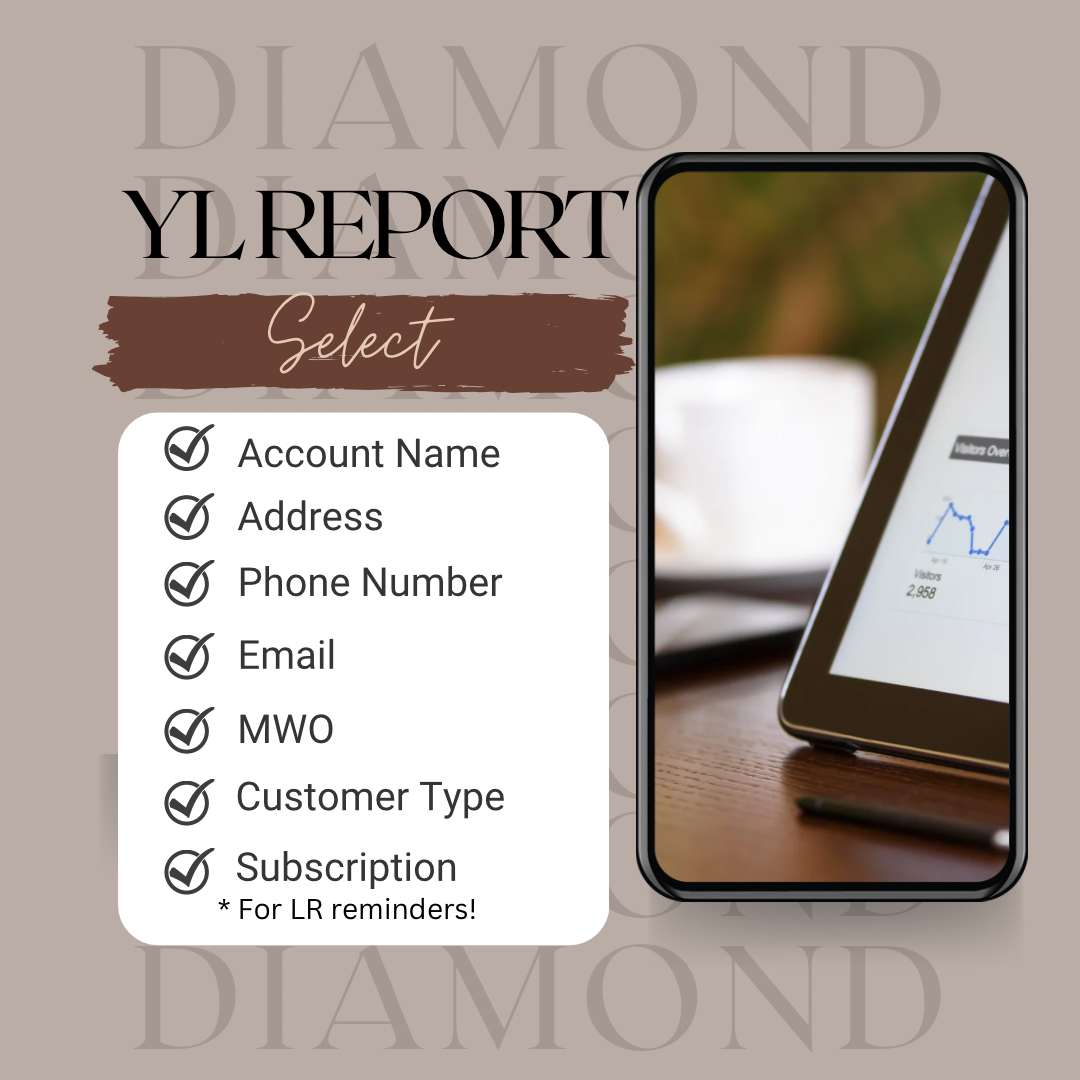
This workflow requires you to pull in a MONTHLY updated VO report for your contacts you are sending reminders to (with the 7 fields we require for each report).
This import will update any changed, added or deleted process days when the contact moves to the 'check process day' step again.
Have our experienced VAs help with this!
If any changes occur to customers' process dates—updates, cancellations, or additions—the system stays current only when you pull in your updated report monthly, capturing the changes at import
You DO NOT need to add the 'Loyalty Rewards' tag each month. This report will update process dates of everyone already in the workflow and the additional tag each month is not needed
DO add the 'Downline' or 'Personally Enrolled' tag to add any new customers in that report to to your downline or personally enrolled tag list. This helps your filter for contacts with that tag easily
The automation seamlessly brings contacts back to the beginning of the workflow 21 days after their reminder is sent and checks each month for an updated process date to reflect any changes at that time.
The Monthly Import Step-by-Step
Step One: Virtual Office Report
Select 'All Accounts' or 'Personally Enrolled'
Include Customer Type, Account Name, Subscriptions, Email, Address, Phone and MWO
Step Two: Import the Report
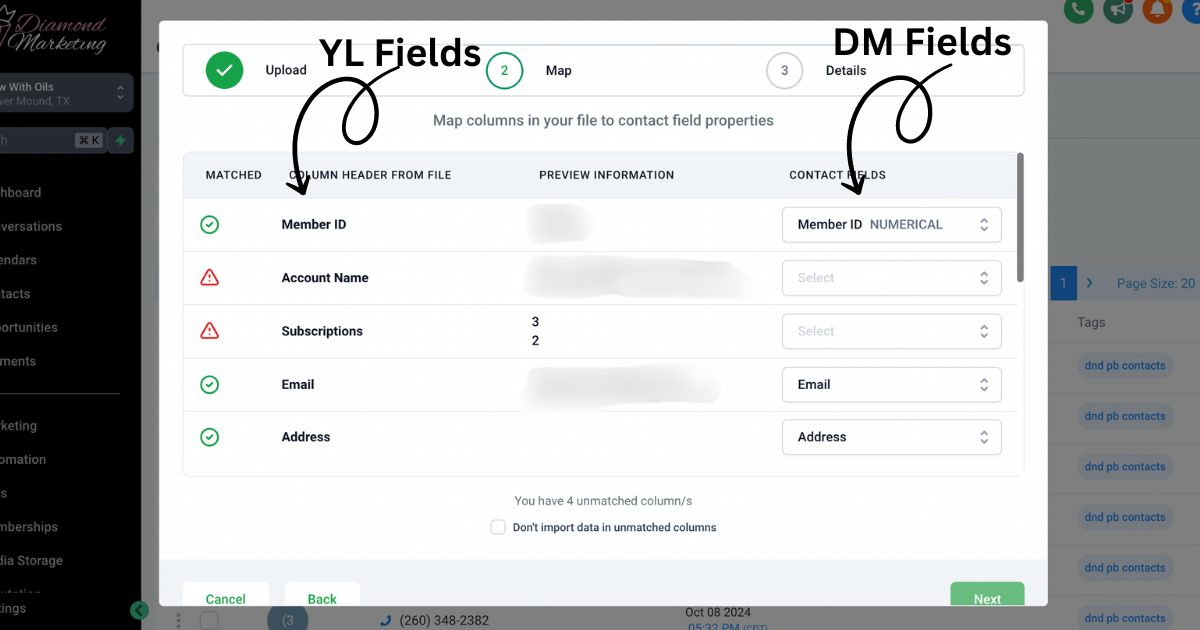
Select the Import Icon in the Contacts Tab
Match the fields
*Subscription will go with Process Day and Customer Type with Customer/Brand Partner
Add the Tag Downline to update your Downline list. Add the tag Personally Enrolled to update your PE list.
Head to the New Customer Onboarding Guide to add the Loyalty Rewards Tag to your New Customer Onboarding

Video Lesson: How to Use the Loyalty Rewards Reminders:
Video Lesson: Update Process Dates:
Diamond Marketing is a customer care platform design for Young Living Brand Partners. All content provided by Diamond Marketing is the property of Diamond Marketing App LLC and cannot be copied or redistributed outside of Diamond Marketing. without prior consent.