
Let's Import Your Contacts!
Import your YL contacts from your Virtual Office

We Recommend These Import Settings
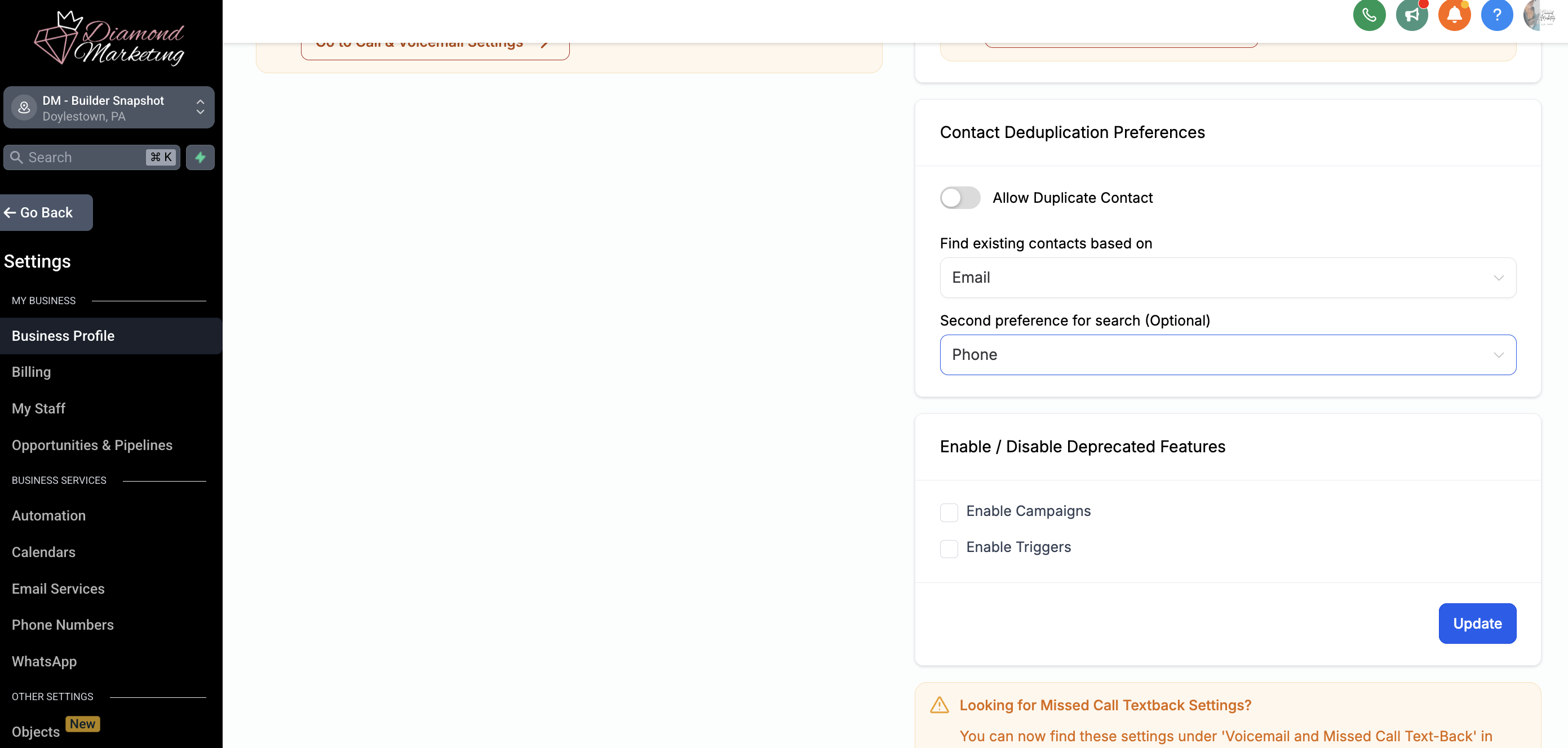
In the Settings tab under Business Profile, scroll to Contact Deduplication Preference and select:
Email for “Find existing contacts based on”
Phone for “Second preference for search (Optional)”
With these settings in place, your import will be set to update existing contacts based on their
email address first, helping prevent duplicates and ensure updates apply to the correct records.
Organize Your Young Living Contacts in Diamond Marketing
Ready to streamline your YL contacts and maximize your marketing impact? Here's how to pull in your contacts and organize them effortlessly:
Run these Key Reports Today:
All Accounts→ Tag as 'Downline'
Personally Enrolled→ Tag as 'Personally Enrolled'
Brand Partner→ Tag as 'Brand Partner'
Stay Updated Monthly:
Download and All Accounts Report→Tag as 'Downline"
Download New Customer report→Tag them as 'Personally Enrolled' and 'New Customer' to automatically add them to onboarding workflow.
Download New Brand Partner report→Tag them as 'Brand Partner' and 'New BP' to automatically add them to onboarding workflow.
Need More Reports?
Run any additional reports you need to fine-tune your organization!
Use Bulk Import for Hassle-Free Organization:
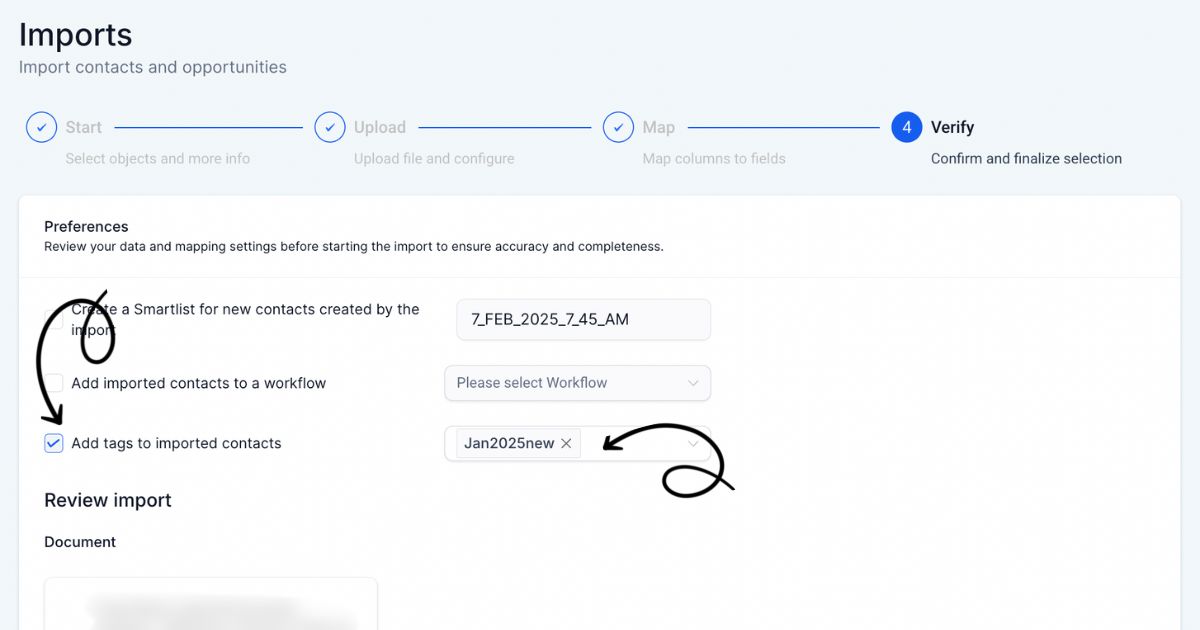
During the Verify step add a group tag to the entire report.
Tags make it easy to filter contacts later for targeted text and email campaigns.
By following these steps, you’ll create a well-organized, actionable contact list that’s ready for your Diamond Marketing strategies. 🎉
Download & Import Your Report:
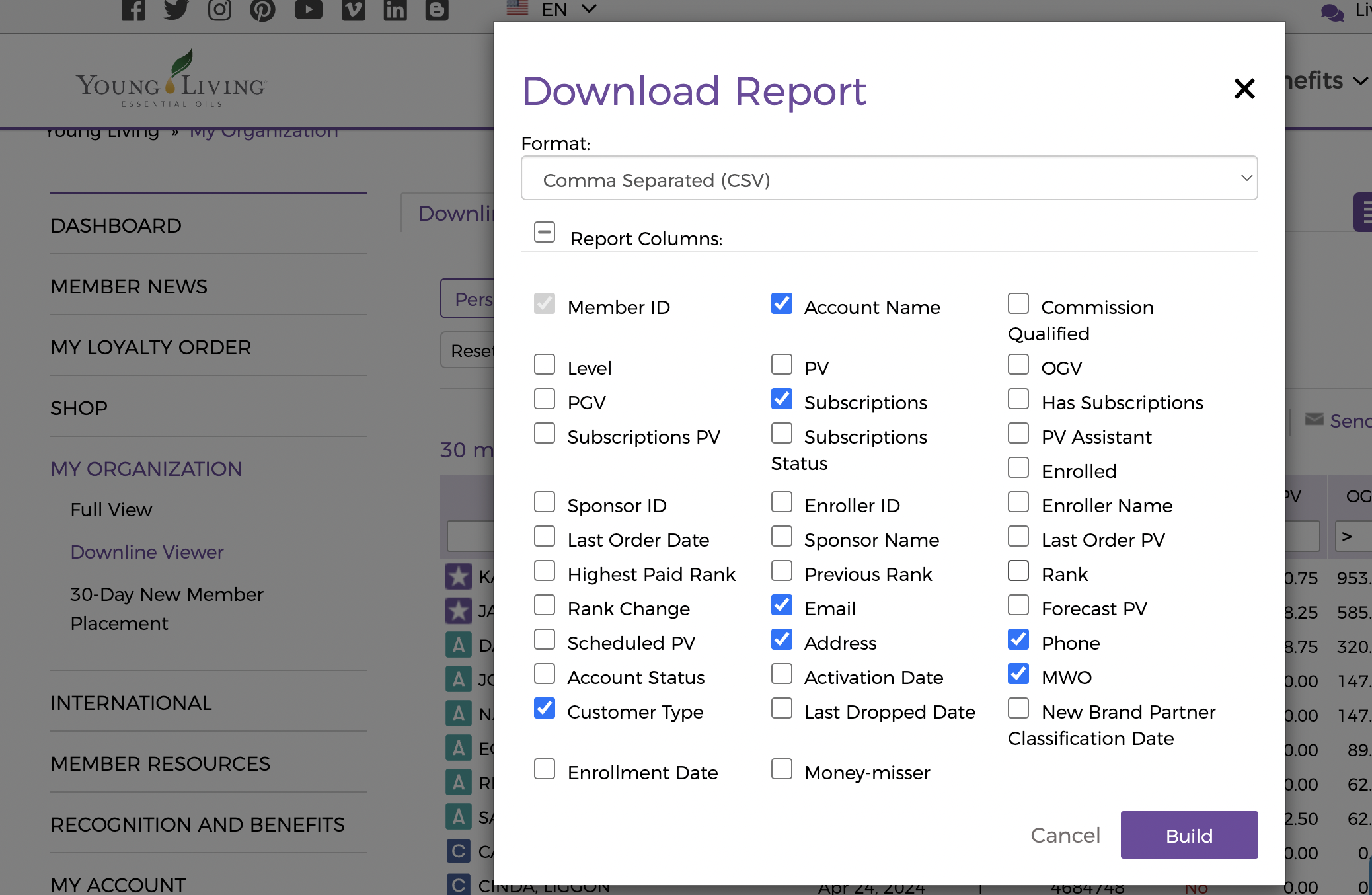
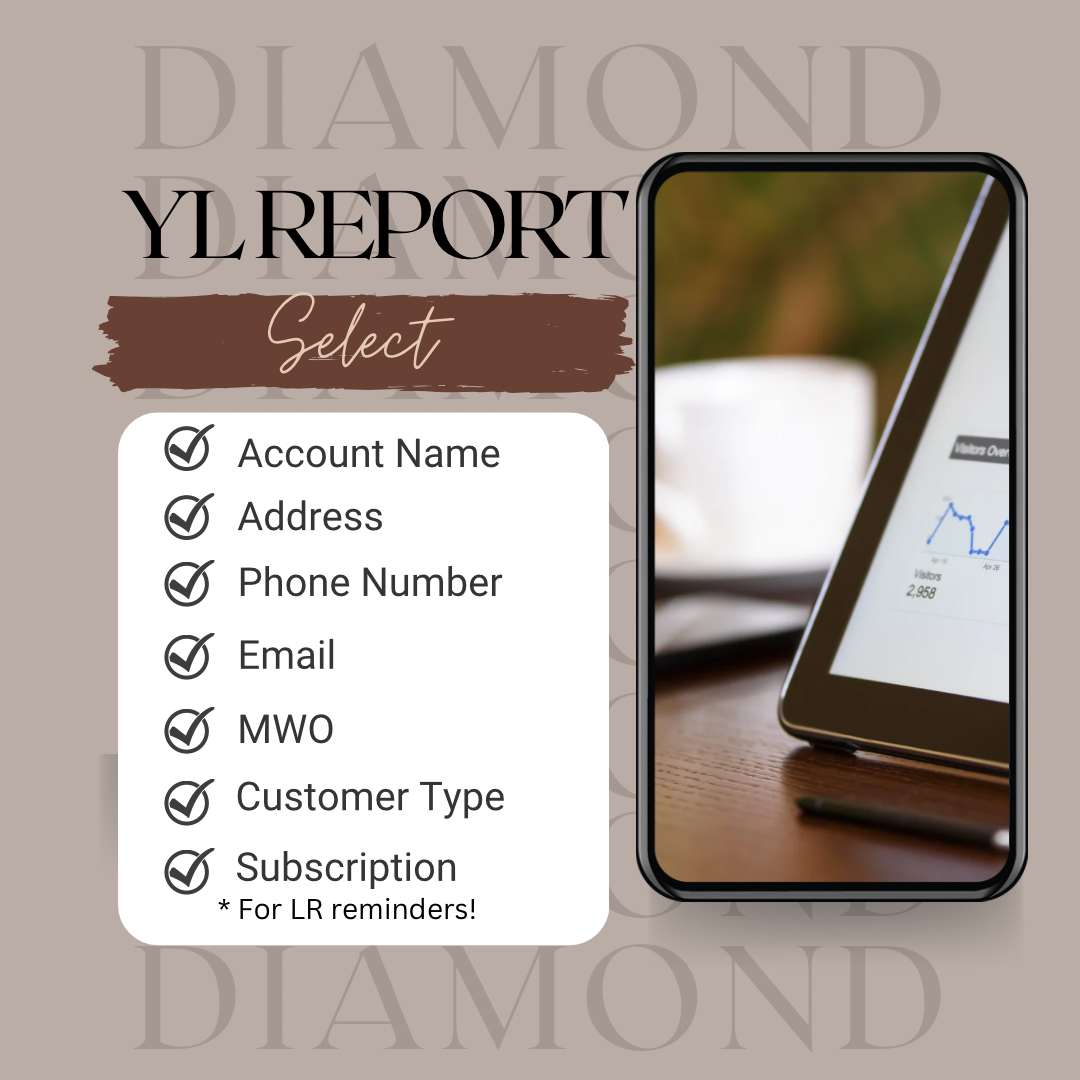
Step One: Download Each Report from your VO- Select these 7 fields:
Member Name
Phone Number
Email
Address
Months Without Order
Customer Type
Subscription
Our Loyalty Rewards Reminders, New Customer and Brand Partner Onboarding workflows will each be triggered by a tag added to make adding contacts into Onboarding or Reminder workflows more efficient!
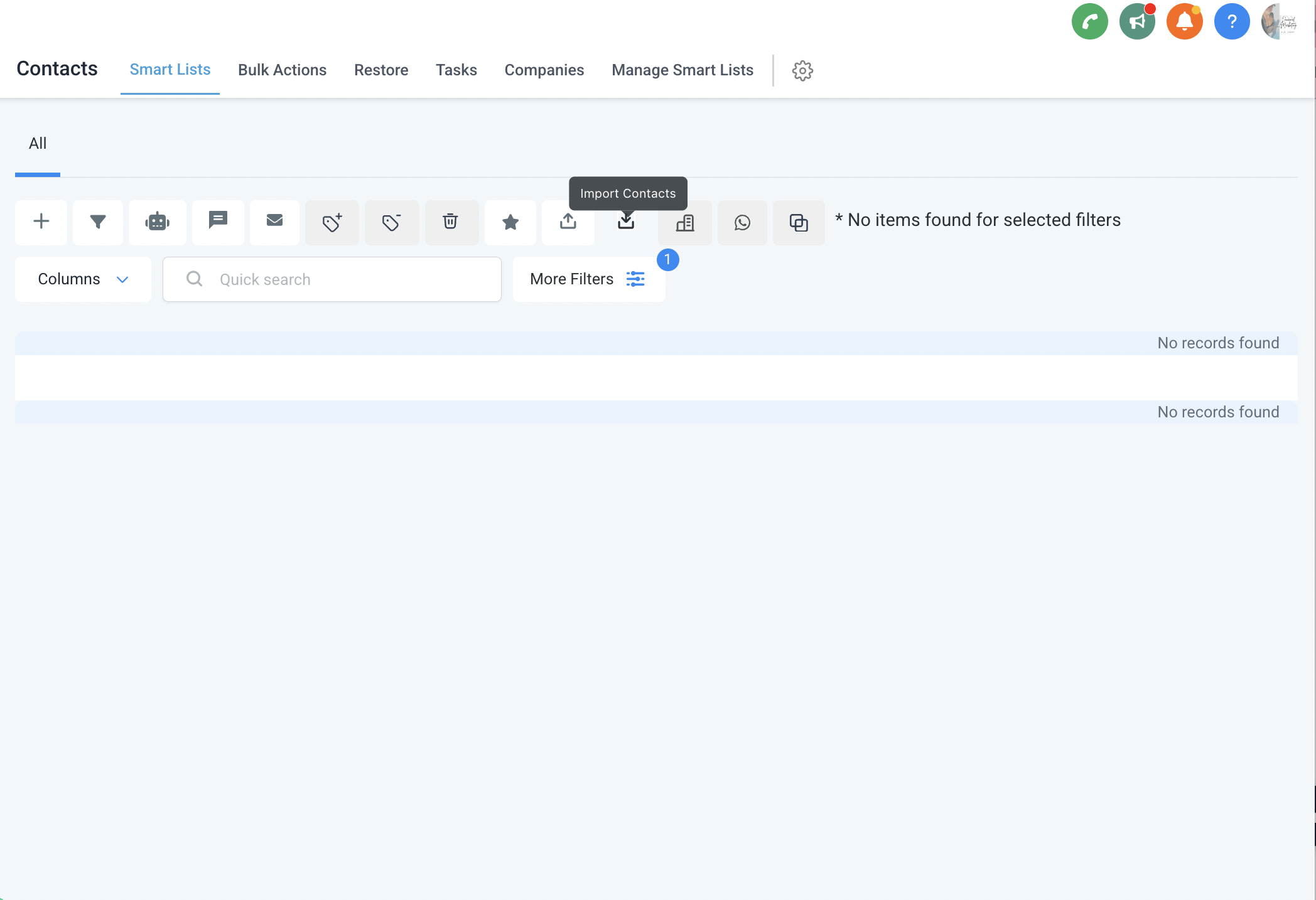
Step Two: Click "Import Contacts" inside of your contacts tab in Diamond Marketing
In the Diamond Marketing Contact Section, select the icon with the square and arrow down
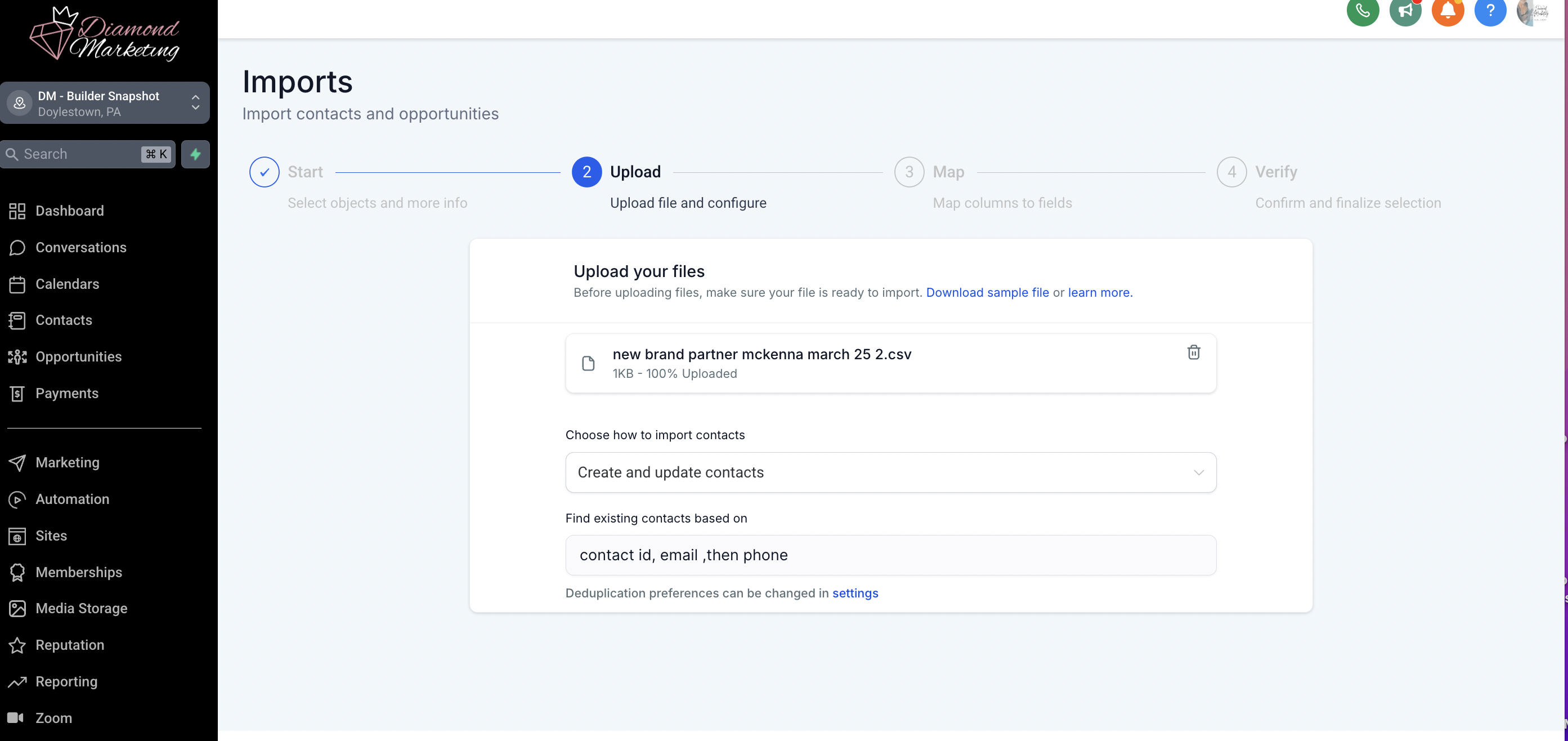
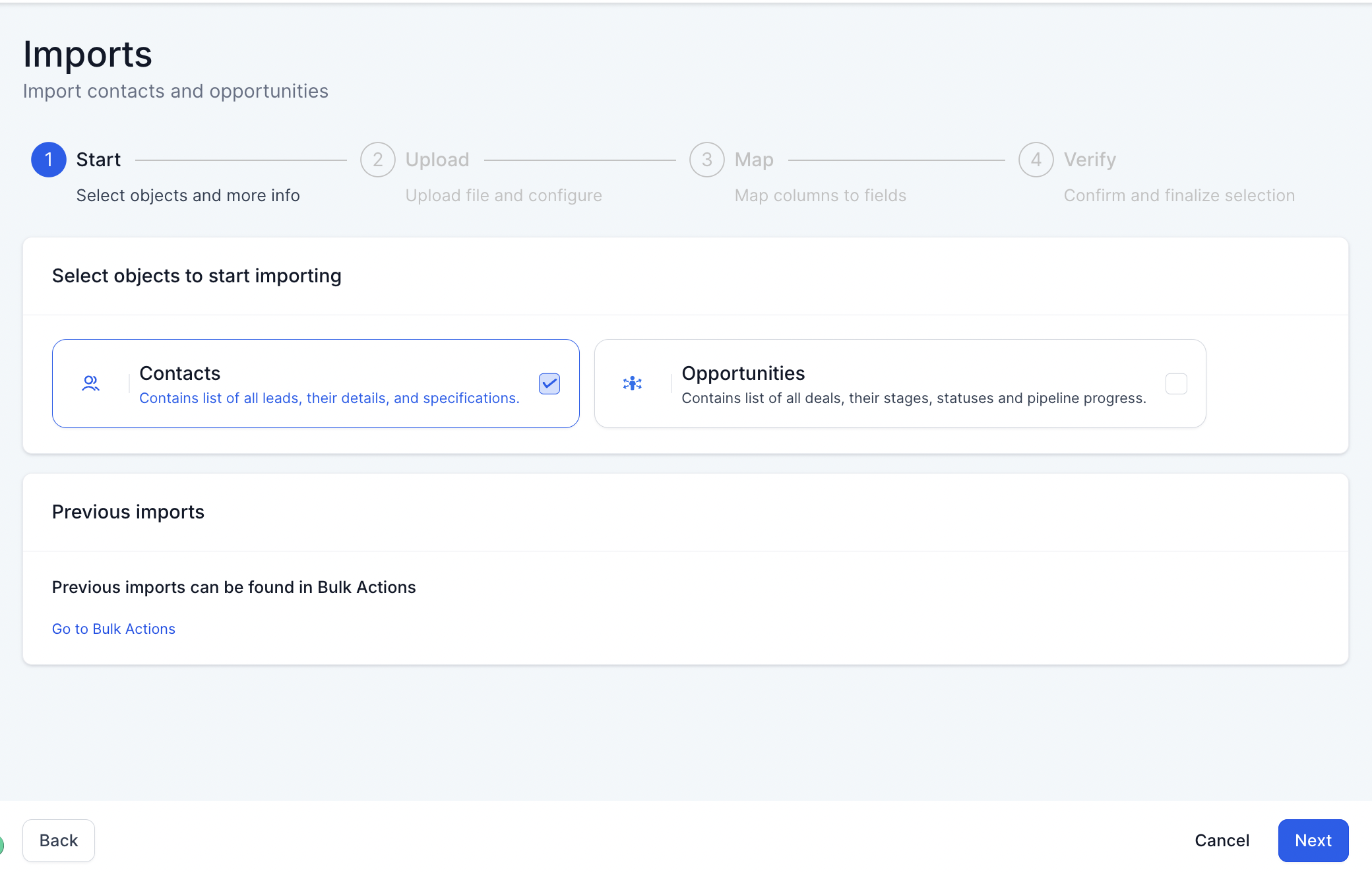
There are 4 actions in the Import Step:
1. I the Start Action-Select "Contacts" and then Next
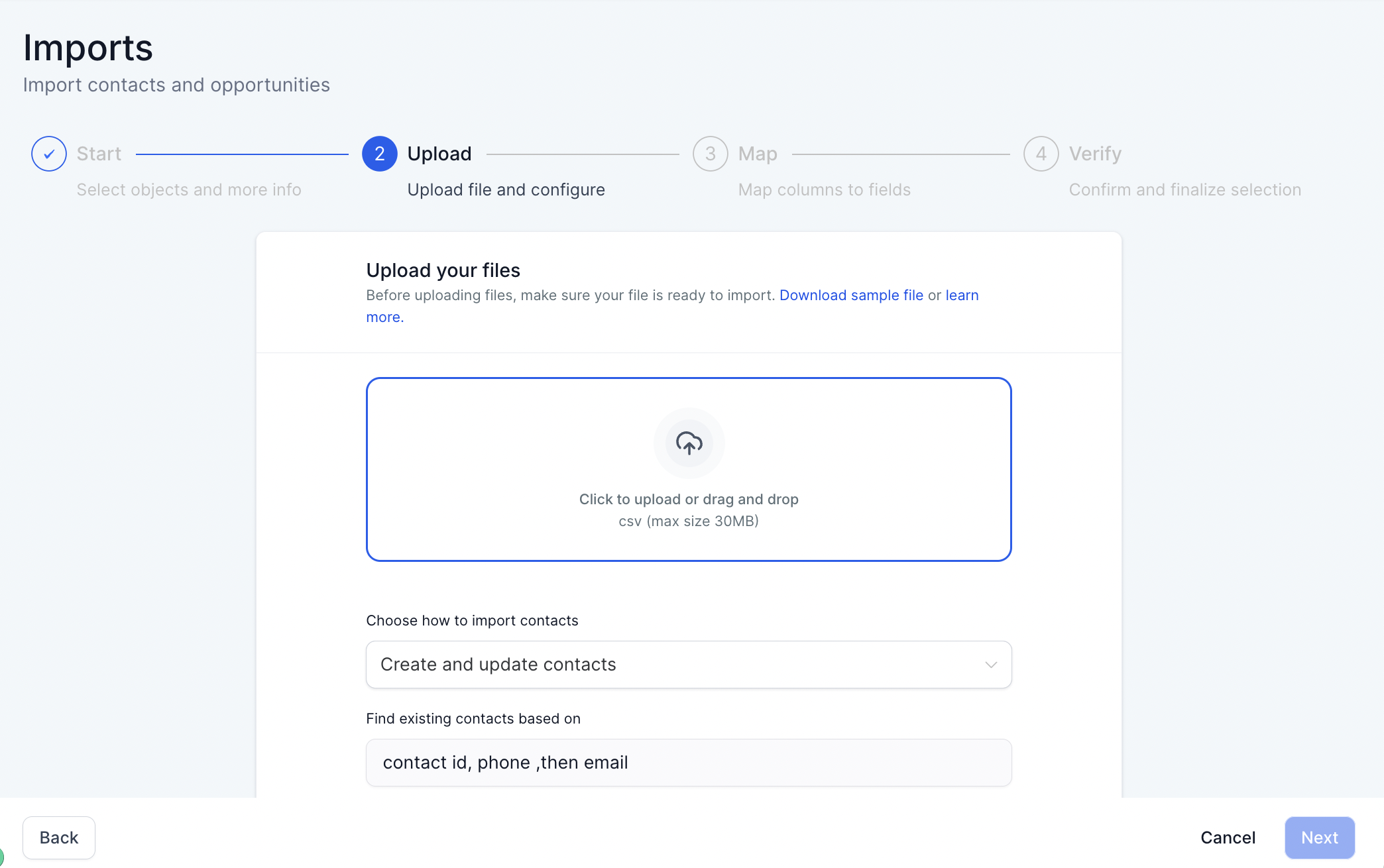
2. In the Upload Action- Drag in your Young Living CSV file
You want "Create and Update Contacts" selected
The system will add new contacts only if another contact with the member ID, phone and email do not already exist. If a contact already exists, it will update all of the fields for that contact you are importing. Remember, we do recommend changing to email first and phone second as YL contacts can not be duplicated by email, but can by phone number.
If you are importing from another platform, be sure to sync contacts vis the method used on the other platform to avoid duplicates.
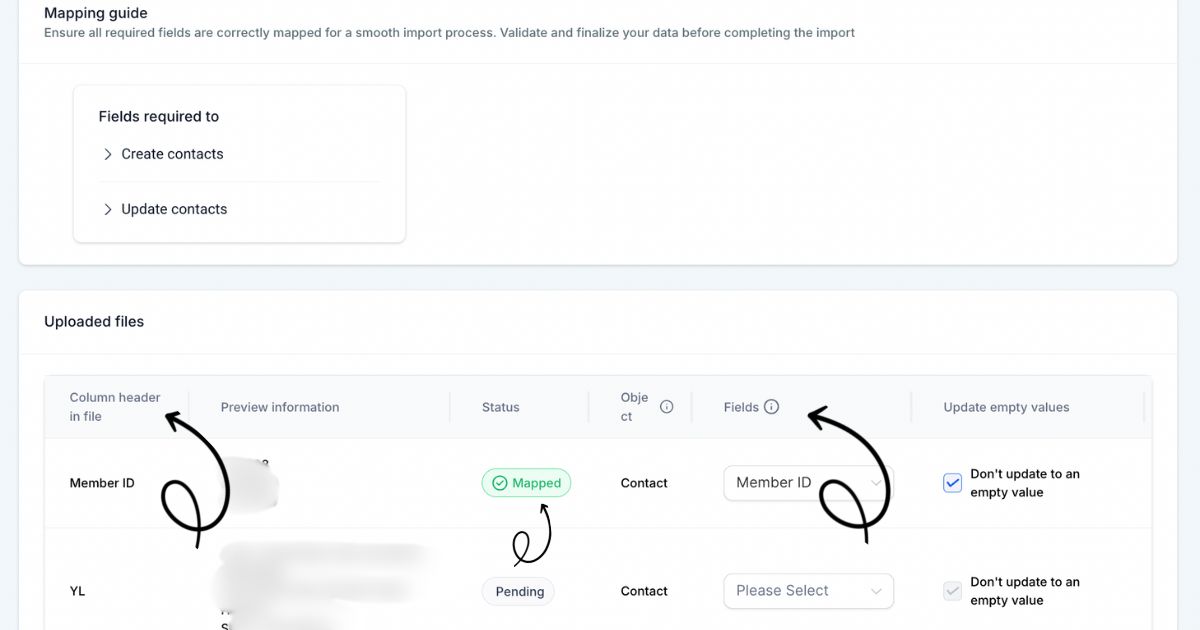
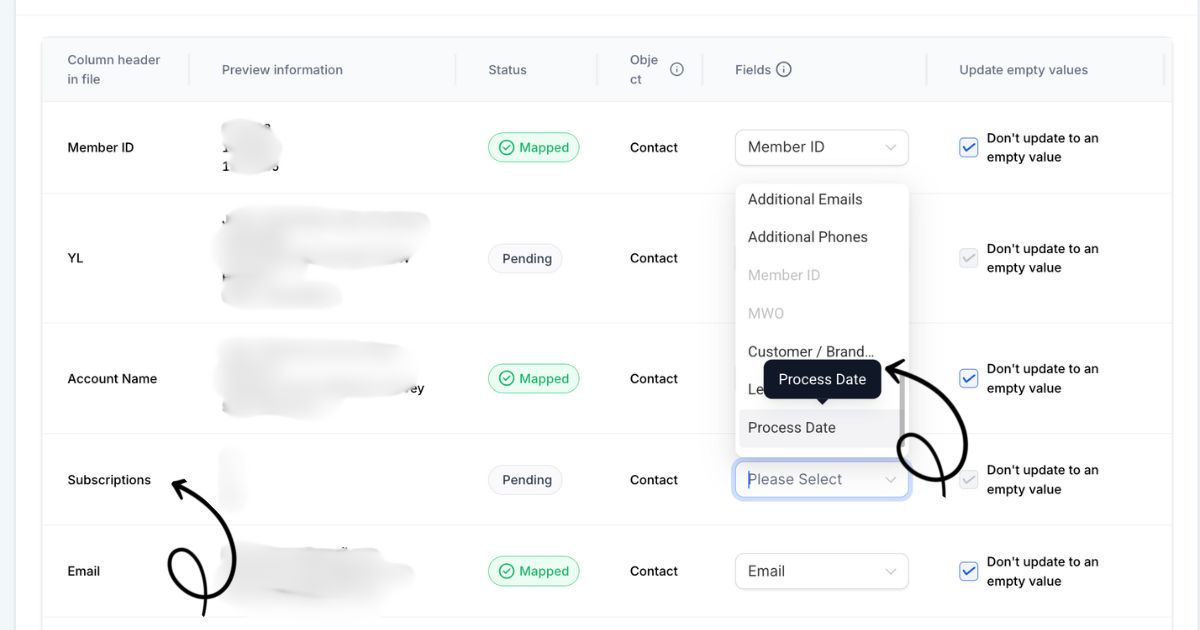
3. Map the Young Living Fields to Diamond Marketing Fields
Match up the YL fields with the DM fields (Ignore the preview information)
The "Status" column will tell you which fields need to be mapped.
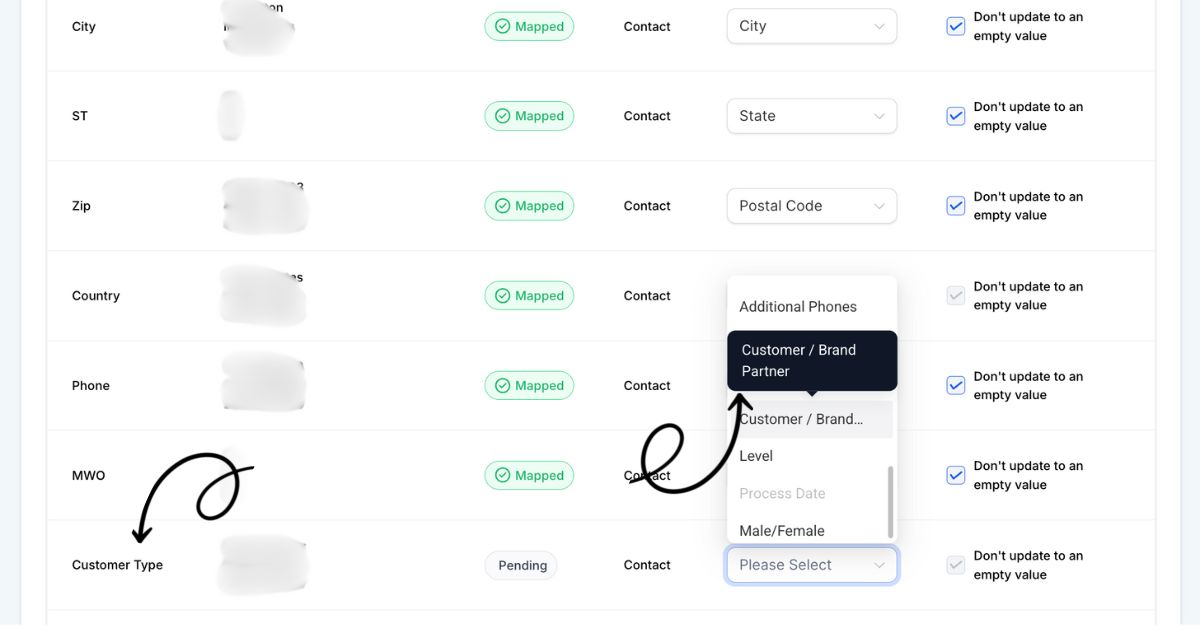
Customer Type will be mapped with: Customer/Brand Partner
Subscriptions will be mapped with = Process Day
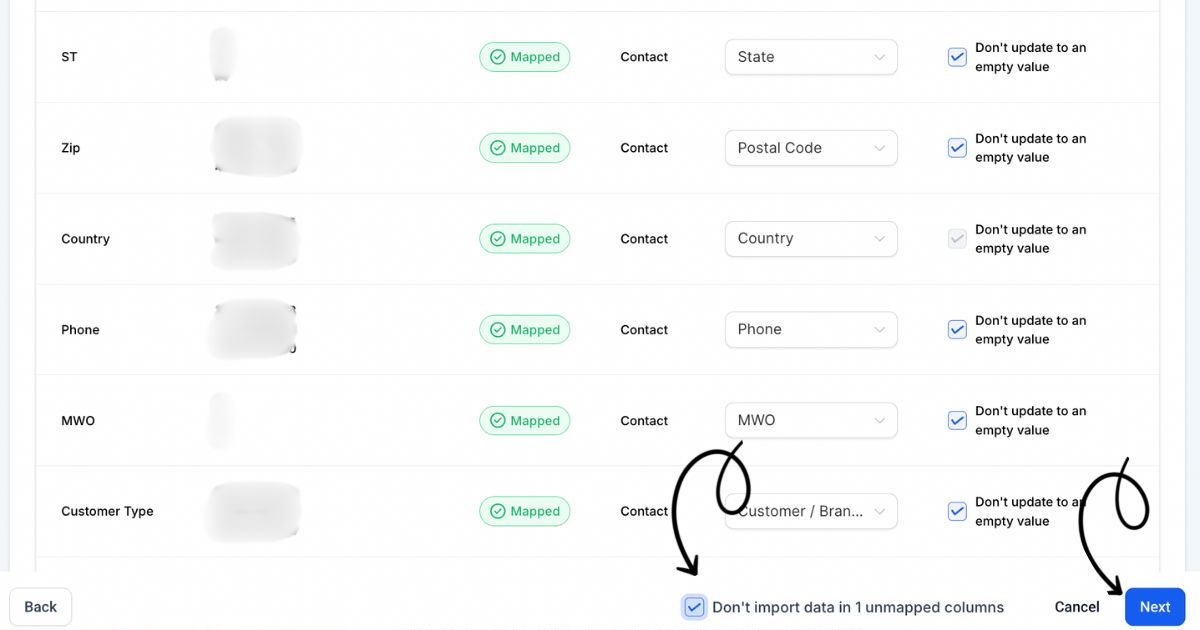
How to Avoid Importing Unmapped Columns:
Before clicking Next, check the box “Don’t import data in unmapped columns”if:
✅ You accidentally included a Young Living field you don’t want to import.
✅ You want to skip certain fields for existing contacts—like Young Living names—so your current Diamond Marketing data stays unchanged.
Reminder: All mapped columns will update for existing contacts!
4. Verify: Add Your Tags!
In the final step of importing, assign tags to this group of contacts:
✅ All Accounts Report: Tag "Downline"
✅ Personally Enrolled Report: Tag "Personally Enrolled"
✅ New Brand Partner Report: Tag "Brand Partner"
✅ New Customer Report: Tag "Personally Enrolled" and "New Customer"→ This adds them to onboarding!
Check out this lesson to set up onboarding first.
✅ New Brand Partner Report: Tag "Brand Partner" and "New BP"→ This adds them to onboarding!
Check out this lesson to set up onboarding first.
This step ensures your contacts are properly organized and receive the right automations! 🎉
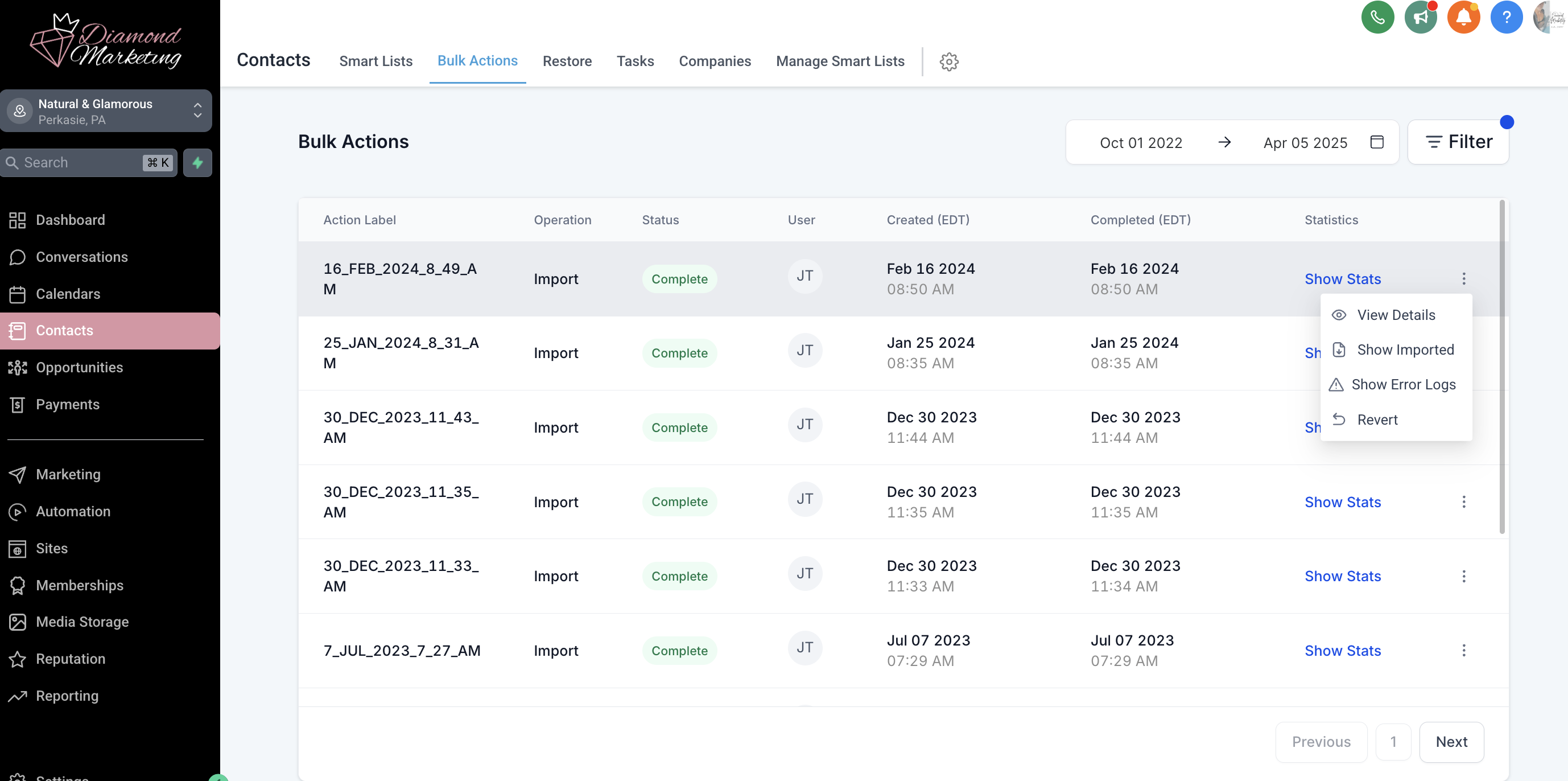
Bulk Actions:
Want to check the status of your import—or undo it entirely? Now you can!
Just head to the Bulk Actions section in the top menu of your Contacts tab
Click the three dots next to your import to:
View full import details
Check for any errors
Revert (undo) the entire import if needed
The Monthly Contact Update:
Why You Should Do the Key Imports Monthly: Keeping your contacts updated each month ensures your automations work seamlessly! Here’s why:
✅ Stay on Top of MWO (Months Without Order): Target members who are “about to go inactive” by sending them the Oily Refresh nurture sequence at 9 months without an order (or any timeframe you prefer!). This keeps them engaged with classes and special offers.
✅ Keep Loyalty Rewards Info Updated: Ensure your Loyalty Rewards reminders reach your contacts at the right time by updating process dates, contact details, and adding new subscribers.
✅ Refresh Your Tag Lists & Smart Lists: Add new personally enrolled members, brand partners, and downline customers to their correct tags—keeping your newsletter and email smart lists up to date and making it easy to filter your contacts.
✅ Seamlessly Onboard New Contacts: Import your new customers, new accounts (those that created a free account) and brand partners so they get plugged into the right workflows and resources from day one!
Welcome and Onboard your New Customers.
Welcome and Onboard New Account Holders (New Accounts who haven't ordered yet)
Welcome and Onboard New Brand Partners to add to your Brand Partner Onboarding
For help from a Virtual Assistant each month for this step, contact our recommended VA's who know Diamond Marketing!
Recommended Contact Import Order + Settings:
Yes, you can import contacts from other platforms—but it’s important to set yourself up for success!
Here's how:
Platforms like Project Broadcast often store contacts with only phone numbers, while platforms like Flodesk may have contacts with only email addresses.
Because of this, we highly recommend starting with your Young Living contact list, which typically includes
both email and phone number fields. This gives you the most complete contact records to build from.
Next: Update Your Contact Deduplication Settings
Go to Settings > Business Profile
Scroll to Contact Deduplication Preference
Set the following:
Email for “Find existing contacts based on”
Phone for “Second preference for search (Optional)”
With these settings in place, your import will search for matches using the email address first and then use the phone number second if no email is found. This helps prevent duplicates and ensures that future imports—whether they include only an email or only a phone number—still update the correct contact record.
When bringing in a contact list with only phone numbers, make sure to adjust your settings first:
Set “Find existing contacts based on” to Phone
Set “Second preference for search (Optional)" to Email
This way, the system will match phone numbers to any existing contacts during import and help prevent duplicates.
Complete Guide to Subscription Set Up:


Diamond Marketing is a customer care platform design for Young Living Brand Partners. All content provided by Diamond Marketing is the property of Diamond Marketing App LLC and cannot be copied or redistributed outside of Diamond Marketing. without prior consent.